
If you are here, you are probably new to the PRIZ Innovation Platform. Welcome. An account is free, and it takes less than a minute to create.
In this document, we’ll walk through signing up, the first-time onboarding you see after that, logging in, resetting a password, and the emails you should expect along the way.
Overview
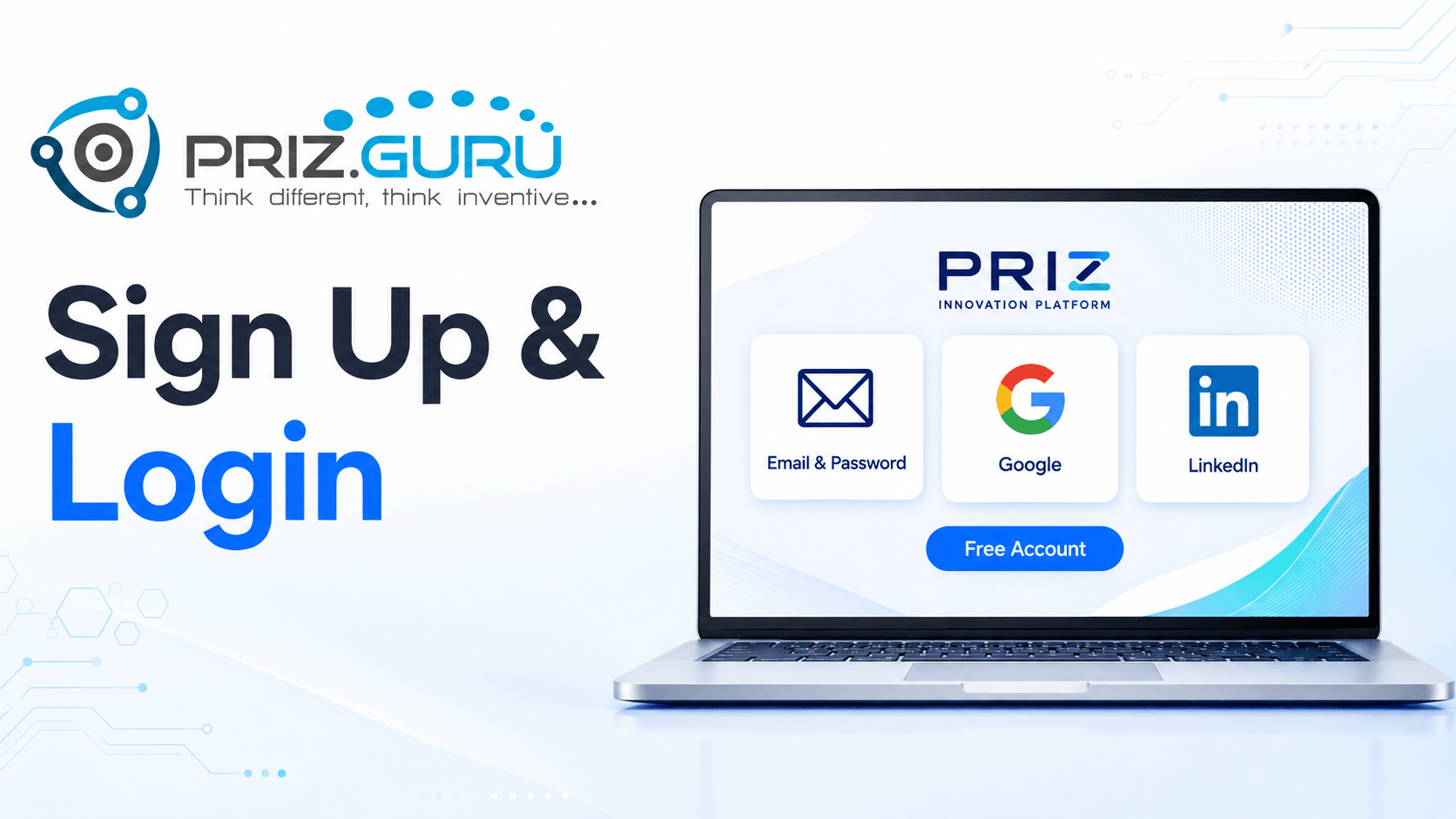
The platform supports three ways to sign up and to log in:
- Email & password
There is no difference in what you can do in PRIZ after you choose one. If you use email and password, you will have one more password to remember. If you use Google or LinkedIn, you authorize PRIZ to use that identity for authentication only.
We use personal information for authentication. For more details, see our Privacy Policy.
Sign up
To create an account, go to https://app.priz.guru/signup. You can also click Sign up from the login page, or Get Started Free on priz.guru.
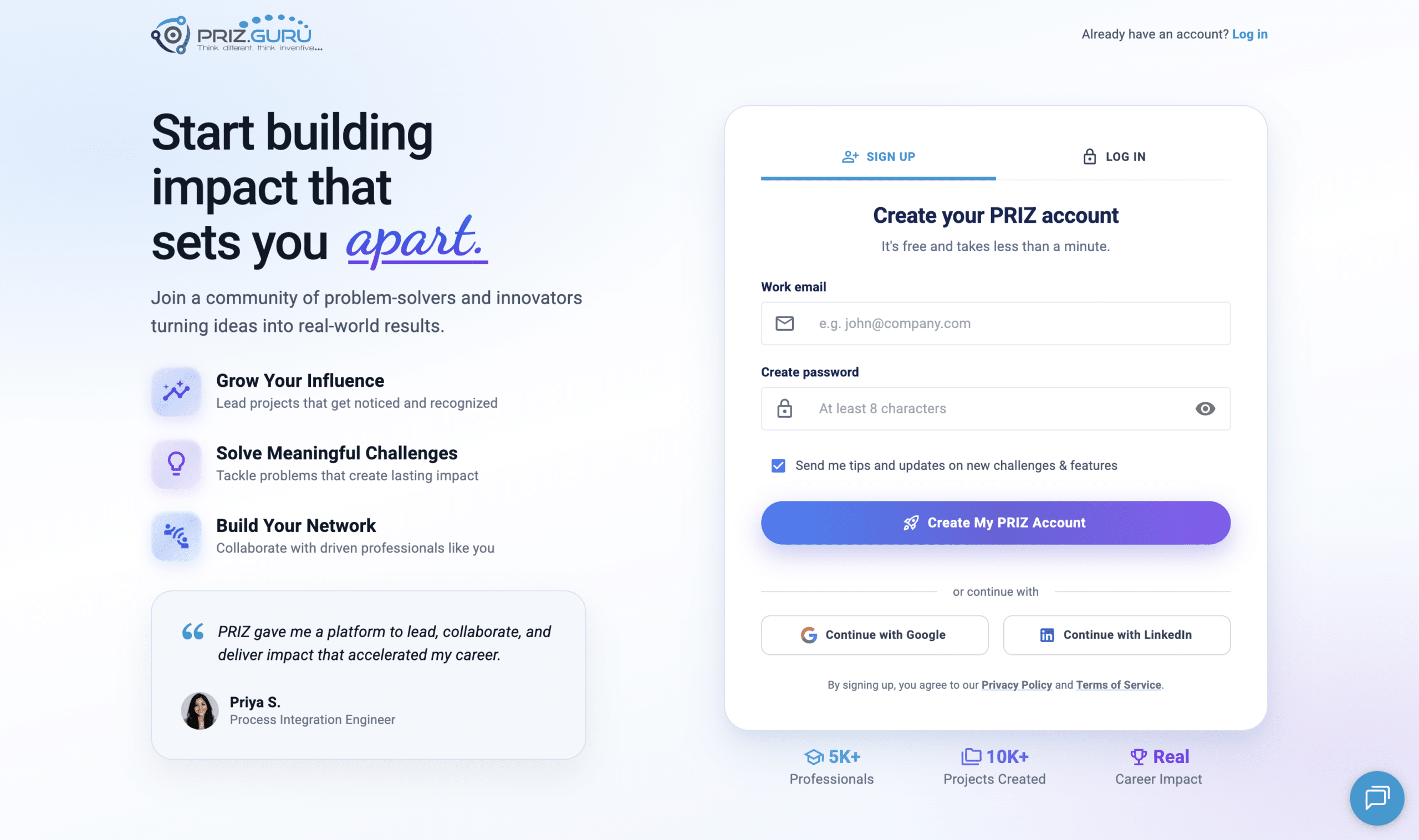
The page heading on the left is Start building impact that sets you apart. On the right, the form card has Sign up and Log in tabs.
Email & password
- Enter your Work email.
- Enter a Create password value. It must be at least 8 characters and contain letters and numbers. You can show or hide the password with the eye icon.
- Optionally, leave Send me tips and updates on new challenges & features checked. It is checked by default.
- Click Create My PRIZ Account.
By signing up, you agree to the Privacy Policy and Terms of Service.
PRIZ then creates your account and a default workspace named Personal. You are signed in immediately. You land on Projects & Tools, and the onboarding dialogs start.
Sign-up does not create a project yet, and it does not send the email-verification message automatically. You can request that later from your profile. See Emails you should expect.
Google or LinkedIn
Click Continue with Google or Continue with LinkedIn. Authorize PRIZ when the provider asks. After that, the rest is the same: the account is created, you land on Projects & Tools, and onboarding starts.
If you later try to log in with email and password, but you originally signed up with Google or LinkedIn, PRIZ will tell you to use the same provider. You can set a password later from Security & Privacy after you are signed in.
Onboarding after signup
The first time you sign up, PRIZ does not drop you into an empty product with no guidance. Two dialogs walk you through a profile and a first step. You can skip both. Skipping does not delete the account.
Complete your user profile
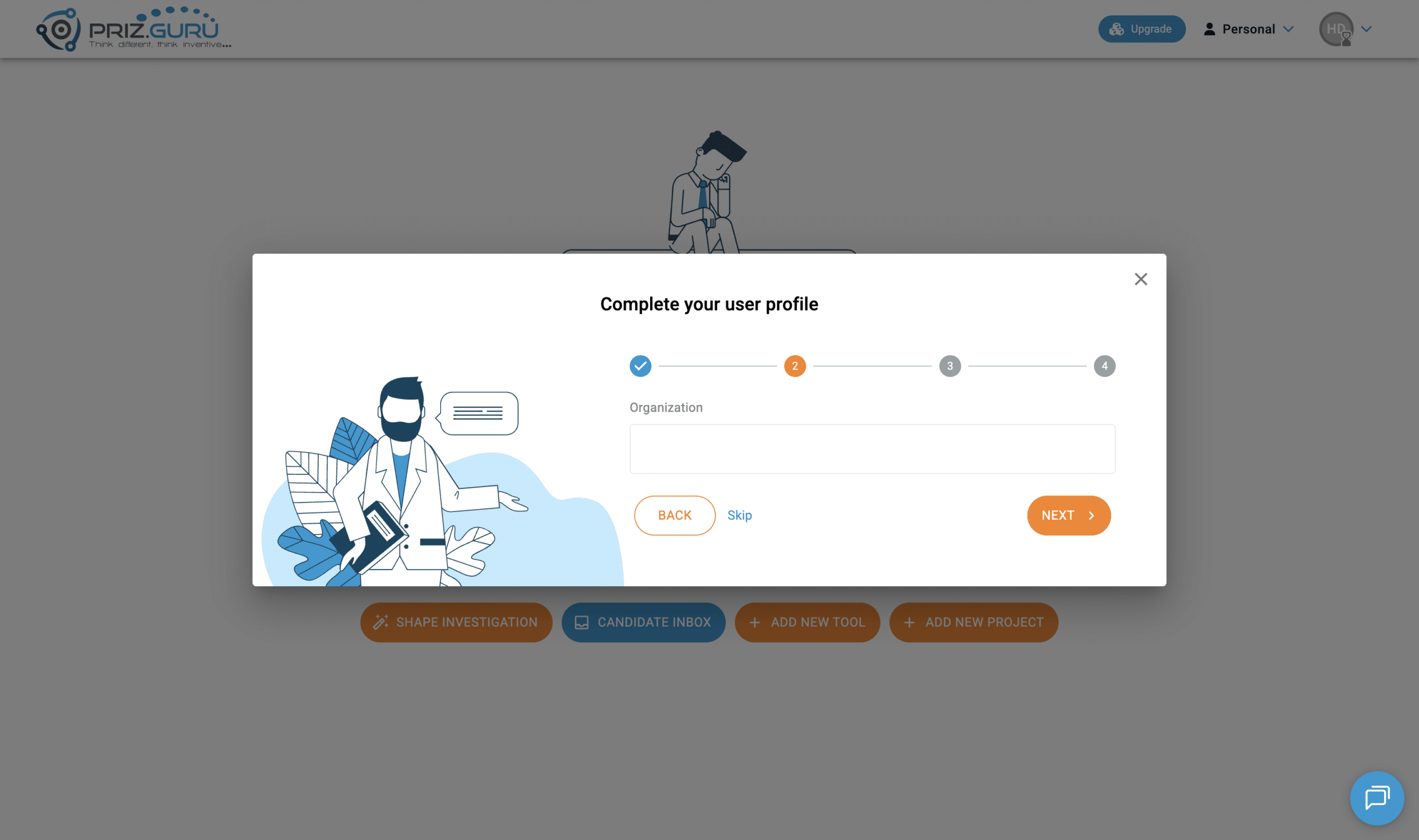
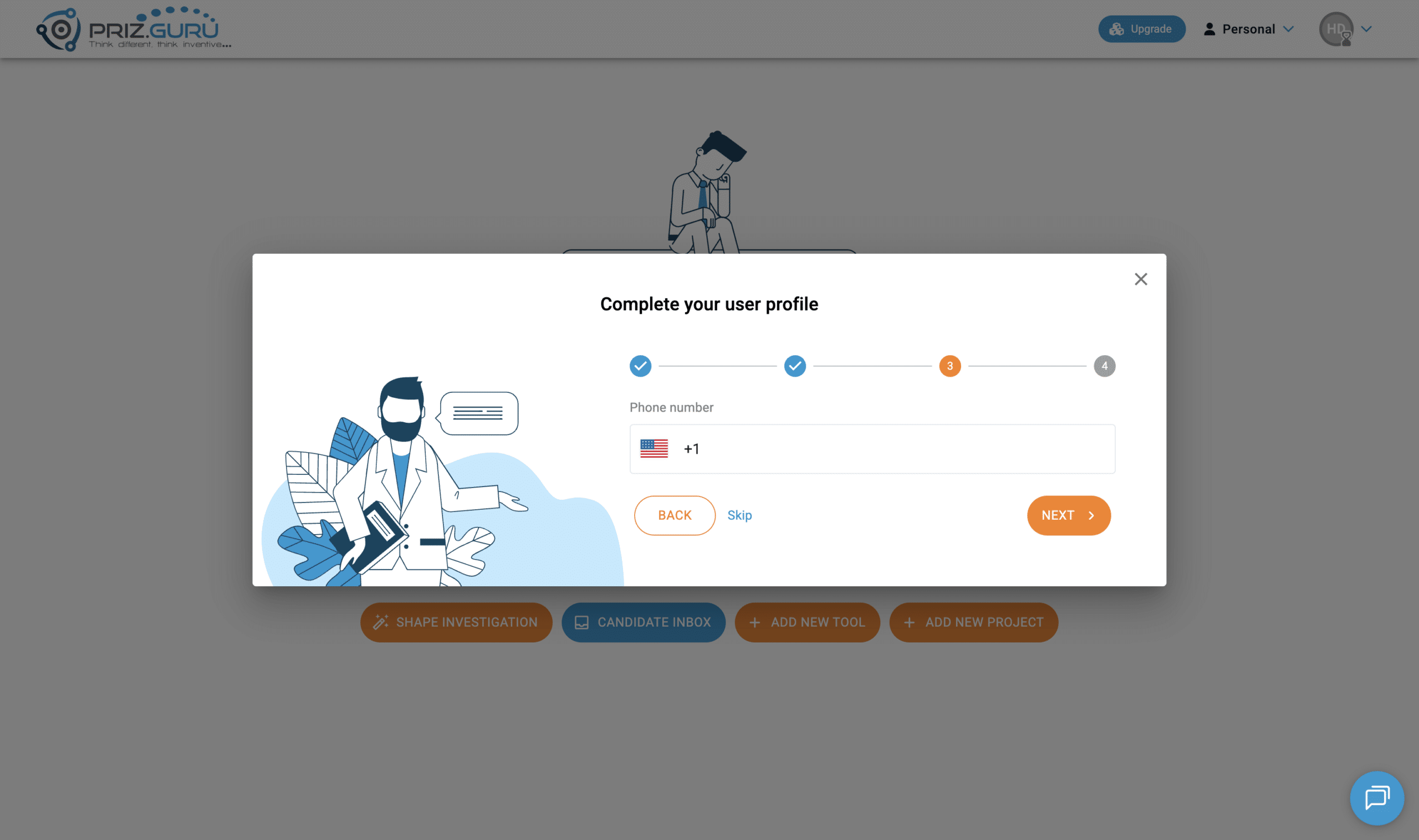
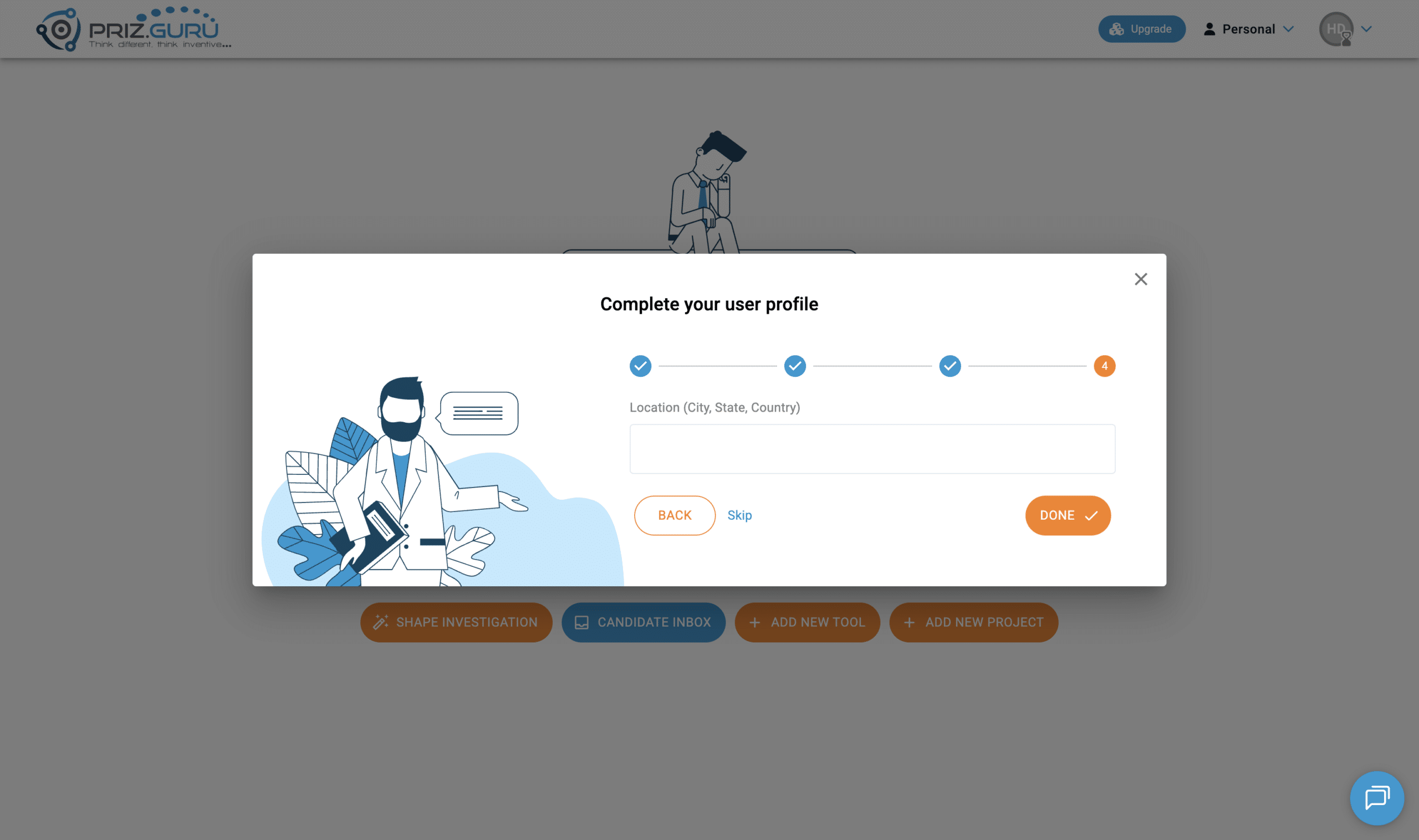
The first dialog is Complete your user profile. It has four steps. You can click Skip at any time, or close it with the X. Skipping marks the profile as complete so the dialog does not keep coming back.
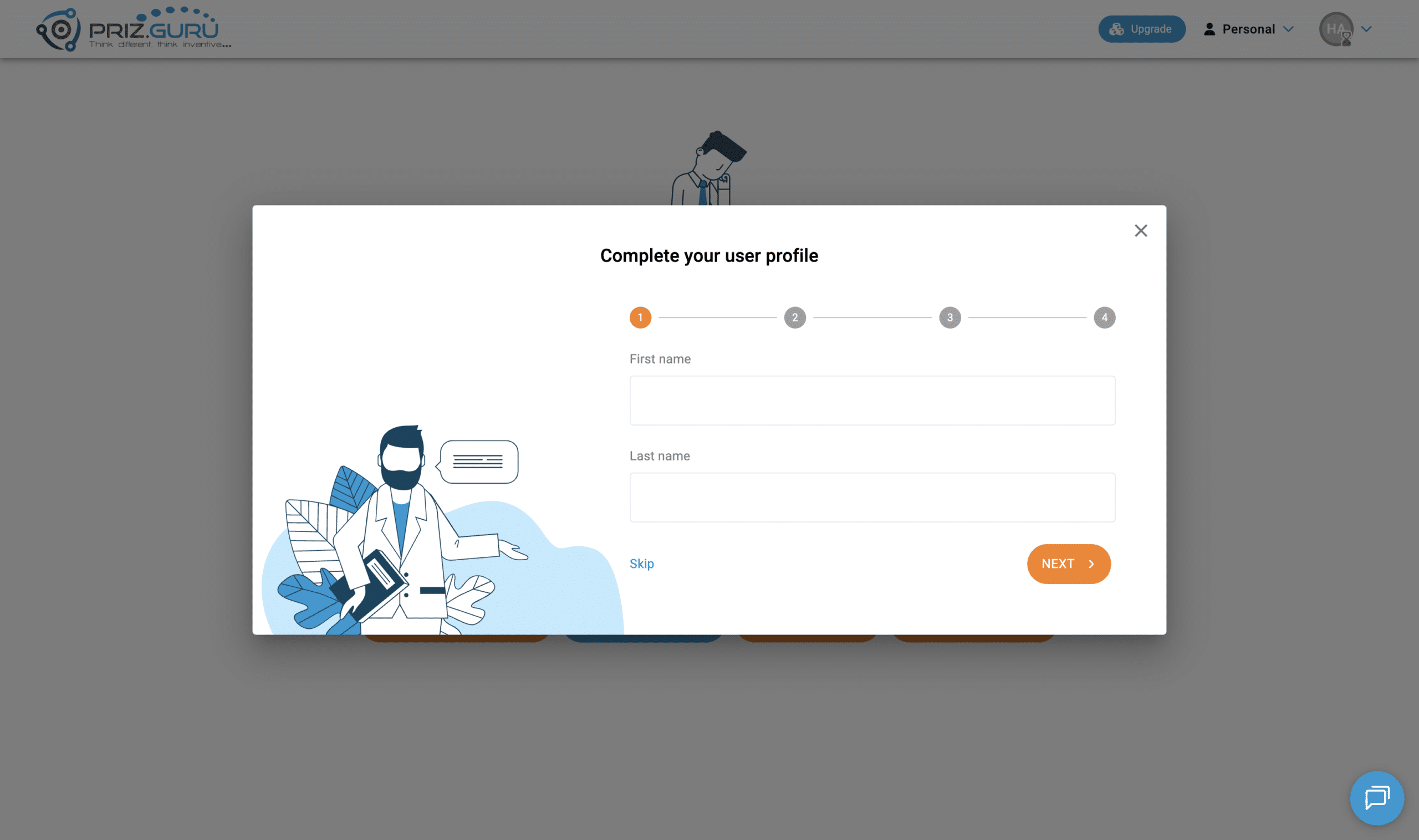
The four steps are:
- First name and Last name. Used in documentation PRIZ generates. Click Next.
- Organization. Shown on your profile in PRIZHub. You can leave it empty and click Next.
- Phone number. Includes a country code. You can leave it empty.
- Location (City, State, Country). Click Done to finish, or Skip / Back.
You can edit the same fields later under Personal Information in your profile, along with title, time zone, and photo.
You’re here to Make an Impact
After the profile dialog, PRIZ opens a welcome screen if you still have no projects. The heading is You’re here to Make an Impact! If you entered a name, it greets you with that name.
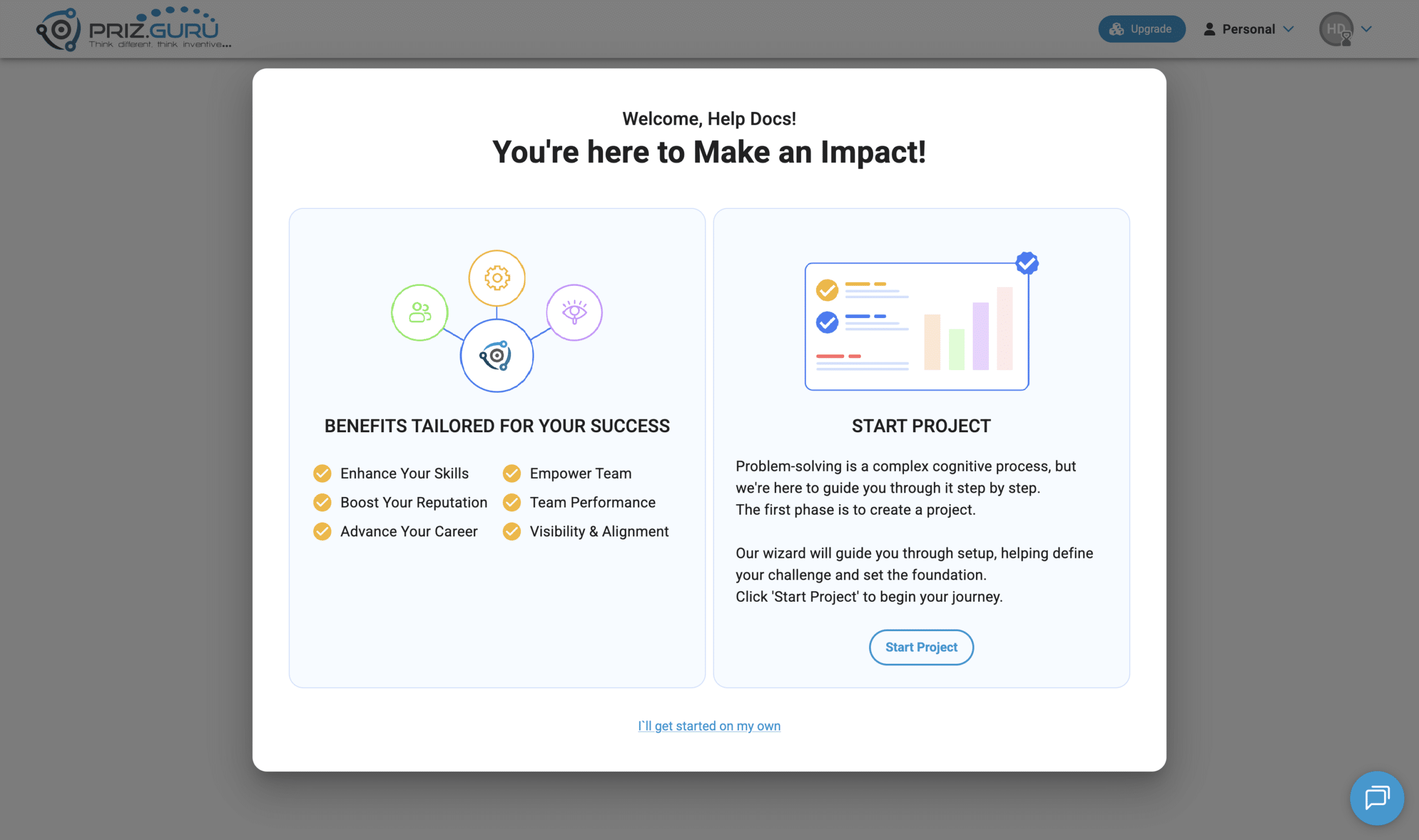
You have three choices:
- Use the left card, Benefits tailored for your success, to browse why teams use PRIZ. From there you can continue into creating a project.
- Click Start Project on the right card. PRIZ opens the first-project wizard.
- Click I’ll get started on my own to close the welcome screen and use Projects & Tools yourself.
Let’s Start Your First Project
If you click Start Project, PRIZ opens Let’s Start Your First Project. This is a four-step wizard: Industry, Department, Goal, and Launch.
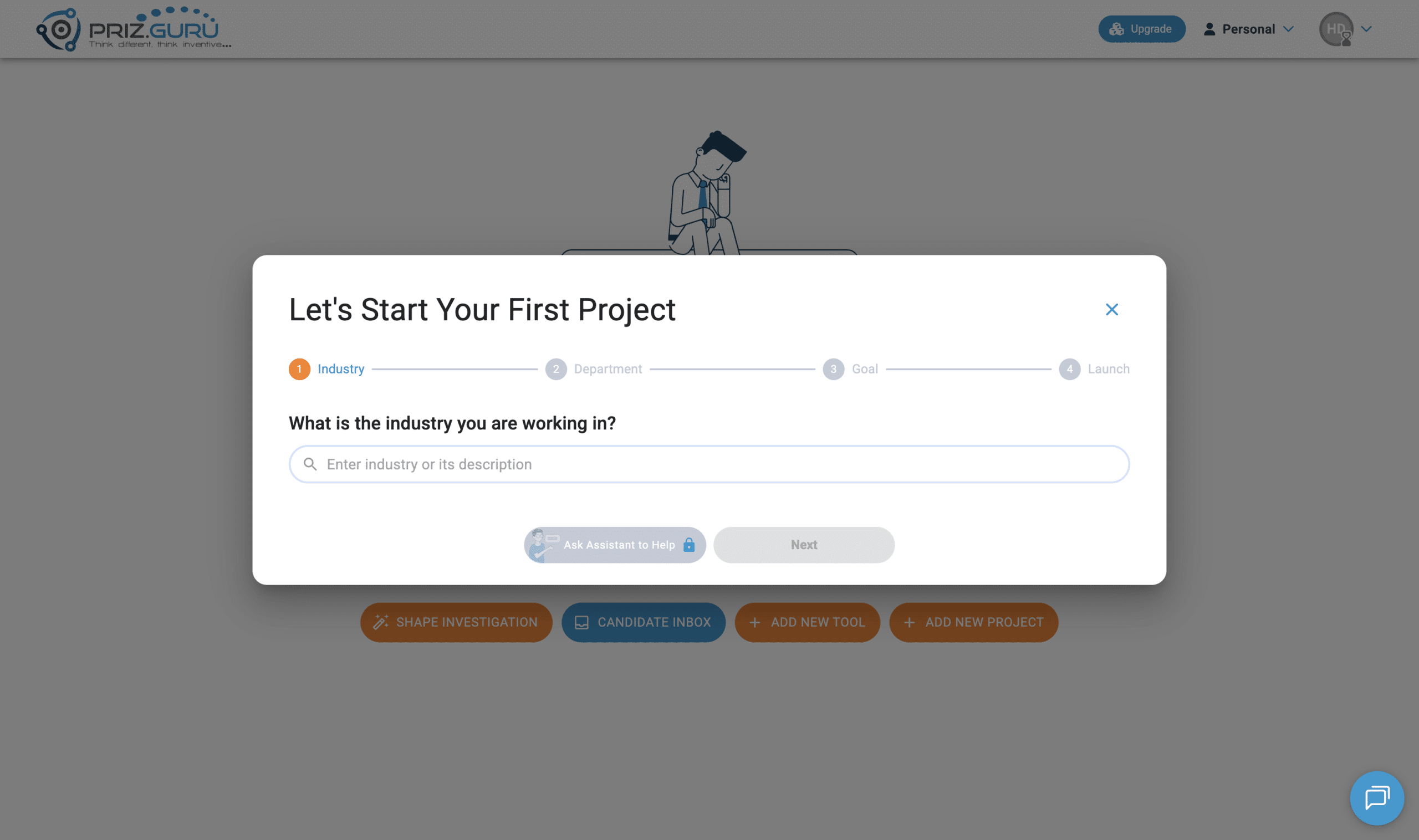
Enter the industry you work in, then continue through department and goal. You can close the wizard with the X if you are not ready. Closing it returns you to the welcome screen. Creating the project takes you into that project.
You can also start a project later with Add New Project on Projects & Tools. See Creating Projects for that flow.
Your workspace after onboarding
If you skip the wizard, you arrive on the empty Projects & Tools page in your Personal workspace.
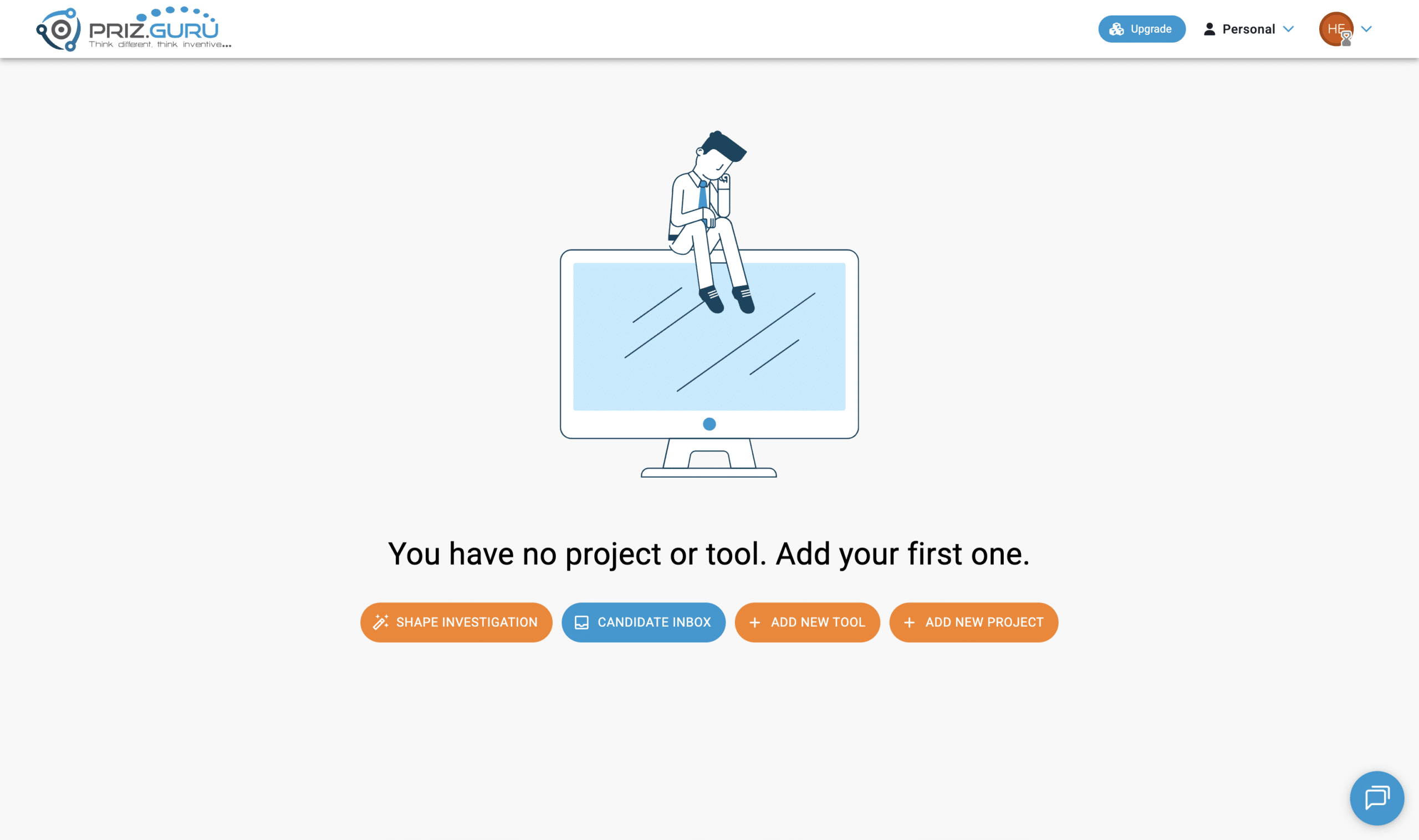
From here you can:
- Click Add New Project to create a project.
- Click Add New Tool to start a standalone tool.
- Click Shape Investigation or Candidate Inbox if those features are enabled for your workspace.
- Click Upgrade if you want a paid plan.
The welcome screen does not appear again after you skip it, or after you already have a project.
After that, you may briefly see Setting up your workspace with a spinner. This is PRIZ finishing the Personal workspace in the background. It usually closes on its own. If it does not, an admin may be taken to billing. That is not part of the usual first-time path.
Login
If you already have an account, go to https://app.priz.guru/login. You can also click Log in from the signup page.
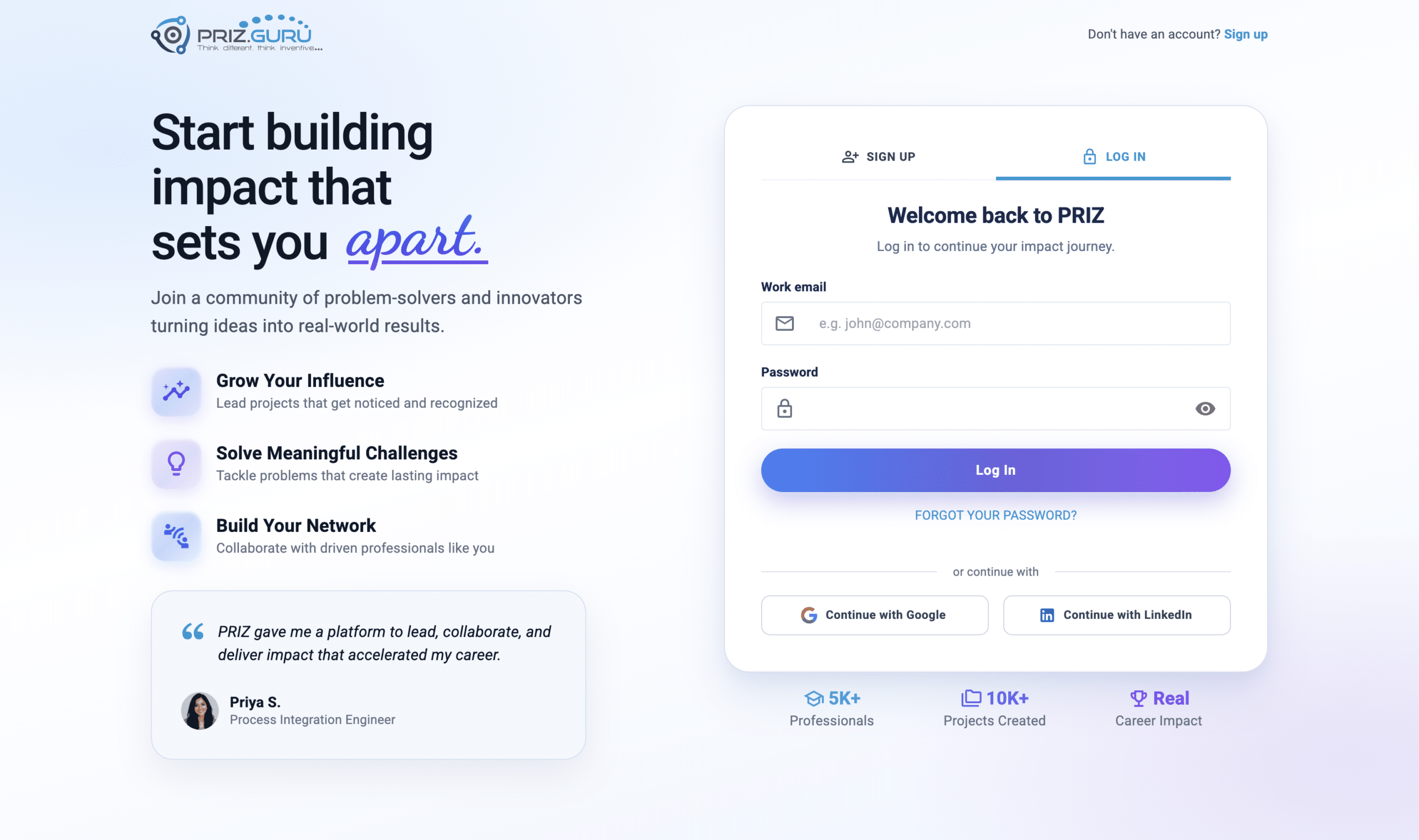
Email & password
- Enter your Work email.
- Enter your Password.
- Click Log In.
After a successful login, you return to the platform. If you were headed somewhere specific, PRIZ takes you there. Otherwise, you land on Projects & Tools. The signup onboarding dialogs do not run again.
If the email or password is wrong, PRIZ asks you to sign up if you are not registered yet. It also reminds you that you may have registered with Google or LinkedIn.
Google or LinkedIn
Click Continue with Google or Continue with LinkedIn and finish the provider prompt. Use the same provider you used when you signed up.
Forgot your password
On the login page, click Forgot your password? That opens https://app.priz.guru/request-password-reset.
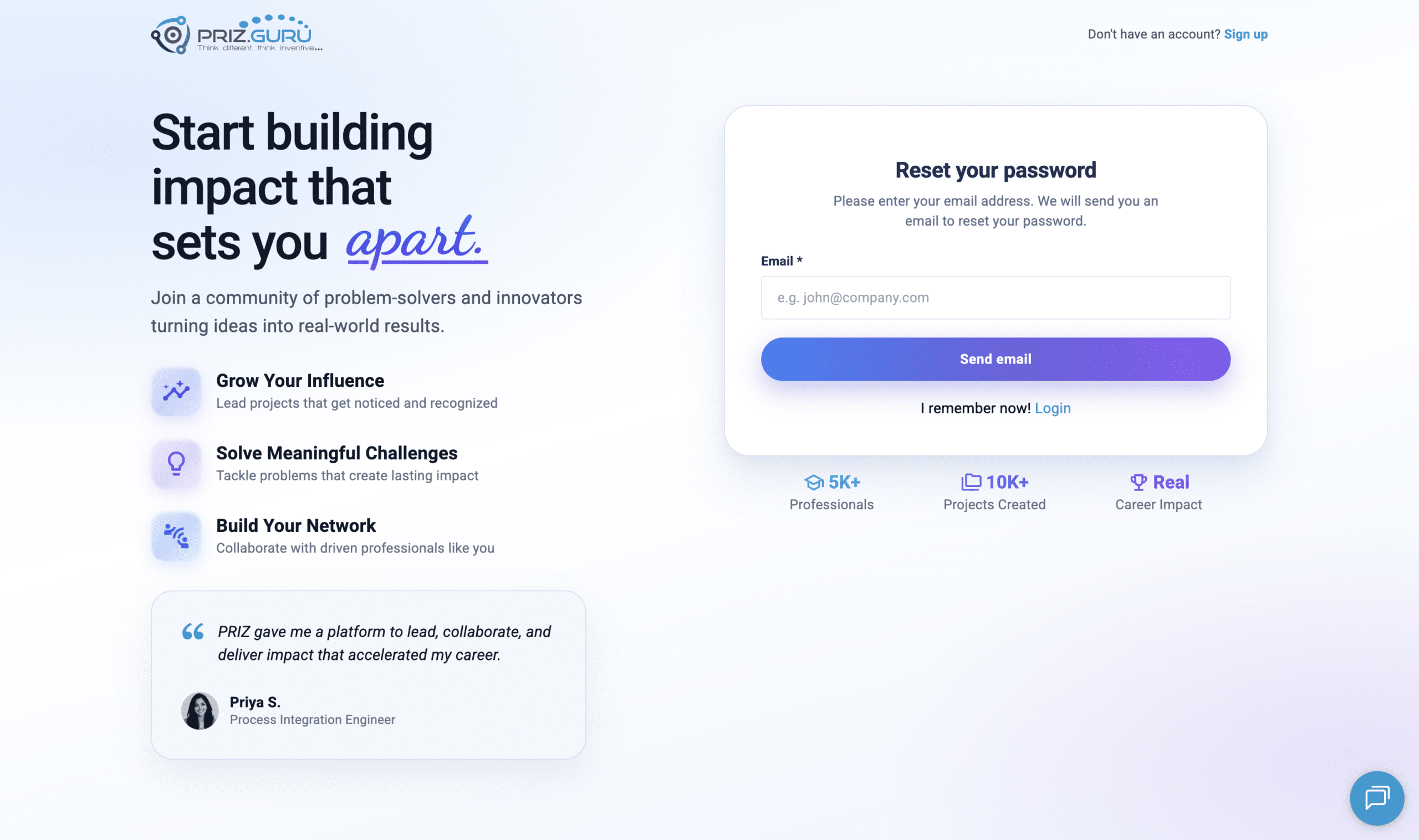
- Enter the email for the account.
- Click Send email.
- Open the reset message and follow the link to choose a new password.
- Return to login with the new password.
Password reset applies to email-and-password accounts. If you only signed up with Google or LinkedIn, log in with that provider instead.
If you remember the password, click I remember now! Login.
Emails you should expect
PRIZ does not send a verification email the moment you click Create My PRIZ Account. You can use the product right away. Email verification is a separate step from your profile.
Email verification
Open your avatar menu, go to the profile, then Personal Information. If the address is not verified, PRIZ shows: This email is not verified. Click Send verification email.
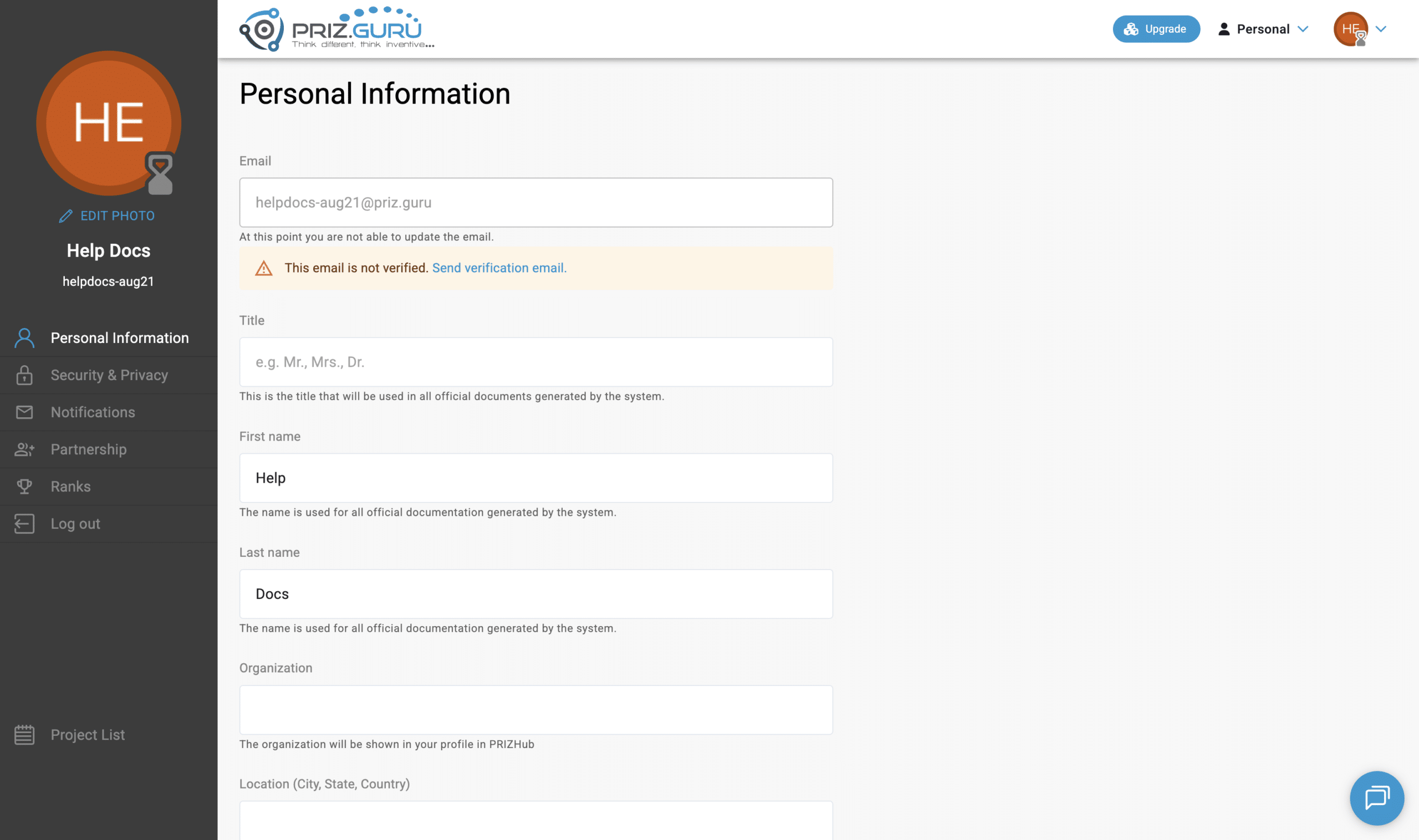
You should then receive a message with the subject Email Verification | PRIZ Guru.
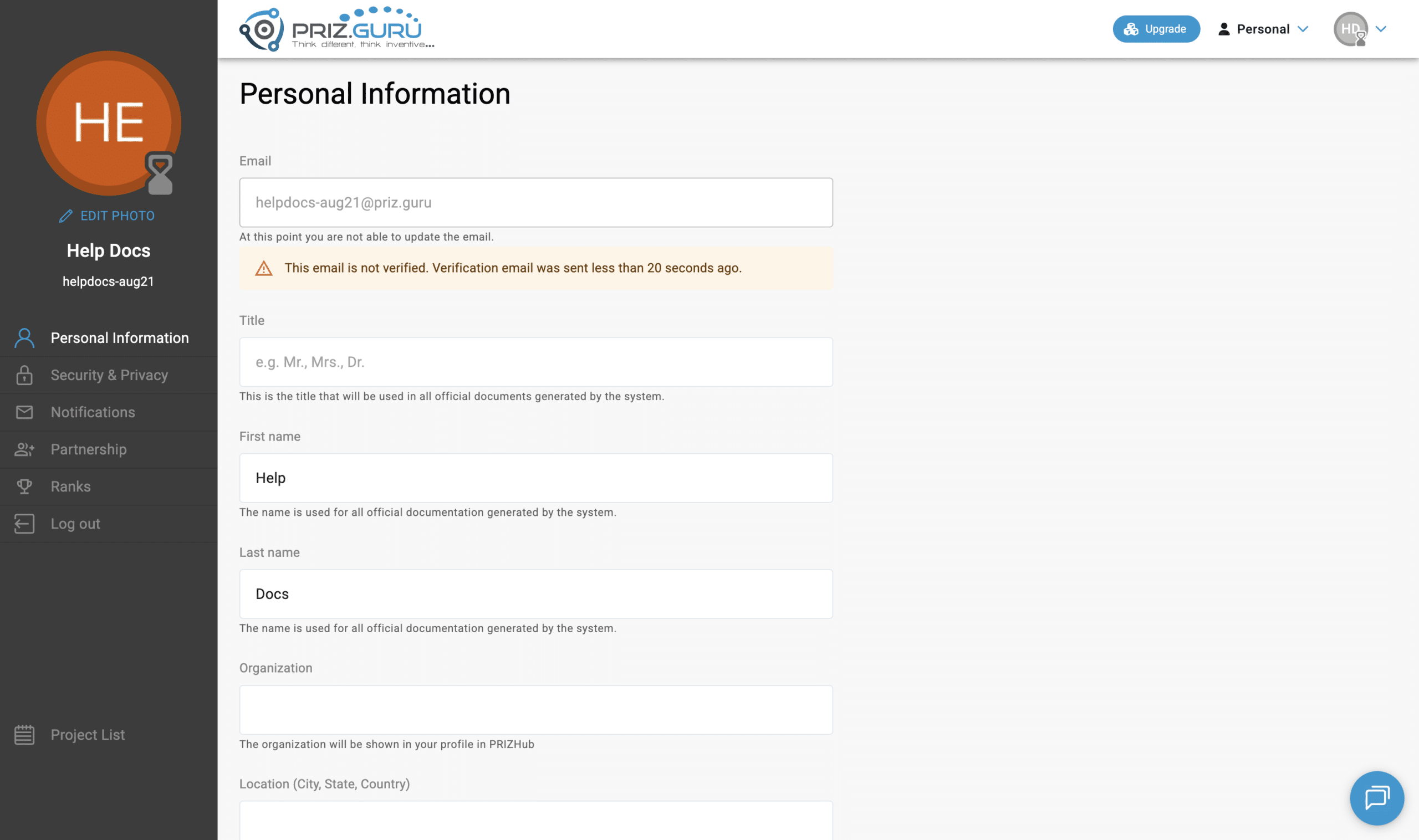
Open the email and follow the link. The link goes to PRIZ at /verify-email and is valid for one day. After you click it, PRIZ verifies the address and returns you to the platform. The warning on Personal Information then goes away.
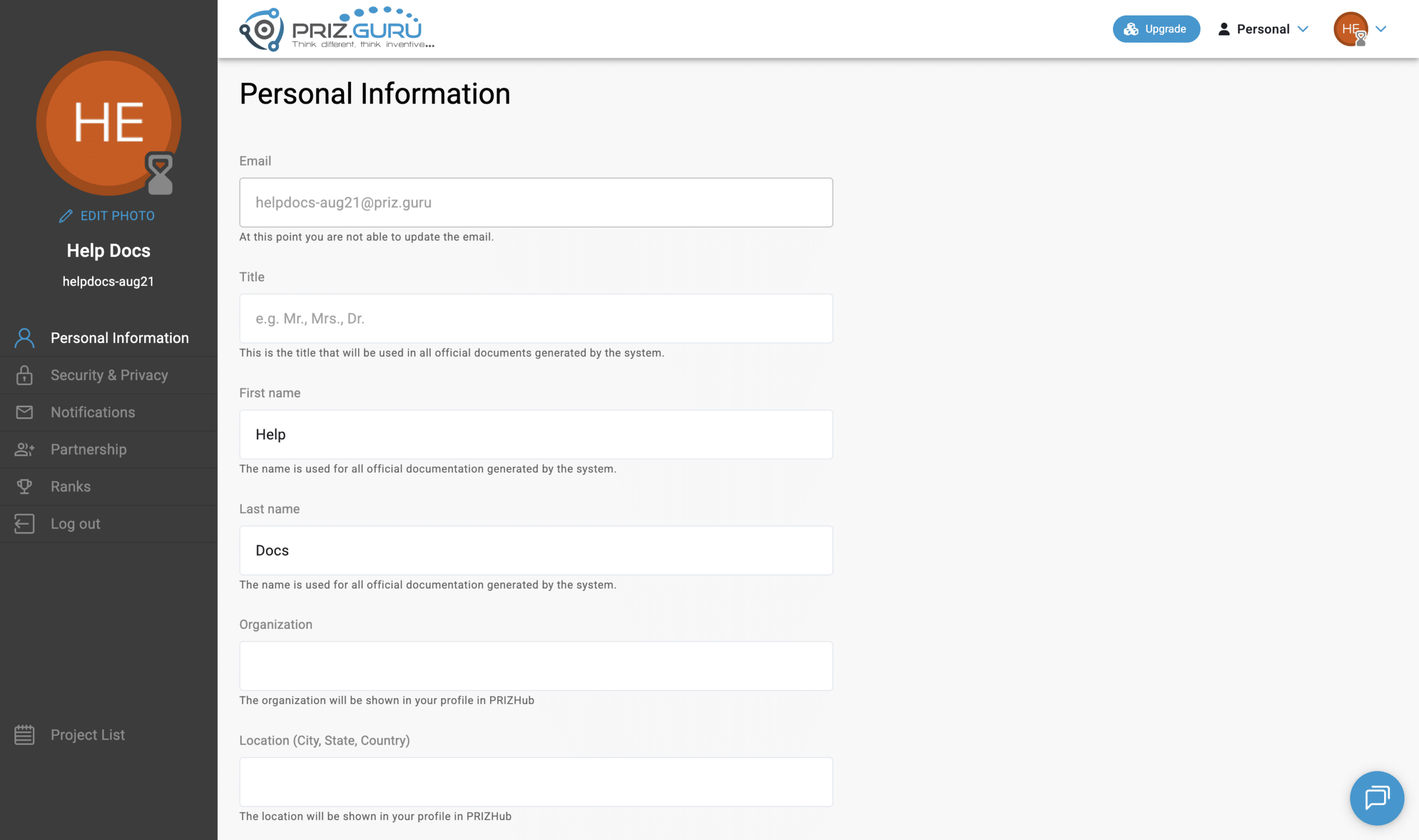
You can keep using PRIZ while the email is unverified. Verification matters for trust and for some notifications.
Password reset
If you click Send email on Reset your password, you will receive a reset message from the sign-in service PRIZ uses. Follow the link in that email to set a new password, then log in.
Tips and updates
New accounts are added to the PRIZ tips-and-updates list. You may receive occasional product emails after signup. You can manage notification preferences later in Notifications in your profile.
Emails this flow does not send
- Signing up does not send a workspace invitation. Invitation emails are sent only when someone invites you into a workspace.
- Signing up does not send a project or meeting invitation.
- Google and LinkedIn sign-in may also send their own provider security emails. Those come from Google or LinkedIn, not from PRIZ.
Tips
- Use a work email you can open. You will need it to verify the account and to reset a password.
- Complete the profile name if you want documents and greetings to use your real name. You can skip the rest.
- You can skip onboarding and still create a project later with Add New Project.
- Log in with the same method you used to sign up.
- If you expected a verification email right after sign-up and did not get one, open Personal Information and click Send verification email.
That’s it. I hope it’s clear and easy.
P.S. Please let us know if you require any assistance.