

Defining the right problem is half the solution. The problem statement is where you move from project background to a clear problem to solve — so your team does not spend time treating symptoms.
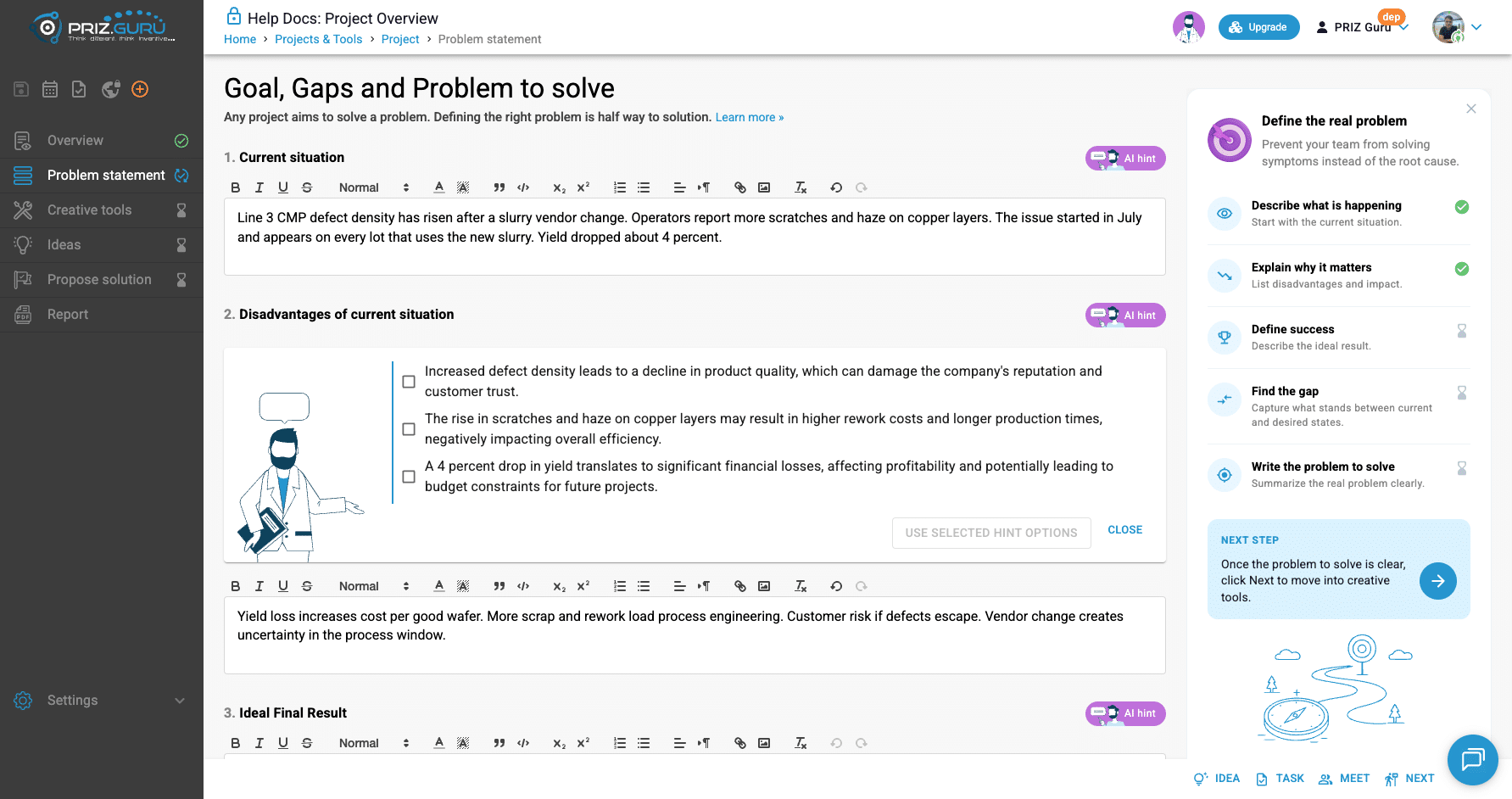
In the sidebar, the stage is labeled Problem statement. On the page, the heading is Goal, Gaps, and Problem to solve. The one-liner under it is: Any project aims to solve a problem. Defining the right problem is halfway to a solution. Changes autosave as you type. There is no separate Save button.
This article walks through the five sections, AI hints, and the guidance checklist. For the full project map, see Project Structure. For background and Overview AI feedback (needed before Problem statement AI hints work well), see Project Overview.
Sign Up & Login
This document assumes you have already registered, logged in, and created a project. If you need help with those steps, see Sign Up & Login Instructions and Creating Projects.
What you see on this page
Open Problem statement from the left menu, or click Next from Overview. You get five numbered sections and a right-hand panel titled Define the real problem.
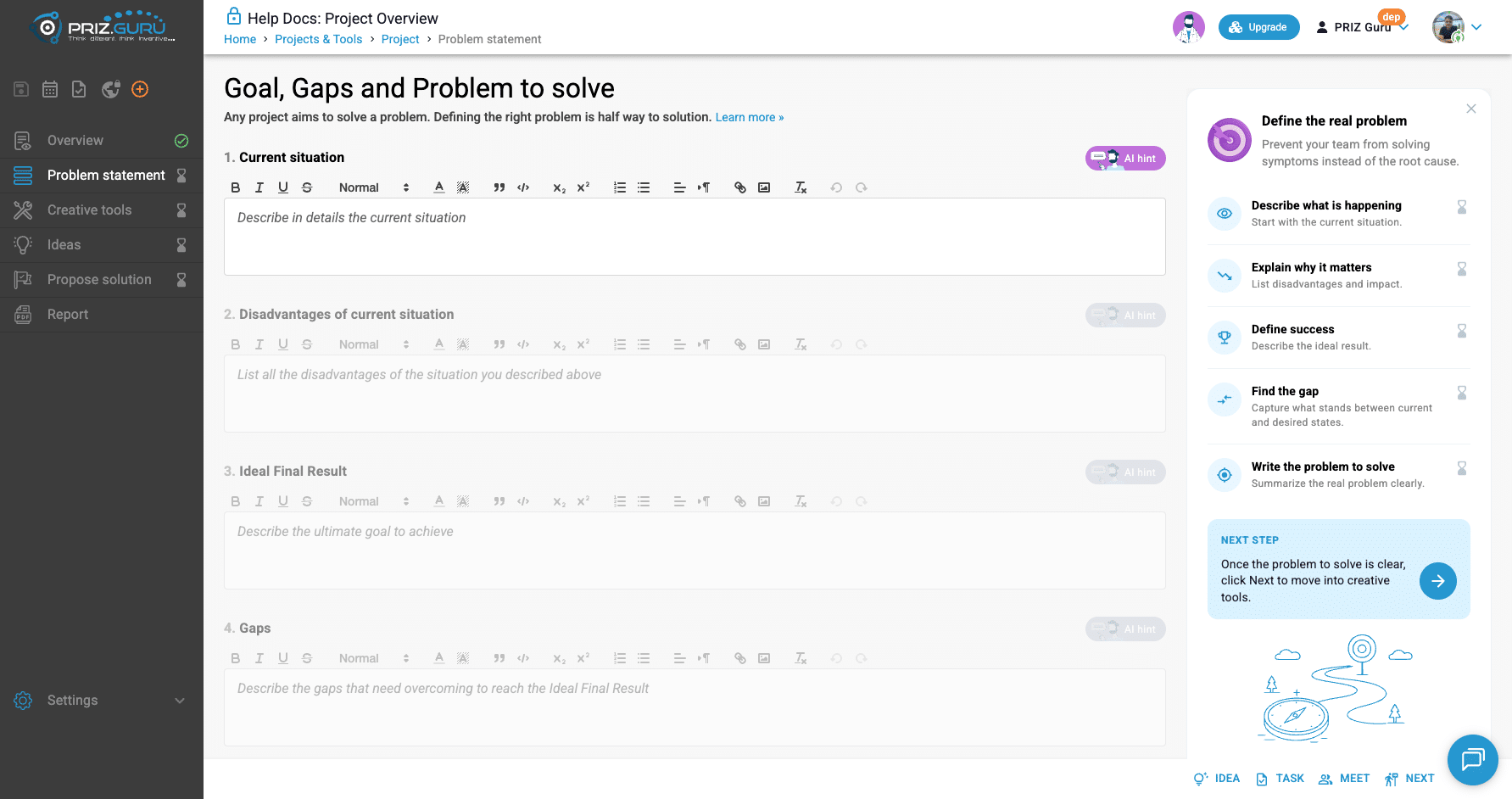
The footer has Idea, Task, Meet, and Next. Next opens Creative tools. Learn more » links to this knowledge-base article.
Before AI hints work
You can type Current situation without Overview background. AI hint buttons need more. For any section’s AI hint, PRIZ checks, in order:
- Project background exists on Overview
- Background completeness is at least 30% (from Overview AI feedback)
- Previous Problem statement sections already have content (for steps after the first)
If something is missing, hover the disabled AI hint button. Tooltips you may see include Project background is required, Project background must have at least 30% completeness, Current situation description is required, and similar messages for later sections.
Write Overview background and run AI feedback first if you want hints. Details: Project Overview.
How sections unlock
Sections unlock one after another. Later editors stay inactive (dimmed) until the previous field has content:
- Current situation — always available when you can edit
- Disadvantages of current situation — after Current situation
- Ideal Final Result — after Disadvantages
- Gaps — after Ideal Final Result
- Problem to solve — after Gaps
You can still open Creative tools with Next before every section is filled. Completing all five is what turns the sidebar indicator green.
Define the real problem
The guidance panel subtitle is: Prevent your team from solving symptoms instead of the root cause. The checklist matches the five sections:
- Describe what is happening — Start with the current situation.
- Explain why it matters — List disadvantages and impact.
- Define success — Describe the ideal result.
- Find the gap — Capture what stands between current and desired states.
- Write the problem to solve — Summarize the real problem clearly.
Items show an hourglass until that section has content, then a check. NEXT STEP says: Once the problem to solve is clear, click Next to move into creative tools. When all five are filled, the arrow is emphasized.
Dismiss with Close guide. Restore with the rocket Show guide control (desktop).
1. Current situation
Describe what is happening now — the visible issue or failure in the system or process. The placeholder is Describe in details the current situation.
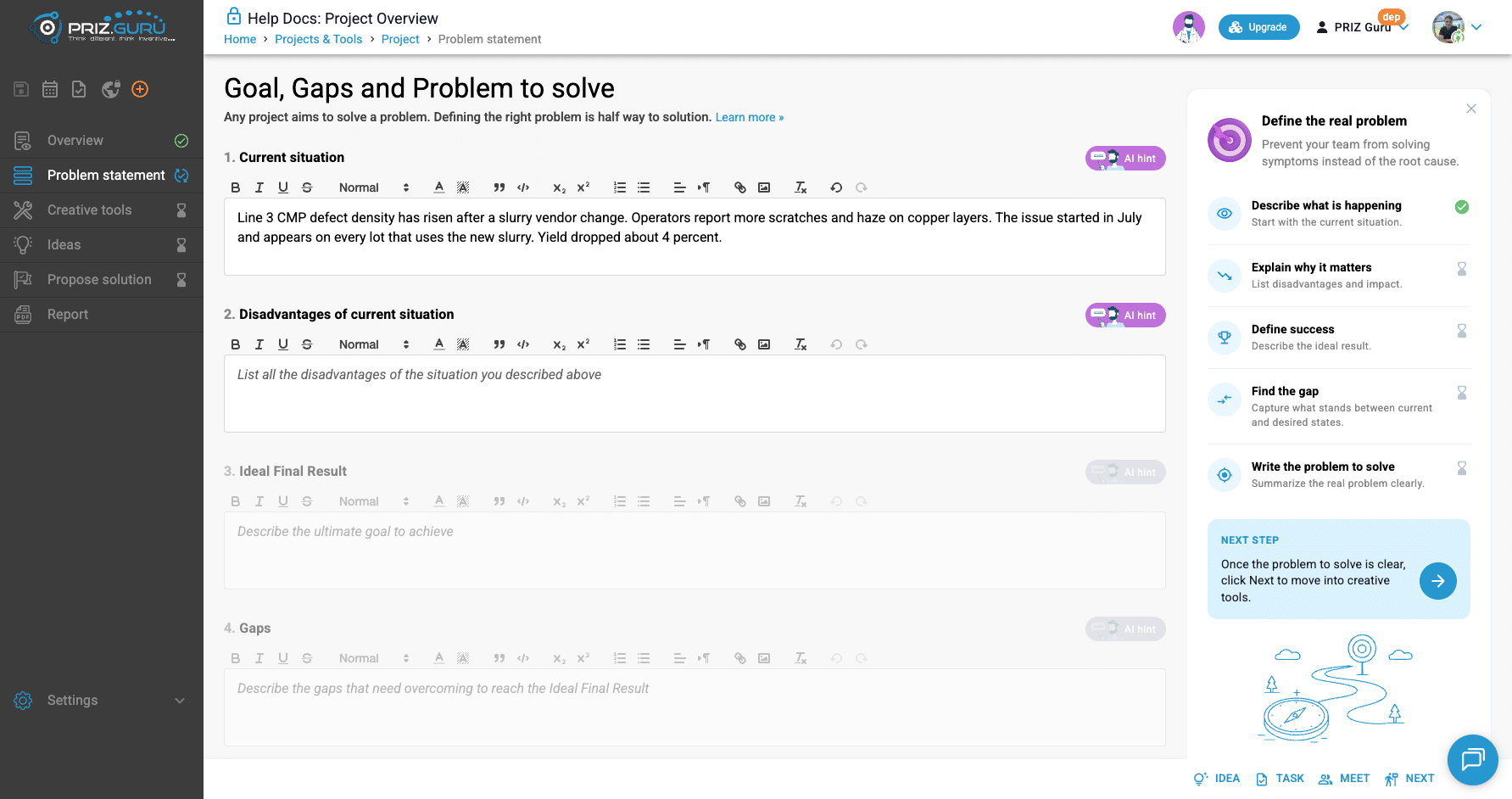
Use enough detail for someone who was not there: what changed, when it started, what you observe, and who is involved. You can refine later; autosave keeps your work.
2. Disadvantages of current situation
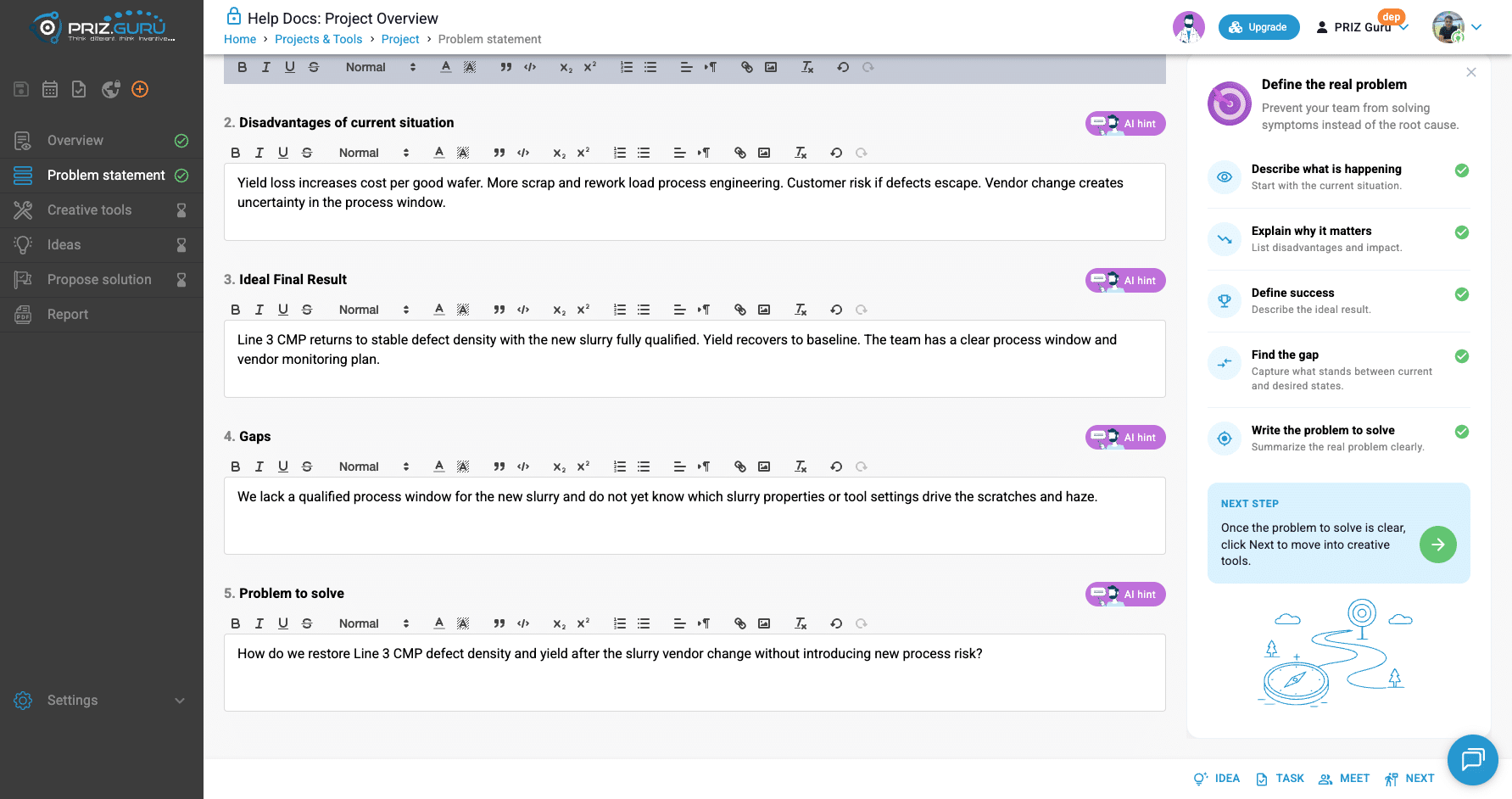
List the negative impacts of that situation. The placeholder is List all the disadvantages of the situation you described above. Think about yield, cost, customers, safety, schedule, and team load — whatever applies.
You do not need an exhaustive list on the first pass. You can return and edit after Ideal Final Result and Gaps sharpen the picture.
3. Ideal Final Result
Describe the desired end state if the problem were resolved well. The placeholder is Describe the ultimate goal to achieve. Ideal Final Result (IFR) is the target you are steering toward — not a solution idea yet.
4. Gaps
Capture what stands between the current situation and the Ideal Final Result. The placeholder is Describe the gaps that need overcoming to reach the Ideal Final Result. Gaps are obstacles, missing knowledge, or missing capability — not the full solution plan.
5. Problem to solve
Summarize the real problem in one clear statement. The placeholder is Outline the problem to solve to move closer to the Ideal Final Result or the desired goal. Prefer one focused problem at a time so creative tools stay directed.
Using AI hints
Each section has an AI hint button. Hints open as an inline panel under that section (not a separate Overview-style dialog). You can Retry or Close.
Hint style depends on the section:
- Current situation — text suggestion. Use Use this hint to apply it into the editor.
- Disadvantages and Gaps — checkbox options. Select one or more, then Use selected hint options.
- Ideal Final Result and Problem to solve — radio options. Pick one, then Use selected hint option.
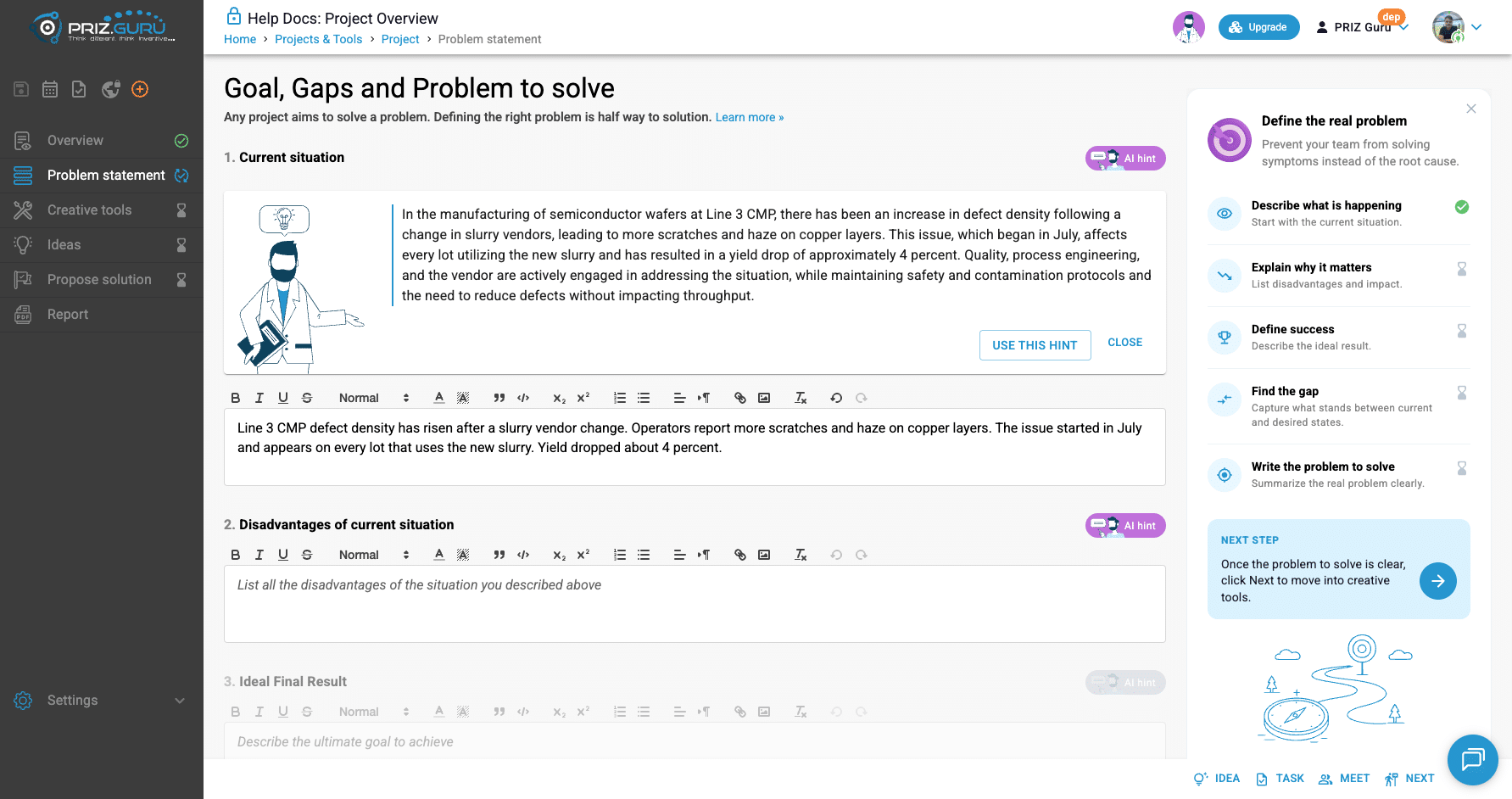
Treat hints as starting points. Edit them so they match your facts. The problem statement does not use the Overview-style AI feedback completeness chip on these fields.
Footer Idea, Task, Meet, and Next
While you work on the problem statement, you can still:
- Idea — record an idea
- Task — create a task
- Meet — schedule a meeting
- Next — move to Creative tools
There is no Back button on this page. Use the sidebar or breadcrumbs to return to Overview.
When Problem statement is complete
The sidebar indicator turns to a check when all five fields have content. It does not require Overview completeness or AI scores. Tooltips you may see:
- Awaiting for problem statement — nothing filled yet
- Awaiting for: followed by the missing section names
- Problem statement completed — all five filled
Read-only projects
If the project is archived, finalized, in certification review, certified, or you are not on the team, Problem statement is read-only. Editors, AI hints, and footer Idea / Task / Meet are disabled. The same banners appear as on Overview (Archived, Readonly, Finalized, Review, Certified).
Tips
- Finish Overview background and AI feedback (≥30%) before relying on AI hints here.
- Write Current situation in your own words first; use AI hint to refine, not replace, your knowledge.
- Keep Problem to solve focused on one problem so Creative tools stay useful.
- The checklist is guidance. Next is available even if some sections are still empty.
That’s it. I hope it’s clear and easy.
P.S. Please let us know if you require any assistance.