

Every project needs a clear starting point. Project Overview is where you gather high-level context before you define the problem: title, industry, department, goal, team, files, and project background.
After you click Launch in the project wizard, PRIZ opens Overview. Changes autosave. There is no separate Save button. The right-hand panel is guidance, not a lock — you can still open Problem statement from the sidebar or from Next whenever you want.
This article walks through Overview in detail. For the full project map (sidebar stages, shortcuts, footer across the whole project), see Project Structure. For creating the project itself, see Creating Projects.
Sign Up & Login
This document assumes you have already registered, logged in, and created a project. If you need help with those steps, see Sign Up & Login Instructions and Creating Projects.
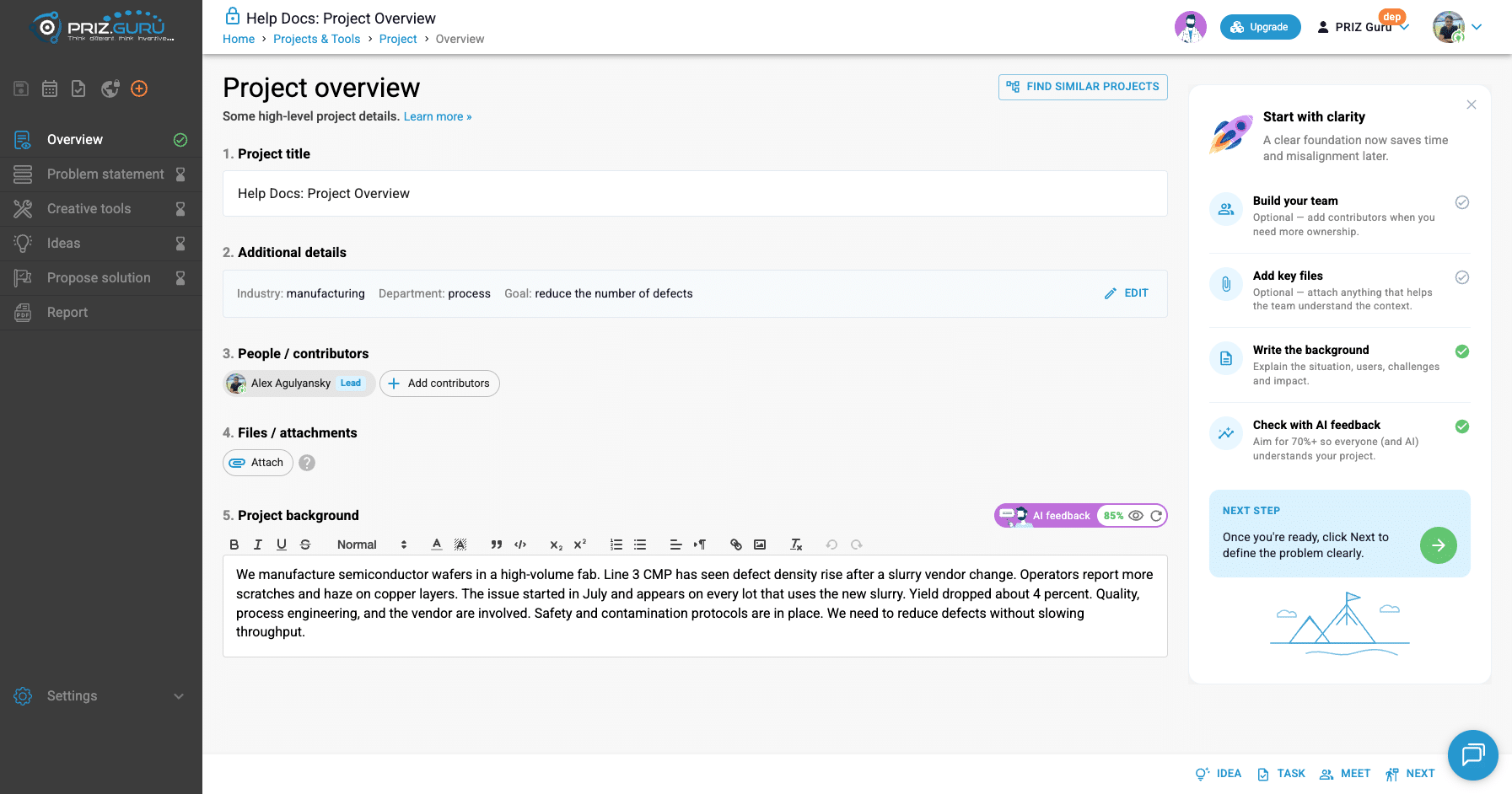
What you see right after Launch
The page title is Project overview. The subtitle is Some high-level project details. The page is numbered into five sections.
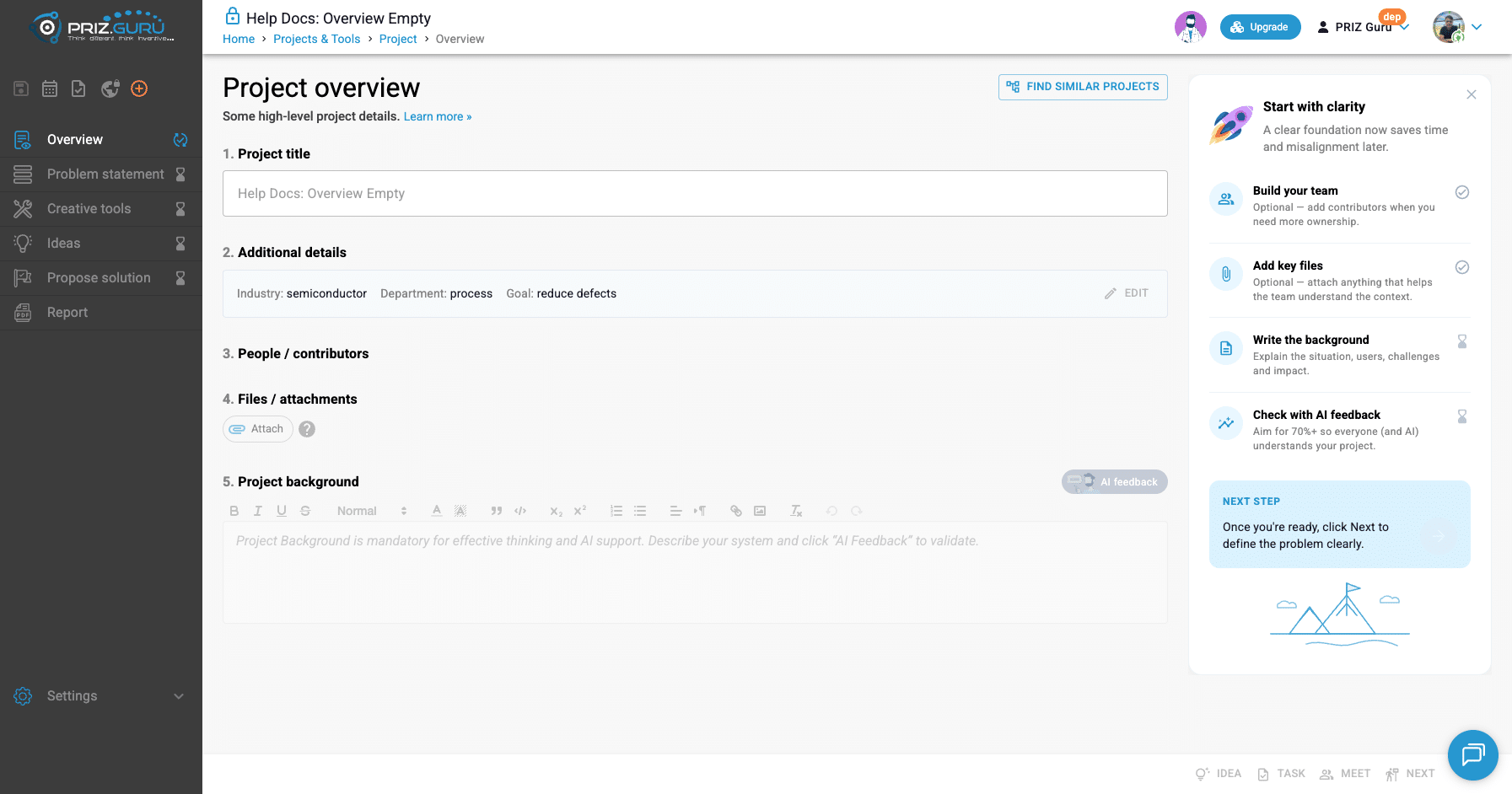
On the right, Start with clarity lists what still helps before you move on:
- Build your team — optional.
- Add key files — optional.
- Write the background — required for thinking and AI support.
- Check with AI feedback — aim for 70%+ in the guidance copy; the system treats 30%+ as enough for progress.
At the bottom of that panel, NEXT STEP says: Once you’re ready, click Next to define the problem clearly. The footer also has Idea, Task, Meet, and Next. Next goes to Problem statement.
If similar-project search is enabled for your workspace, Find similar projects appears in the title row.
1. Project title
The title field sits at the top of the page. Edit it inline. The minimum length is 3 characters. Changes autosave as you type.
The same title also appears in the header next to the private/public lock.
2. Additional details
Industry, department, and goal usually arrive from project creation. When they are filled, Overview shows a summary line: Industry:, Department:, and Goal:, with an Edit button.
If they were empty, you would see: Add industry, department, and current goal to give more context. and an Add button instead of Edit.
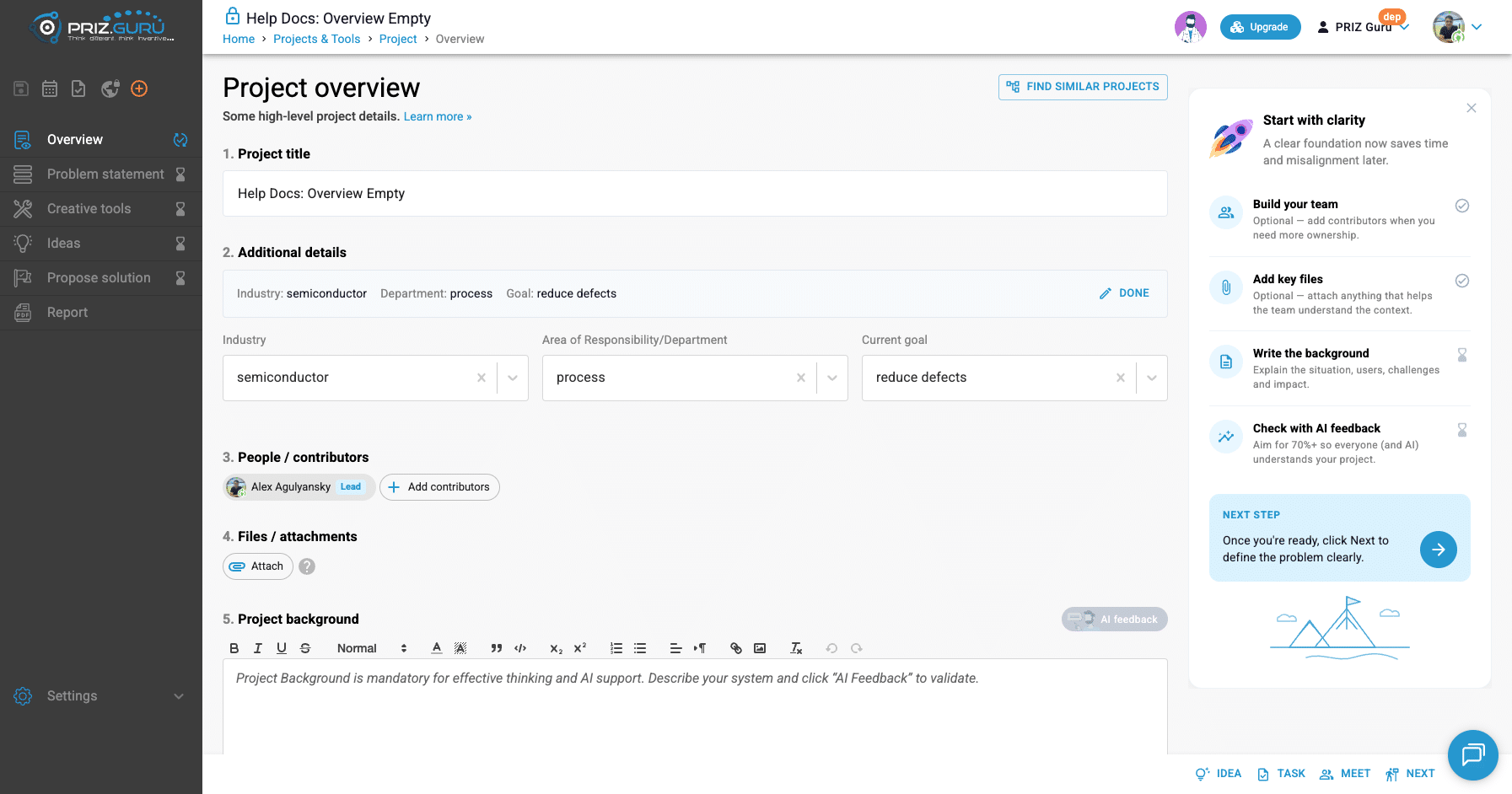
While editing, you can:
- Type and pick from the list (Suggested and Default groups).
- Use the assistant chips: Get matching industries, Get matching departments, or Get matching goals.
- Click Save entered text if you want to keep free text that is not on the list.
These three values matter for Overview progress. The sidebar Overview check needs industry, department, goal, a written background, and AI feedback of at least 30%.
3. People / contributors
The project creator is the Lead. Contributors are optional. Click Add contributors to open the dialog.
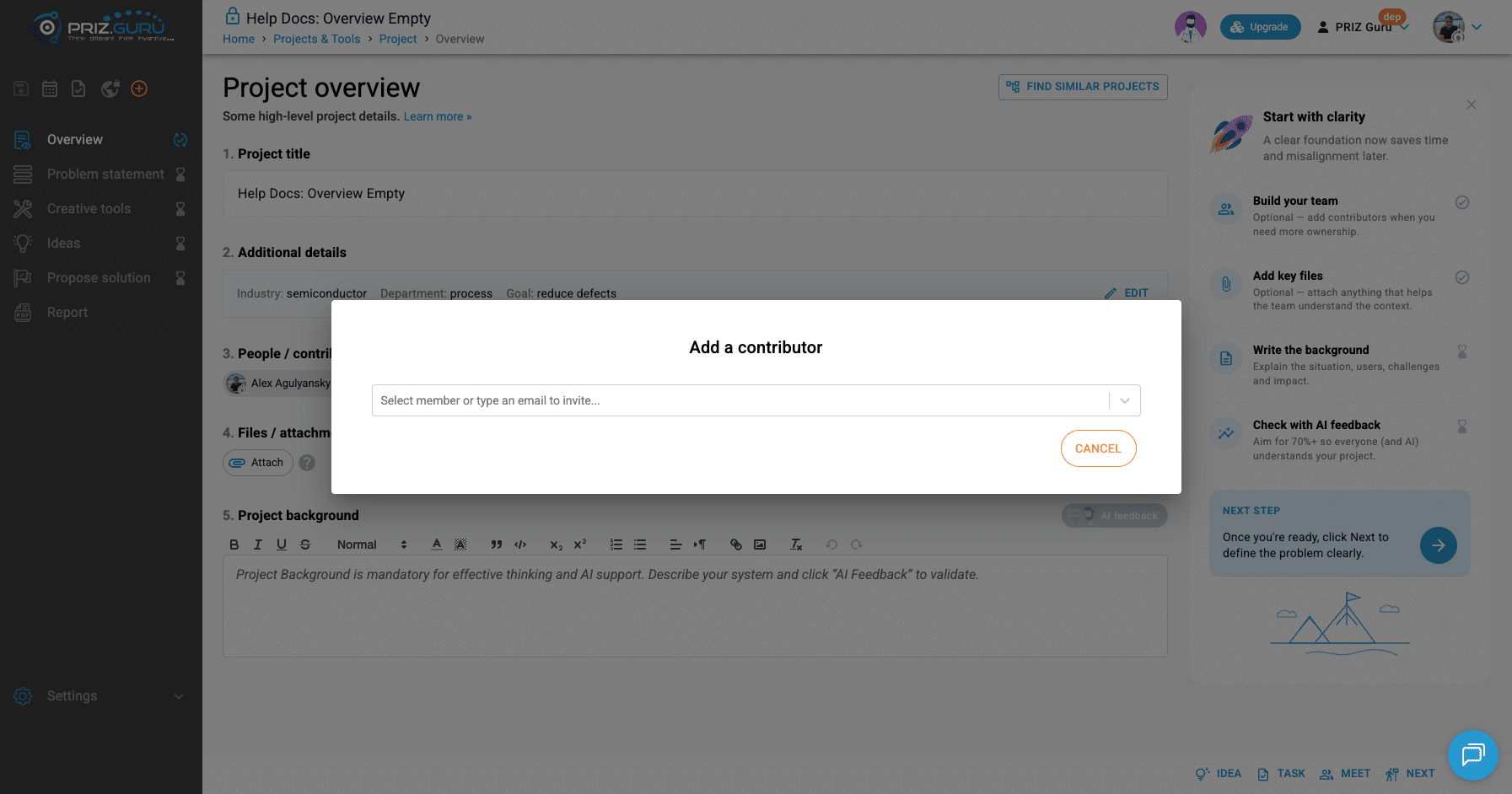
The selector placeholder is Select member or type an email to invite… Workspace admins can invite by email. If the workspace is at its member limit, the dialog shows Members limit reached.
Only the Lead can manage the team. If you are the Lead and other people are already on the project, you also get Delegate, which swaps the Lead role (you become a Contributor).
Contributors can edit Overview content. Only the Lead can add or remove people.
4. Files / attachments
Attachments are optional. Click Attach to upload supporting files. Limits:
- Up to 5 files per upload.
- Max file size: 10MB.
- Common formats such as images, PDF, and Office documents.
After a file is attached, you can rename or delete it from the file menu. Attaching at least one file marks Add key files complete in the guidance checklist. It does not control the sidebar Overview check.
5. Project background
Project background is the main context for the investigation and for AI support later in the project. The editor placeholder says:
Project Background is mandatory for effective thinking and AI support. Describe your system and click “AI Feedback” to validate.
Until there is text, AI feedback stays disabled. The tooltip is Project background required.
Useful background usually covers:
- What the system or process is
- What is going wrong (symptoms and context)
- When it started and how often it happens
- Impact (yield, cost, safety, stakeholders)
- Any parameters, history, or constraints you already know
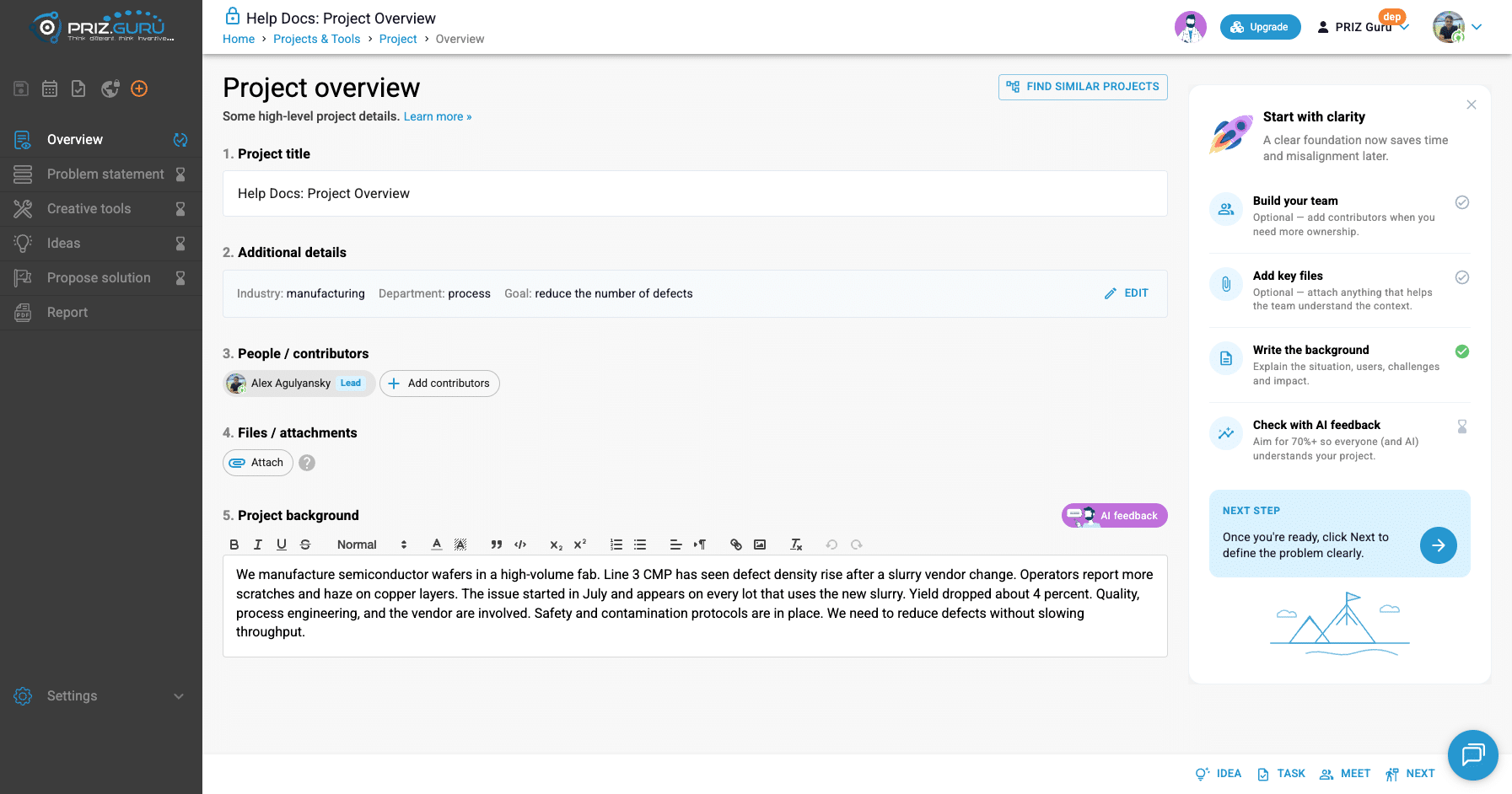
AI feedback and completeness
Click AI feedback to open a dialog. PRIZ scores how complete the background is and suggests what to improve.
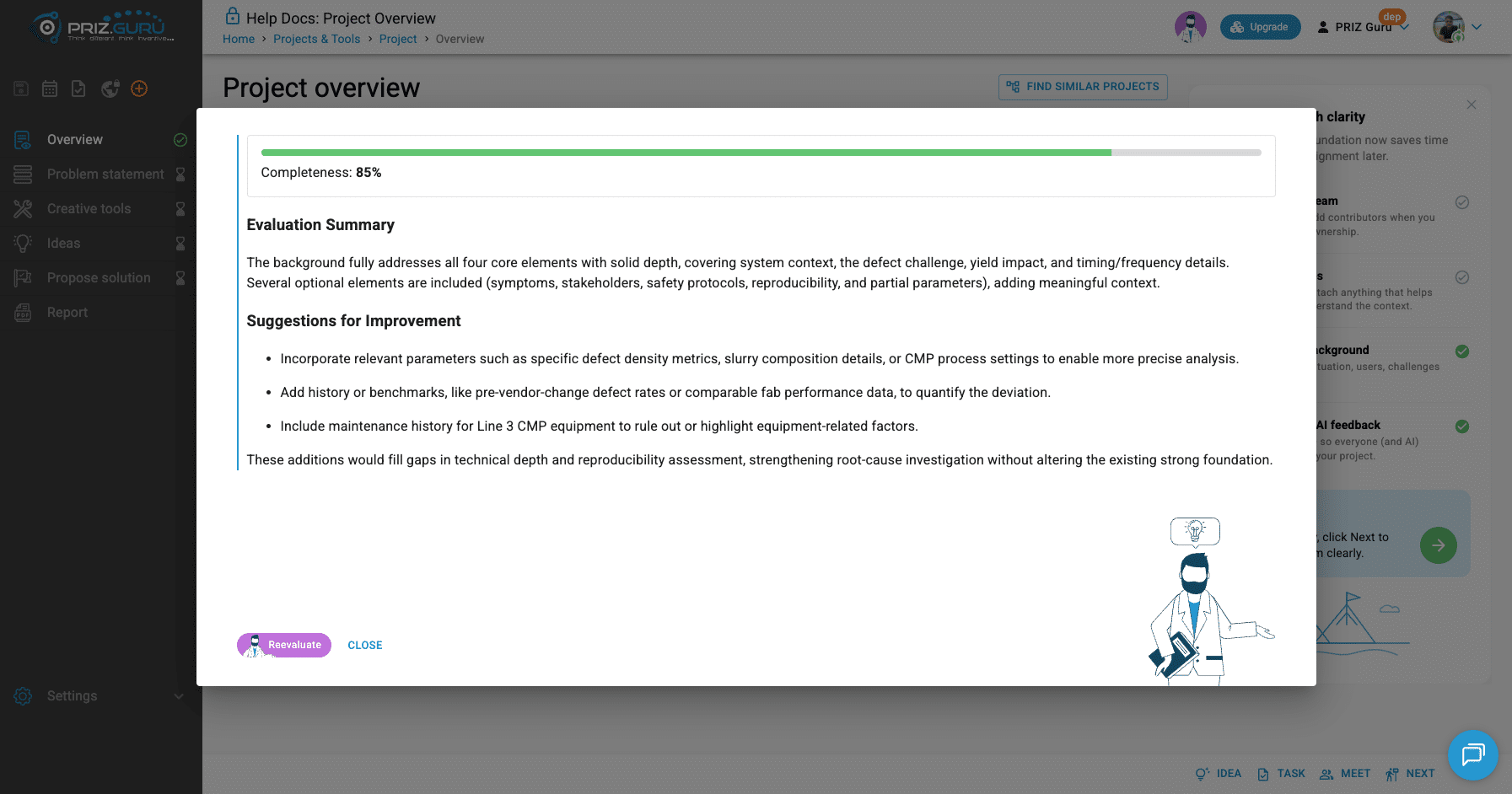
How to read the score:
- Guidance copy asks you to aim for 70%+ so people and AI understand the project well.
- Progress in the product (checklist item, sidebar Overview check, and Problem statement AI gates) treats the background as done at 30%+.
- The dialog bar colors roughly: under 30% needs work, 30–69% usable, 70%+ strong.
After you close the dialog, the section header shows a completeness chip with the percent, plus ways to View feedback again or Reevaluate.
Team and files can stay empty. They are optional in the checklist. Overview can still be “done” for progress without them.
Find similar projects
When semantic search is enabled, click Find similar projects. On desktop, the similar-projects panel replaces Start with clarity until you close it.
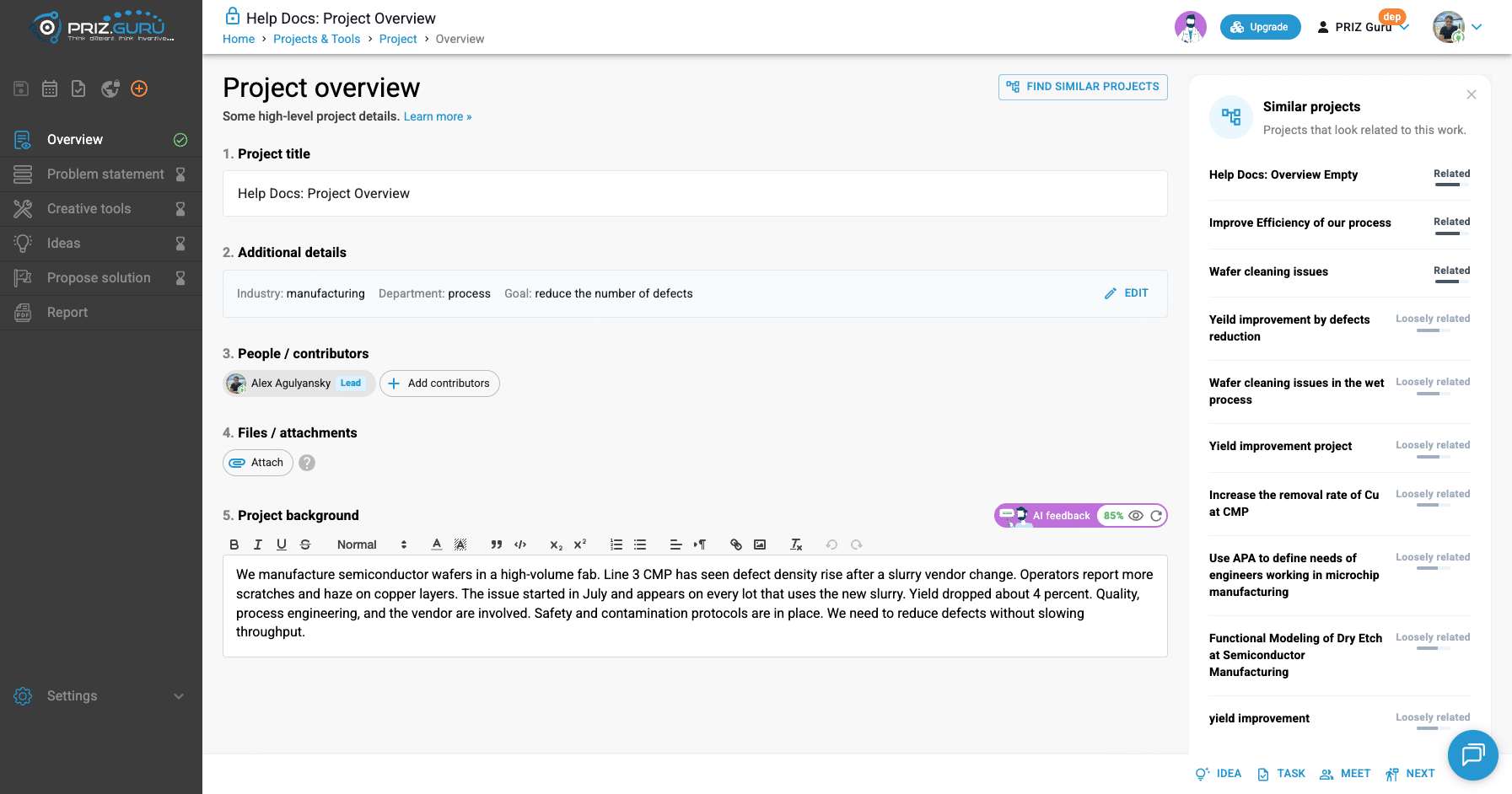
If nothing matches yet, you may see No similar projects found. If search fails, use Retry. This feature is flag-gated; some workspaces will not show the button.
Start with clarity, Show guide, and Next
You can dismiss the guidance panel with Close guide. A rocket Show guide control brings it back (desktop).
When the required checklist items are done, the NEXT STEP arrow is emphasized. Click it, or use the footer Next to open Problem statement. You can also click Problem statement in the left menu at any time.
When Overview is considered complete
The sidebar Overview indicator turns to a check when all of these are true:
- Project title is set (from creation or edit)
- Industry, department, and goal are defined
- Project background has content
- AI feedback score is at least 30%
Tooltips you may see: Awaiting for project overview, Awaiting for: background, background feedback at least 30%, industry, area, goal., or Project overview completed.
Read-only and archived projects
If the project is archived, finalized, in certification review, certified, or you are not on the team, Overview becomes read-only. A banner appears above the sidebar shortcuts, for example:
- Archived — This project is read-only
- Readonly — You are not a member of the project team
- Finalized — Locked and ready for certification
- Review — Changes are disabled during the certification process
- Certified — This project is now permanent and locked
In those states, title, additional details, background, Attach, AI feedback, and footer Idea / Task / Meet are disabled. Archive and unarchive live under sidebar Settings (paid plans, with permission).
Tips
- Write the background and run AI feedback before you lean on Problem statement AI hints. Those hints expect Overview background first.
- 70%+ is the quality target. 30%+ is the progress gate.
- The checklist is guidance. Optional items do not block Next.
- Use Find similar projects early if your workspace has it — related work often saves time.
That’s it. I hope it’s clear and easy.
P.S. Please let us know if you require any assistance.