

Task Manager is where you turn project work into concrete action items — assign them, set due dates, track status, prioritize, and rank them when you have enough open work. It lives in the project shortcut row (next to Meetings), not as a numbered stage in the left sidebar.
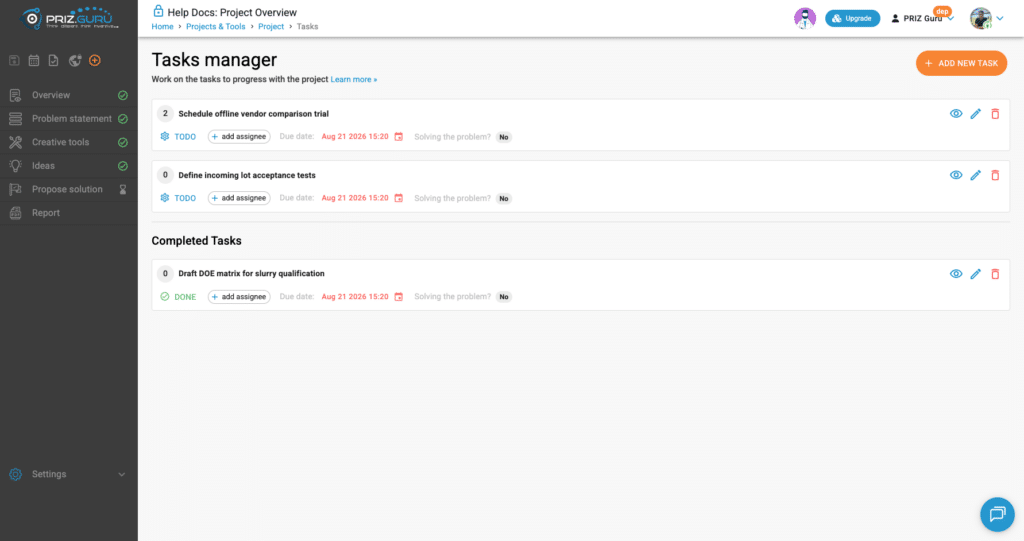
The page heading is Tasks manager. The one-liner is: Work on the tasks to progress with the project. There is no right-hand guidance panel and no footer Task / Back / Next bar on this page.
For the full project map, see Project Structure.
Sign Up & Login
This document assumes you have already registered, logged in, and created a project. If you need help with those steps, see Sign Up & Login Instructions and Creating Projects.
What is a task in PRIZ?
A task is an actionable item for the project team. It has a title, optional details, status, optional assignee, optional due date, optional resolution notes, and a flag for whether completing it solves the problem. Tasks can also link back to a creative tool when you create them from a tool session.
What you see on this page
Open Tasks from the shortcut icons at the top of the left sidebar (tooltip: Tasks). Breadcrumb: Home → Projects & Tools → Project → Tasks. Learn more » points to this article.
Unlike Overview or Ideas, Task Manager has no working-flow footer. Create tasks here with Add new task, or from other stages with footer Task / header + → Create new task.
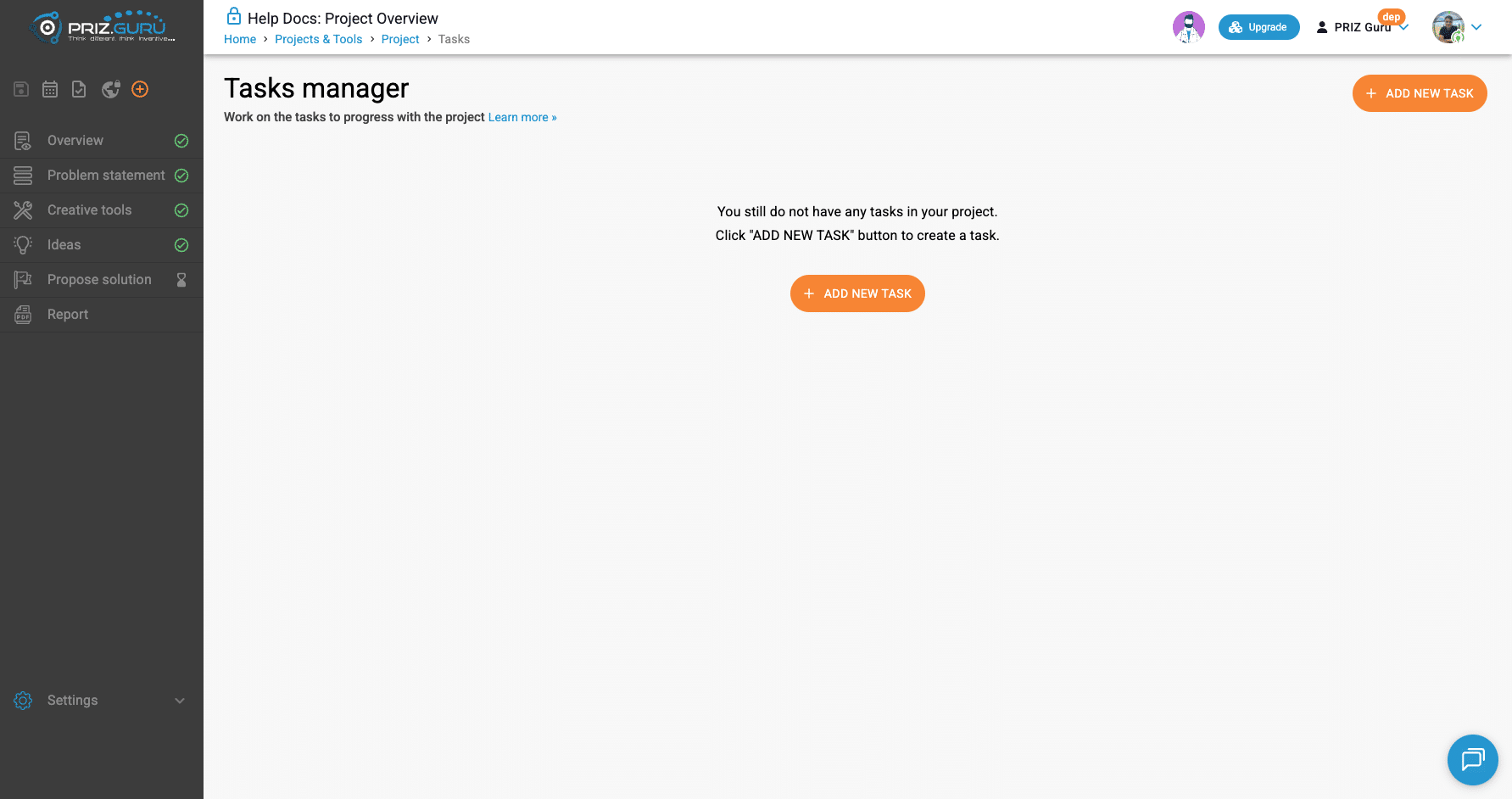
Empty Tasks
A new project starts with no tasks. You see:
- You still do not have any tasks in your project.
- Click “ADD NEW TASK” button to create a task. (helper copy is in all caps; the button label is Add new task)
Ways to create a task
- Tasks manager — Add new task
- Header + menu — Create new task
- Footer Task on Overview, Problem statement, Creative tools, Ideas, Propose solution, and inside tools (tooltip: Create New Task)
Meetings do not create tasks from the meeting UI. Ideas do not auto-convert into tasks — use footer Task when you need an action item.
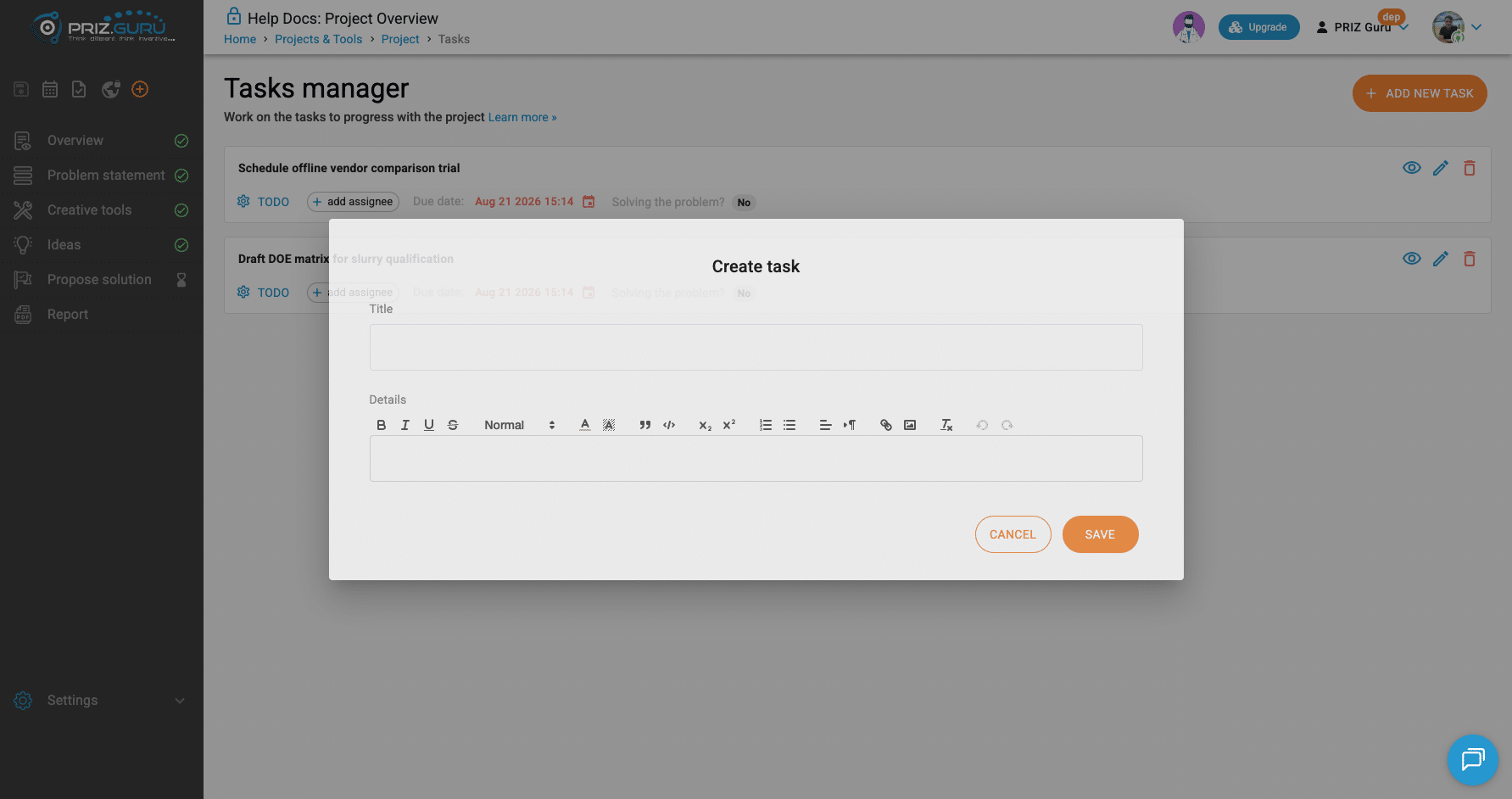
The create dialog
Dialog title: Create task. Fields: Title (required) and Details (optional rich text). Buttons: Cancel and Save. There is no autosave — you must click Save.
On create, you do not set status, assignee, due date, or priority. Those appear after the task exists (list card and Edit).
Your tasks list
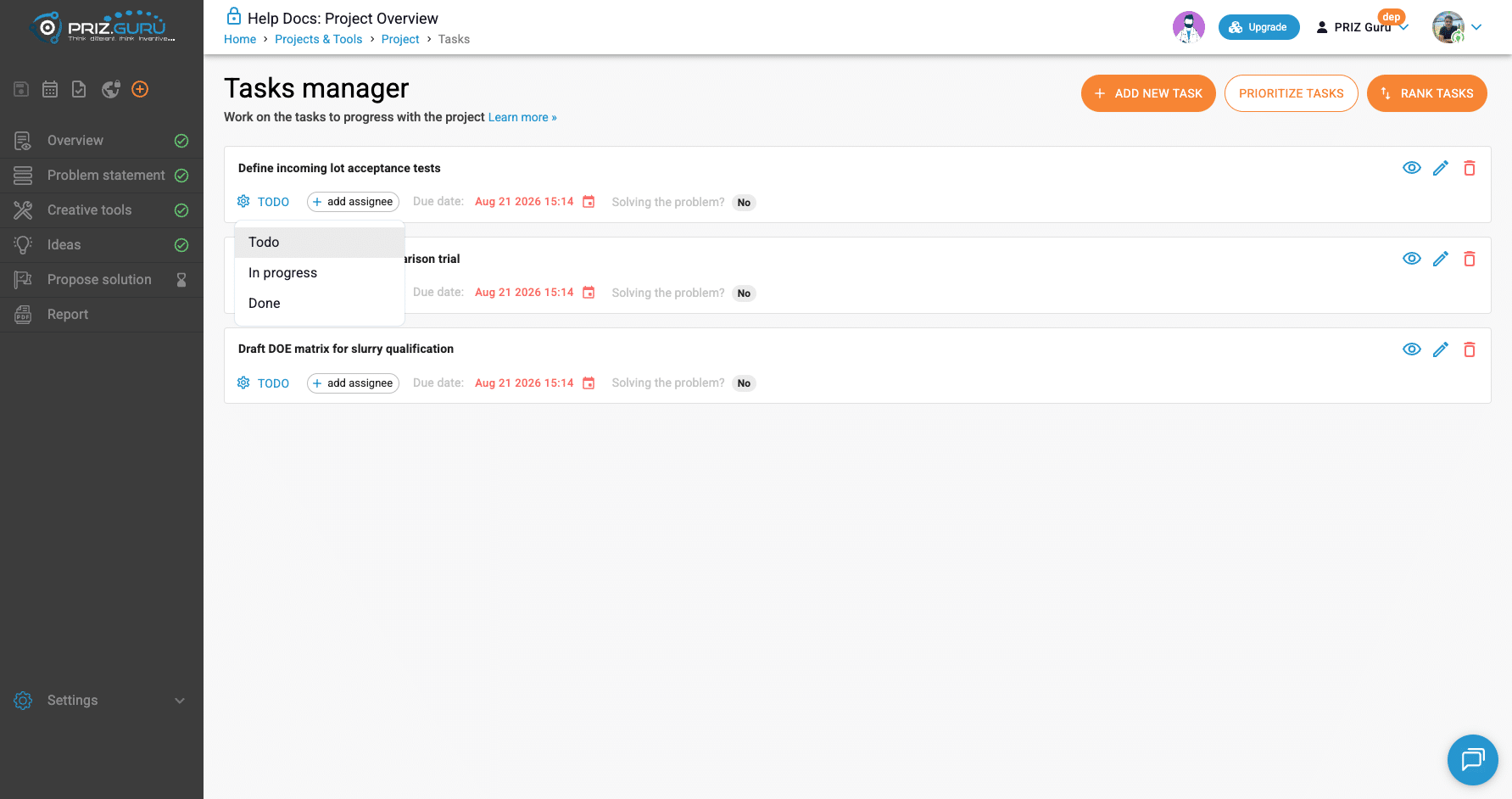
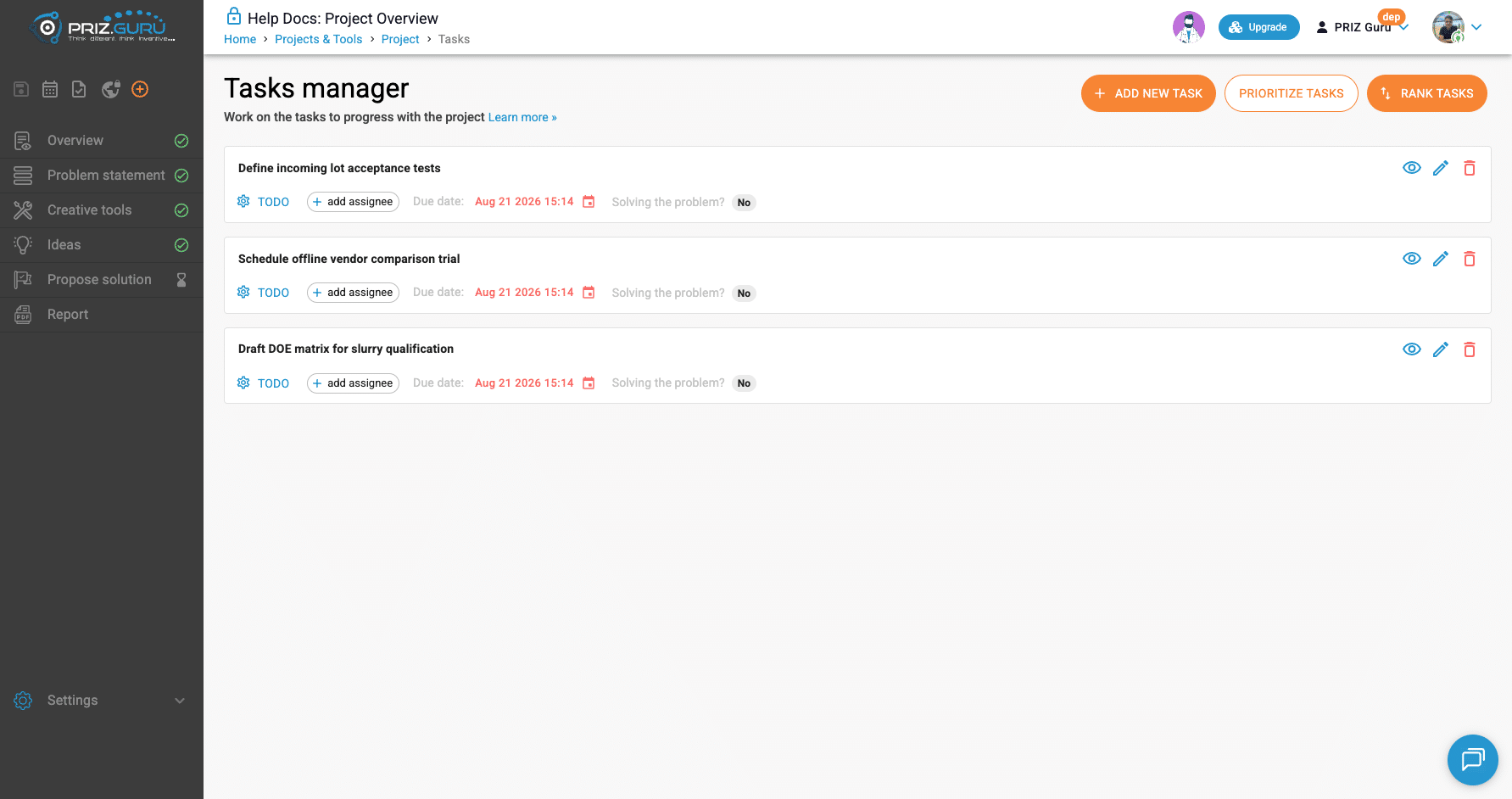
Tasks appear as cards (not a table). There are no filters or bulk select. Active tasks (Todo and In progress) are listed first. Finished work moves under a Completed Tasks heading.
Each card shows:
- Task title
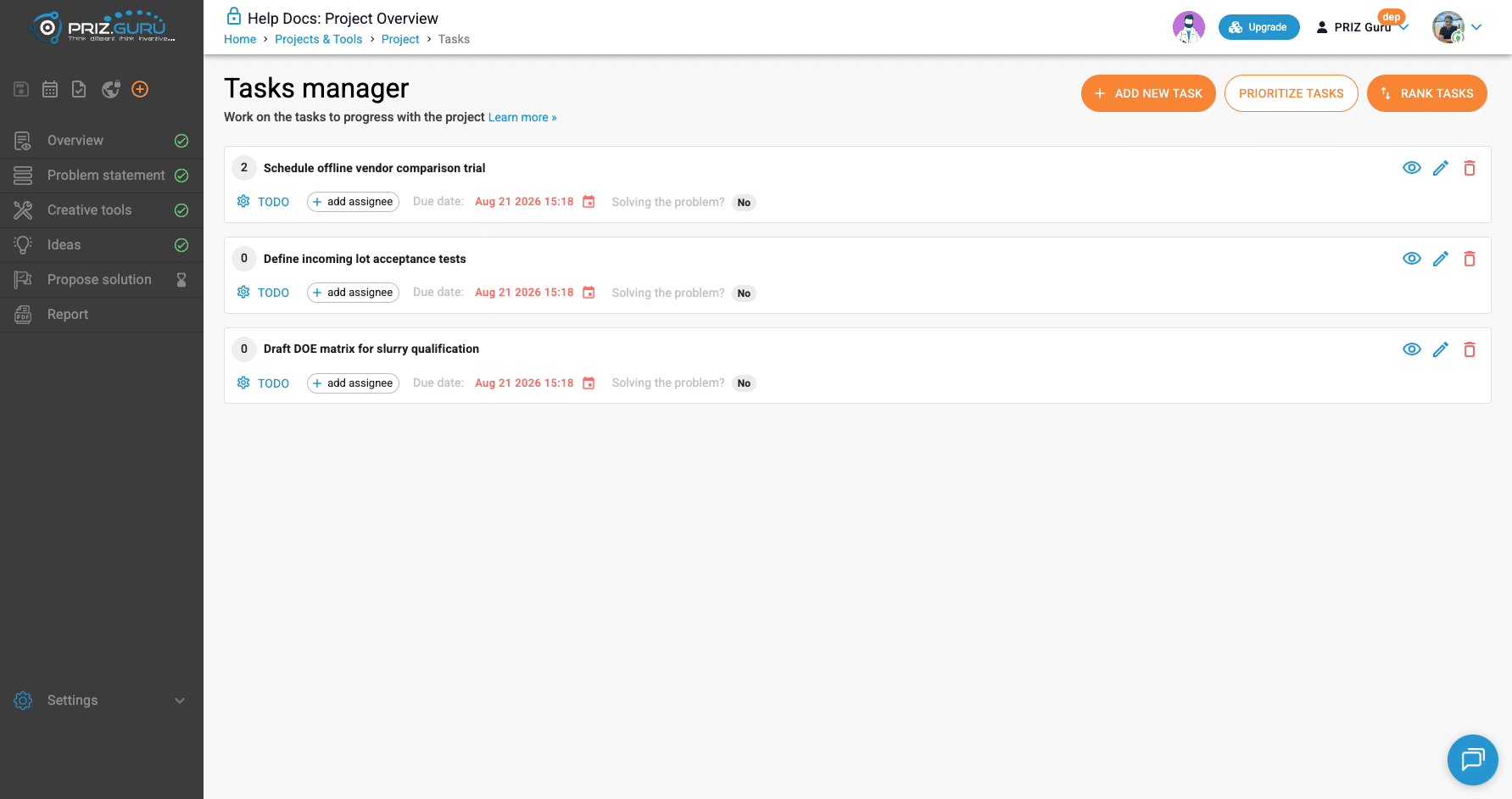
- Optional Ranking Score chip after Round-Robin Ranking (tooltip: Ranking Score)
- Status (Todo / In progress / Done)
- add assignee when no one is assigned
- Due date: with a date picker
- Solving the problem? — Yes or No
- View, Edit, and Delete
- Optional priority chip after Urgency – Importance Matrix prioritization (Do first, Do later, Delegate, Drop)
- Optional source-tool link if the task was created from a tool
Status
Click the status control to choose: Todo, In progress, or Done.
Marking Done asks for confirmation: Confirm task finishing — Are you sure you want to finish this task? — then Cancel or Yes.
Assignee and due date
Click add assignee (or the assignee chip) to open Add an assignee / Change an assignee. You can pick a project member or type an email to invite.
Click the due date control to set or change the date. In Edit, the side panel also shows Due date and Assignee (chip add when empty).
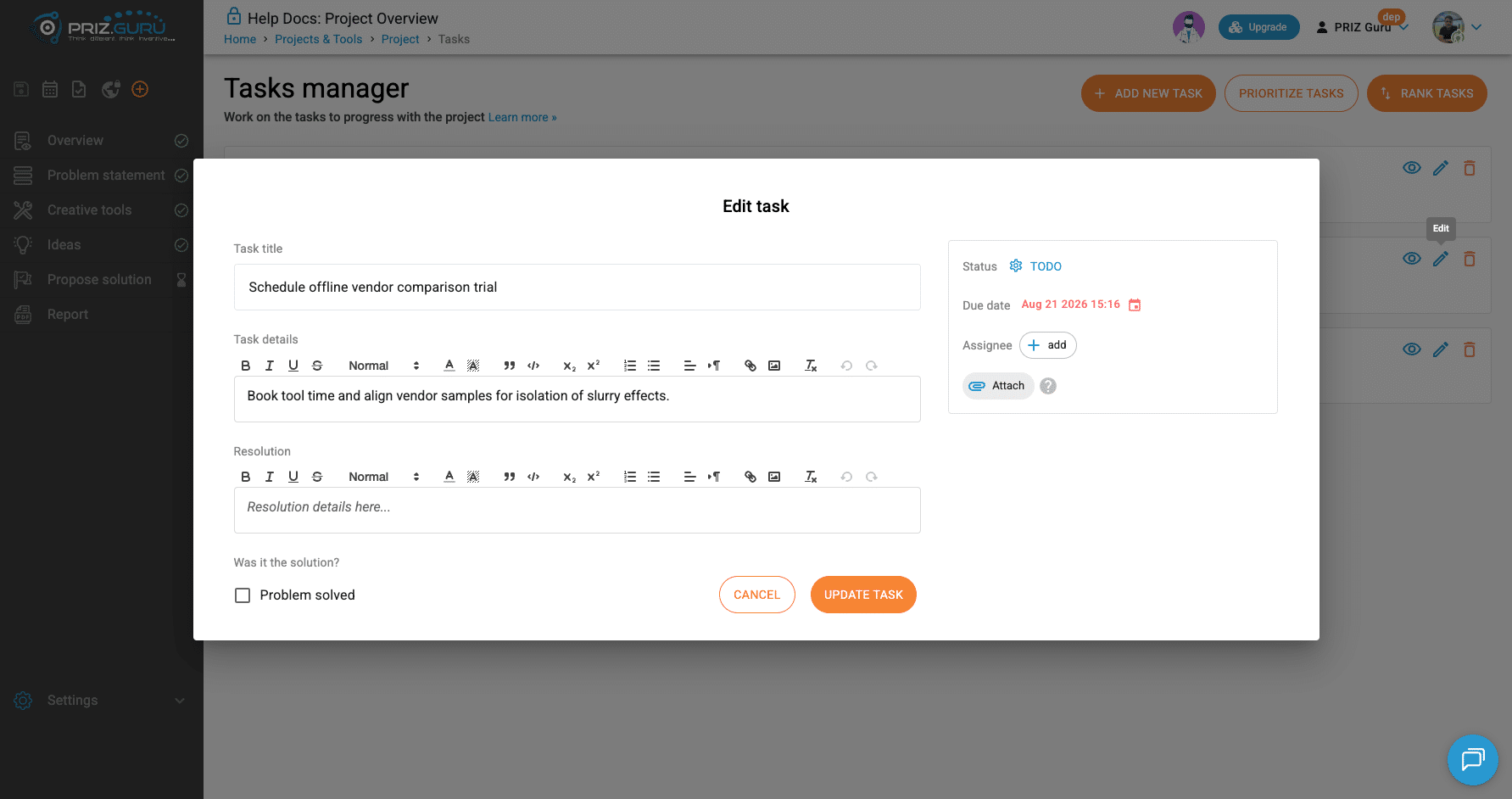
Edit a task
Click Edit (pencil). Dialog title: Edit task. You can update:
- Task title and Task details
- Resolution (placeholder: Resolution details here…)
- Was it the solution? / checkbox Problem solved
- Side panel: Status, Due date, Assignee
- Attach — up to 5 files per upload, max 10MB each
Buttons: Cancel and Update task.
View a task
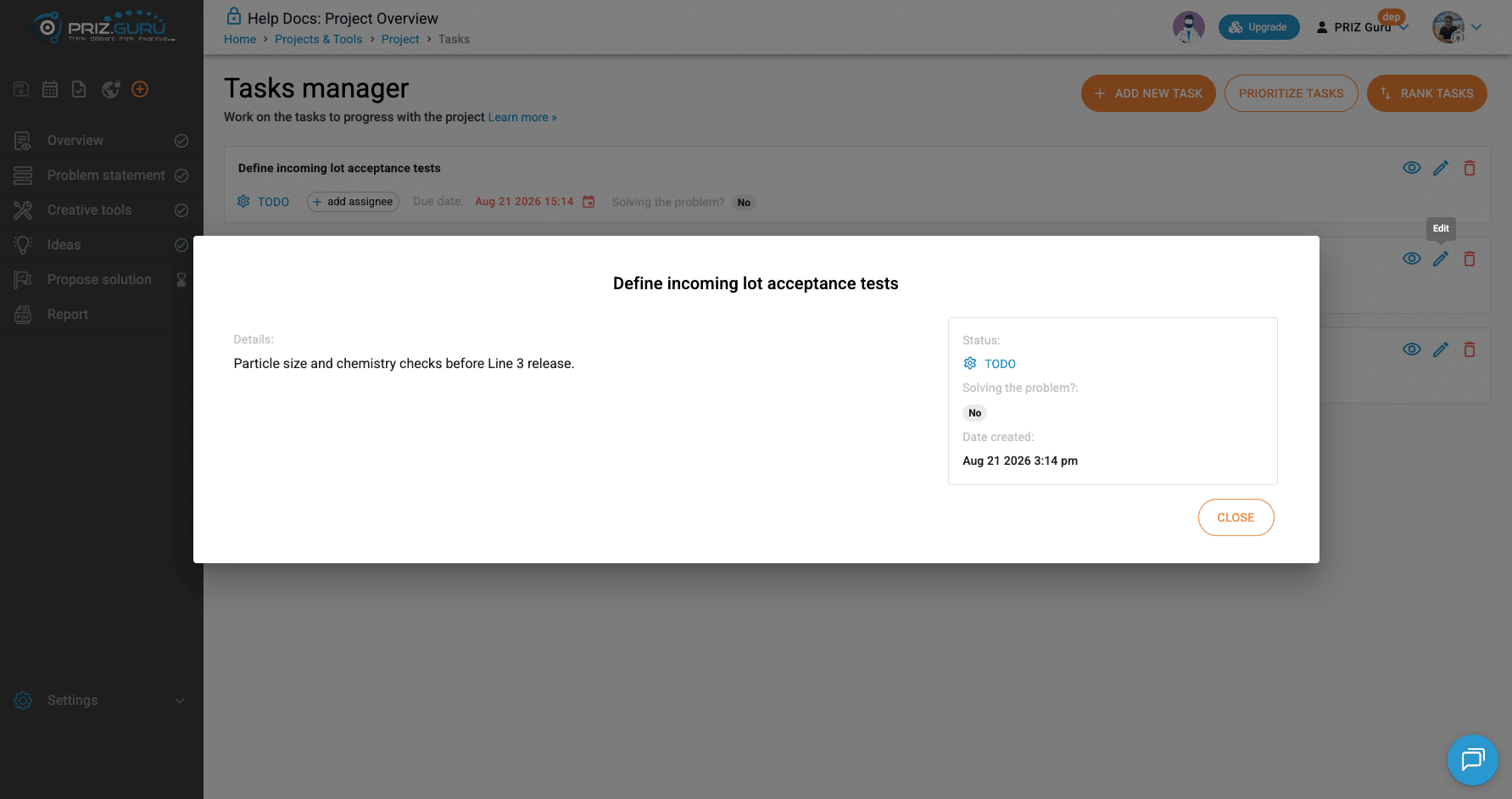
Click the eye icon (View). The dialog title is the task title. You see Details (or No details), and a side panel with status, solving flag, date created, and other fields when set. Close with Close.
Delete a task
Click the trash icon and confirm deletion. This cannot be undone.
When you have three or more incomplete tasks
As soon as the project has three or more incomplete tasks (status is not Done), two extra header buttons appear next to Add new task:
- Prioritize tasks
- Rank tasks
That threshold is notCompletedTasksCount > 2 — the same “three or more” idea as Ideas Manager, but Tasks only count open work. Done tasks do not count toward the unlock. If you finish enough tasks that fewer than three remain incomplete, Prioritize and Rank disappear again until you have three open tasks.
Prioritize tasks (Urgency – Importance Matrix)
Click Prioritize tasks to create an Urgency – Importance Matrix from the project tasks and open that tool. After you prioritize, cards can show priority chips such as Do first, Do later, Delegate, or Drop.
How UIM works in detail belongs in the Urgency – Importance Matrix knowledge-base article: Urgency – Importance Matrix.
If your plan limits how many items UIM can hold, you may see Project tasks prioritization with options to Upgrade or Continue with the limit.
Rank tasks (Round-Robin Ranking)
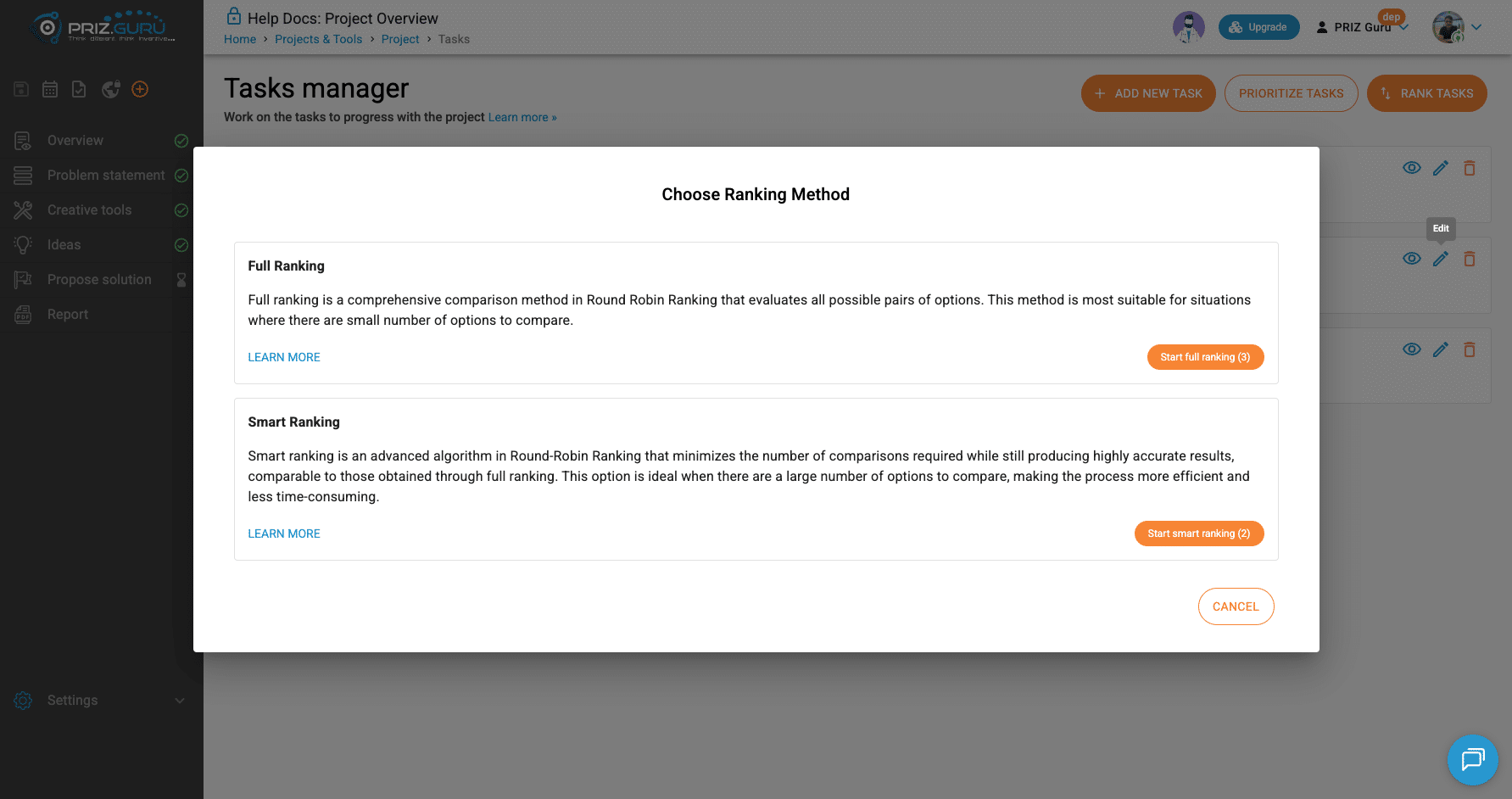
Click Rank tasks to start a Round-Robin Ranking session for the tasks on this list. You choose a ranking method, then compare tasks in that tool until you finish.
How Full and Smart ranking work is covered in the Round-Robin Ranking articles: Round-Robin Ranking, Full Ranking, and Smart Ranking.
When you return (Back to tasks manager), each ranked task can show a numeric Ranking Score chip. The list re-sorts with higher scores first.
Completed Tasks
When a task is Done, it moves under the Completed Tasks heading. Incomplete tasks stay above. Remember: finishing tasks can drop you below the three-incomplete threshold, so Prioritize and Rank may hide until you have three open tasks again.
Tasks and Creative tools
From a tool session, footer Task can create a project task that keeps a link back to that tool. The card may show a clickable source so you can jump back. Tools do not invent tasks for you — you choose what becomes a task.
Tasks vs Ideas and Meetings
- Ideas capture potential solutions and ratings; Tasks capture work to execute. See Ideas Management.
- Meetings are scheduled conversations; they do not replace the task list.
Permissions, archived projects, and plan limits
You need to be on the project team, and the project must not be archived or locked by certification, to create, edit, delete, prioritize, rank, change status, assignee, or due date. View may still work when the project is read-only.
Banners match other stages (Archived, Readonly, Finalized, Review, Certified). Some plans may limit tasks or UIM item counts; follow the upgrade prompts if they appear.
Tips
- Create tasks as soon as an action is clear — from any stage with footer Task.
- Use status and due dates so the team can see what is open without opening every card.
- At three incomplete tasks, use Prioritize tasks for urgency/importance and Rank tasks for structured comparison.
- Marking work Done keeps the list honest and can change which header actions are available.
- Put outcomes in Resolution when you edit a finished task.
That’s it. I hope it’s clear and easy.
P.S. Please let us know if you require any assistance.