

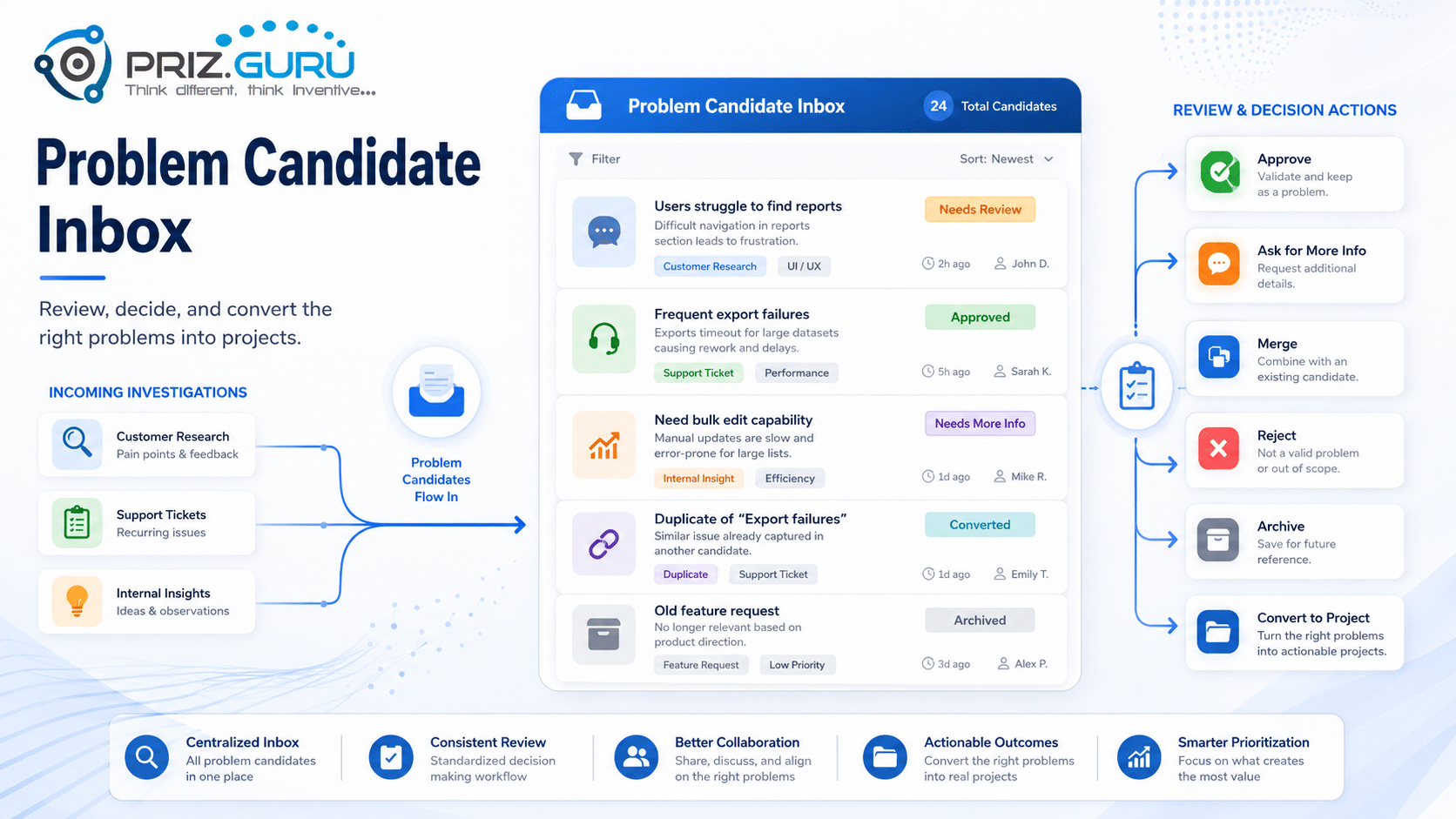
The Problem Candidate Inbox is the review queue for investigations that have been shaped into Problem Candidates. Use it after Shape Investigation — or after a candidate arrives from another source — to decide whether a problem should become a PRIZ project.
This article walks you through the inbox list, the review page, and every action in the current flow: edit, approve, ask for more information, merge, reject, archive, and convert to a project.
Converting an approved candidate creates a PRIZ project. See Creating Projects and Project Overview.
Sign Up & Login
This document assumes you have already registered and logged in. If you need help with registration or authentication, please refer to our Sign Up & Login Instructions.
The Problem Candidate Inbox is available when the feature is enabled for your workspace.
Opening the inbox
You can open the inbox from several places:
- On the Projects & Tools page, open the create menu next to Add New Project and choose Problem Candidate Inbox. Tooltip: Review, edit, approve, reject, or convert Problem Candidates into projects.
- After saving a shaped candidate, click Go to Problem Candidate Inbox or Open in Problem Candidate Inbox.
- Use Back to problem candidates from Shape Investigation or a review page, or the Problem Candidates breadcrumb.
- Go directly to https://app.priz.guru/problem-candidates.
The page heading is Problem Candidate Inbox. The workspace path is Home > Projects & Tools > Problem Candidates. The one-liner is: Review, edit, approve, merge, reject, archive, or convert Problem Candidates. Learn more » opens this article.
From the inbox, you can also start a new shaping session with Shape Investigation (warning button, top-right).
Browsing and filtering candidates
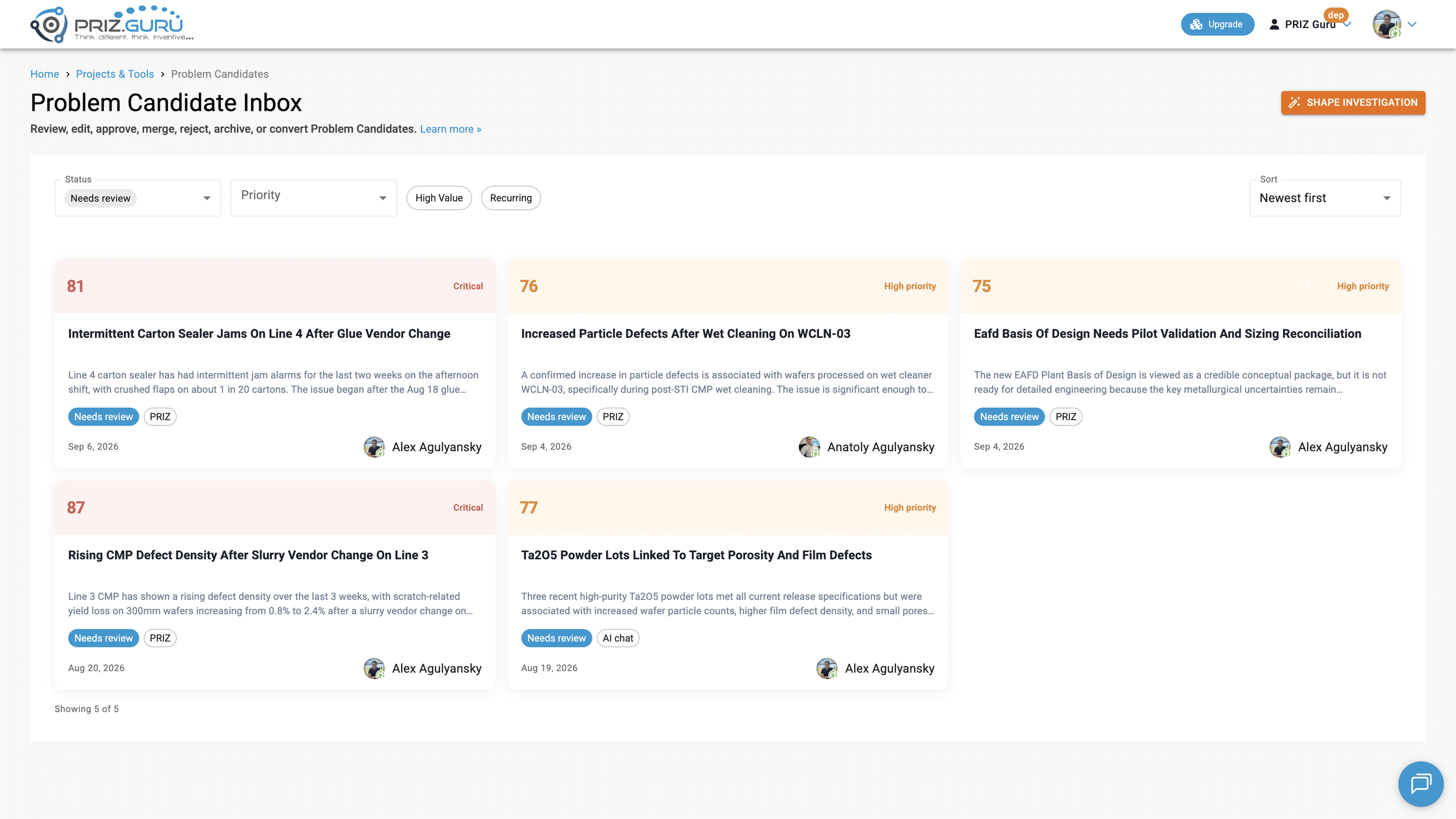
By default, the list shows candidates in Needs review. Filters are stored in the URL, so you can share or bookmark a view.
You can filter by:
- Status (empty label All statuses): Needs review, Needs more info, Approved, Converted, Merged, Rejected, Archived
- Source (empty label All sources): PRIZ, and Slack / AI chat when those intake features are enabled. The Source filter is hidden when only one source is available.
- Priority (empty label All priorities): Critical, High priority, Medium priority, Low priority
- High Value — chip. Candidates with a value score of 70 or higher.
- Recurring — chip. Candidates with a recurrence score of 60 or higher.
Sort:
- Newest first (default)
- Oldest first
- Highest priority
- Lowest priority
- Highest value
- Highest urgency
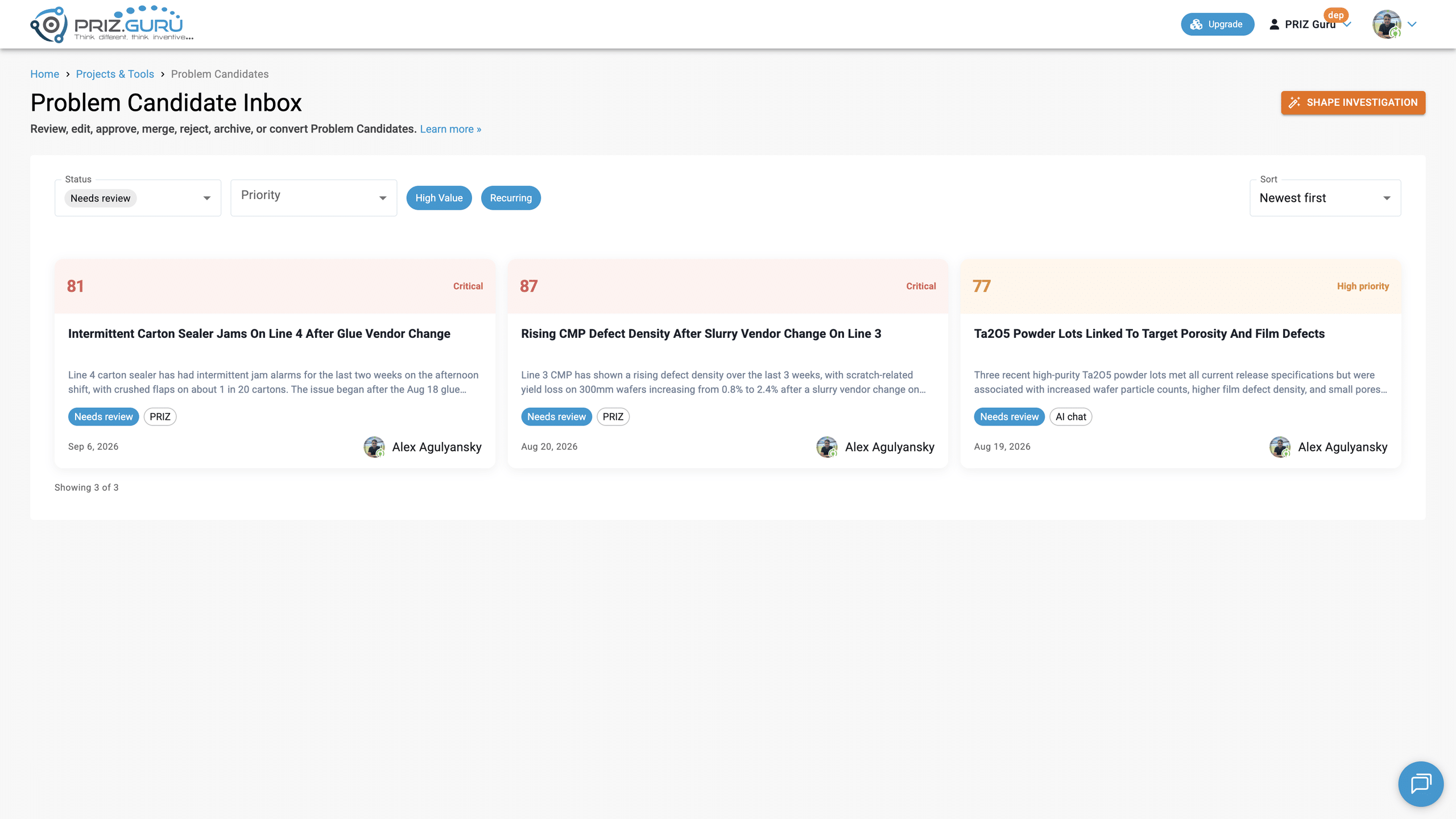
A candidate created from Shape Investigation is stored as source PRIZ.
Candidate cards
Each card has a colored priority strip at the top: the 0–100 score and tier (Critical, High priority, Medium priority, Low priority), or No priority yet.
The body shows:
- Title, or Untitled candidate
- Summary, or No summary yet.
- Status chip and source chip
- Created date
- The person who saved it (or the source owner)
Click a card to open the review page.
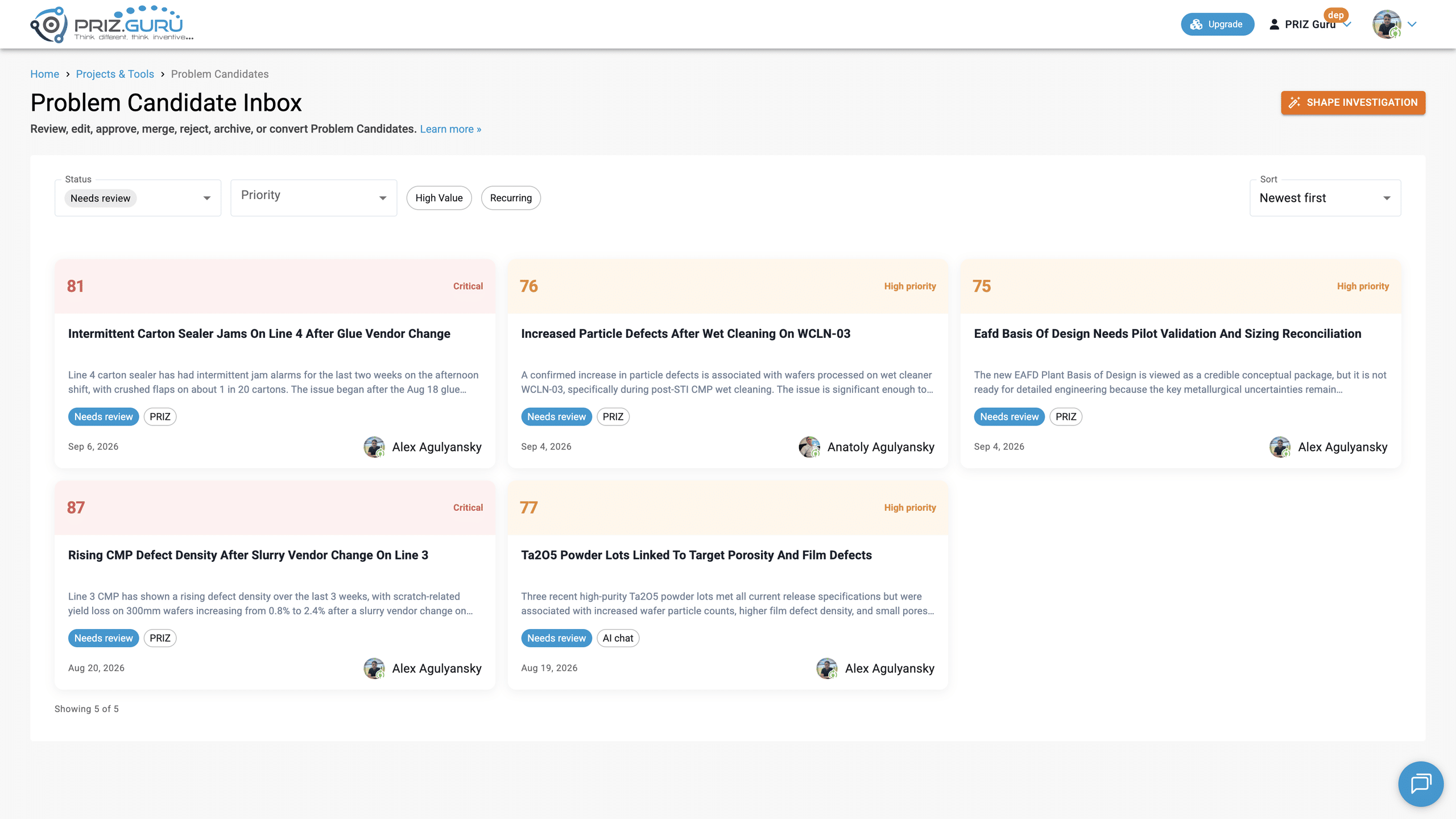
The footer reads: Showing {n} of {total}. The list paginates at 12 cards per page.
List states
- Loading: Loading candidates…
- Load error: Could not load Problem Candidates. Check your connection or try signing in again. With Retry
- Empty: a message built from the current filters, for example, No needs review candidates. No problem candidates yet., or No needs review, high value candidates.
Reviewing a candidate
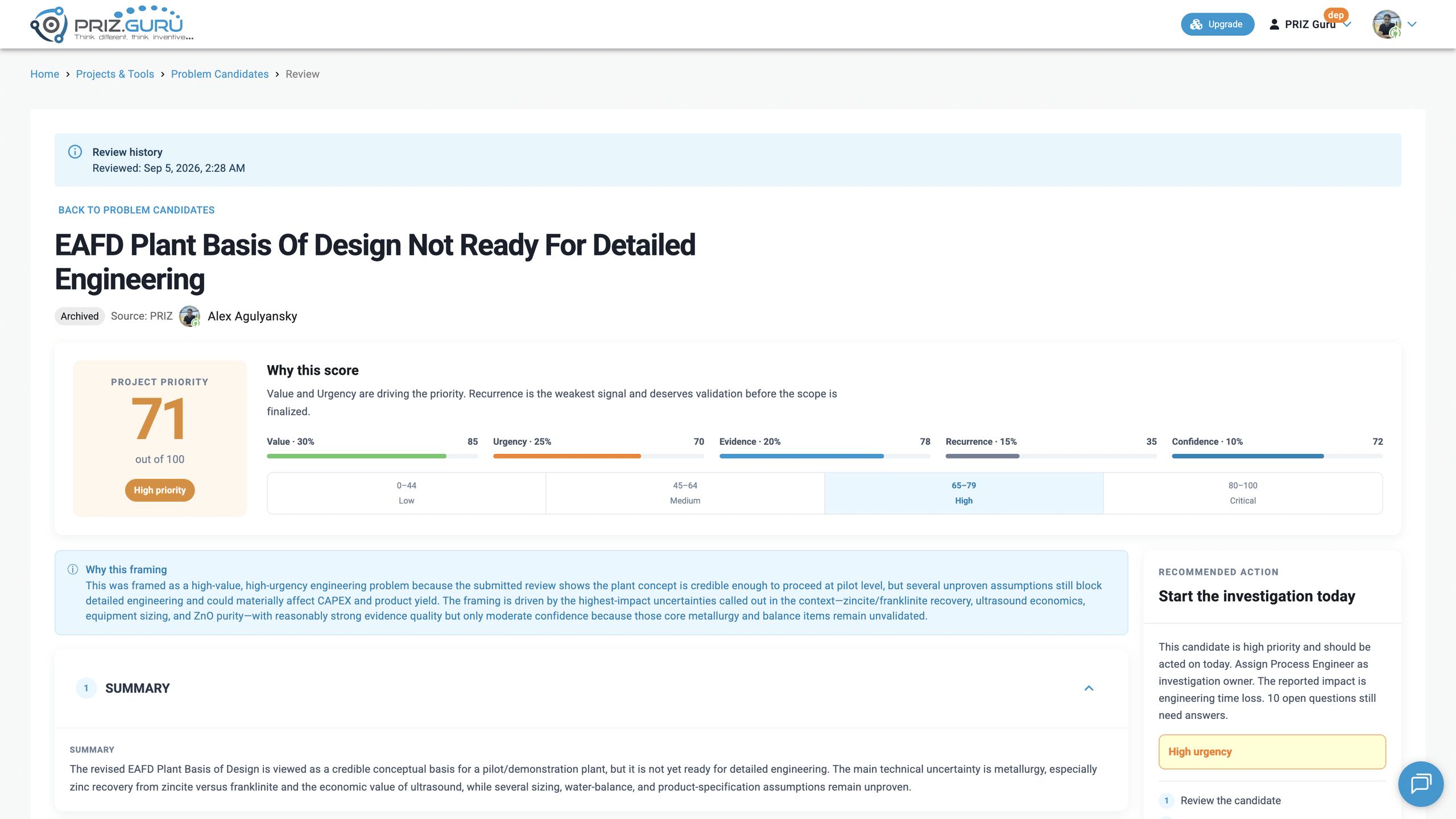
The review page uses the same eight sections as the Shape Investigation draft, plus review actions. Breadcrumbs: Home > Projects & Tools > Problem Candidates > Review. Back to problem candidates returns to the list.
At the top you will see:
- The candidate title (or Problem Candidate if untitled)
- Status chip
- Source: {type}, and Open source if the candidate has a source URL
- The person who created the candidate
- Edit all details — while the status is Needs review or Needs more info
- Review history, when a review action has already been taken. Heading: Review history. Line Reviewed: {date}. Then any note, such as an archive note or a request-for-information message.
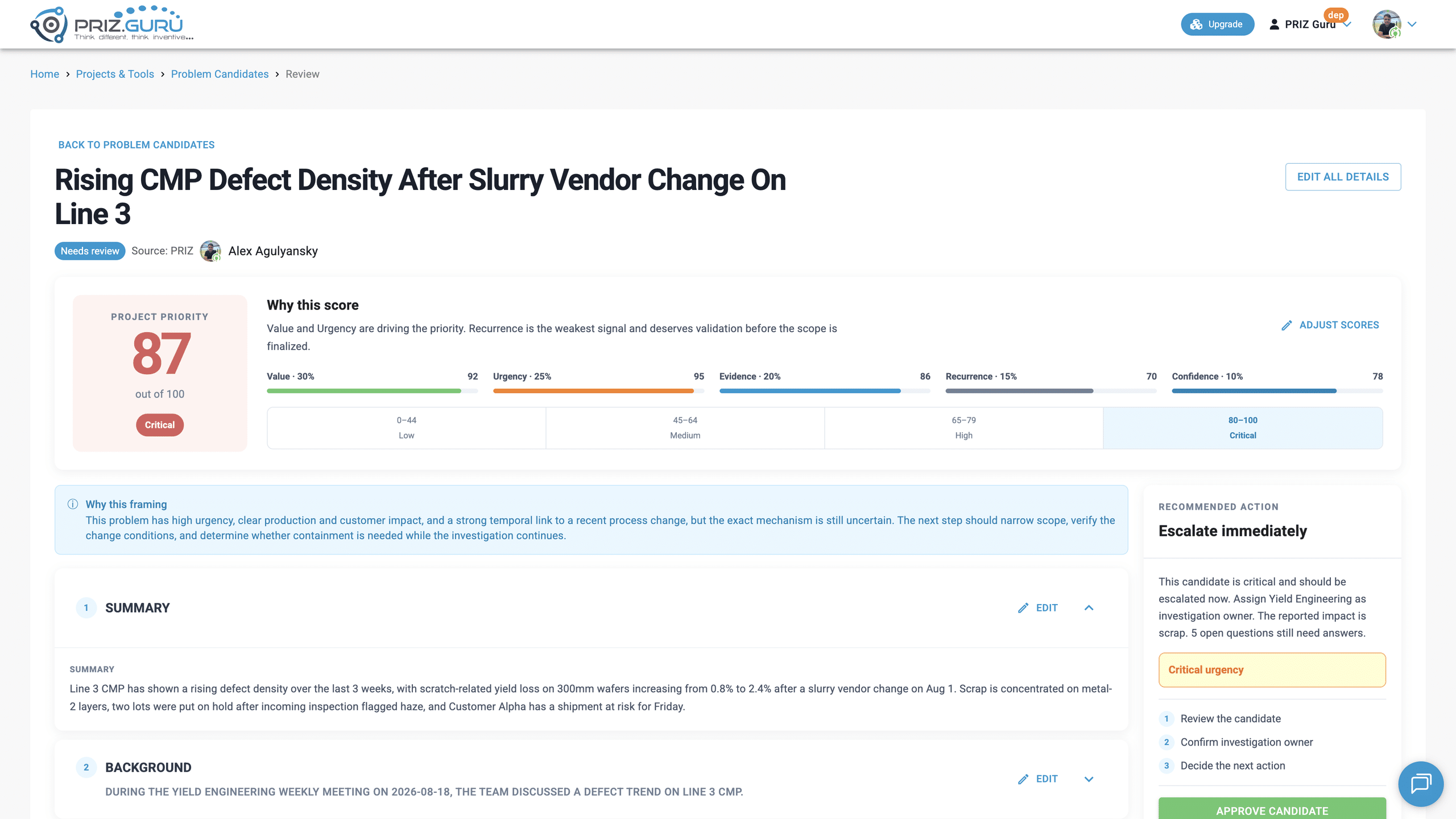
Project priority
The Project priority card is the same 0–100 weighted score as on the draft, now finalized. Heading: Why this score. Click Adjust scores to change Value, Urgency, Evidence, Recurrence, and Confidence. The change is saved with Save all edits or when you click Done on a section.
Why this framing
The callout Why this framing shows the AI rationale, or: Review the structured fields below and edit anything that needs correction.
Eligibility alerts from shaping (Needs review, No problem detected, AI unavailable) can still appear here.
Editing the form
While the status is Needs review or Needs more info, the form is editable.
Two ways to edit:
- Per section: expand a card, click Edit, change the fields, click Done. Done saves that section.
- Whole form: click Edit all details. The title becomes editable. Click Save all edits when you are finished.
On success the notice is Edits saved.
The eight sections are the same as Shape Investigation: Summary, Background, Observed symptoms, Affected scope, Impact, Reasoning, Recommendations, Evidence. Evidence stays read-only.
If related Problem Candidates exist, they appear under Related candidates. Click a row to open that candidate.
Recommended action (decision panel)
The right rail heading changes with the priority tier:
- Escalate immediately — This candidate is critical and should be escalated now.
- Start the investigation today — This candidate is high priority and should be acted on today.
- Clarify before scheduling — Clarify the remaining gaps before scheduling the investigation.
- Monitor or archive — This candidate can be monitored or archived unless new evidence appears.
- Review this candidate — fallback when no tier is set.
The body also names the Suggested owner (Assign {owner} as investigation owner.), the impact category, and how many open questions remain. If urgency is High or Critical, a risk chip shows High urgency or Critical urgency.
Numbered steps:
- Review the candidate
- Confirm investigation owner (or Assign investigation owner if none is set)
- Decide the next action
Decision confidence under the panel shows the confidence sub-score. The caption under the bar is a short reading of that score, for example Enough evidence to act; still validate remaining gaps.
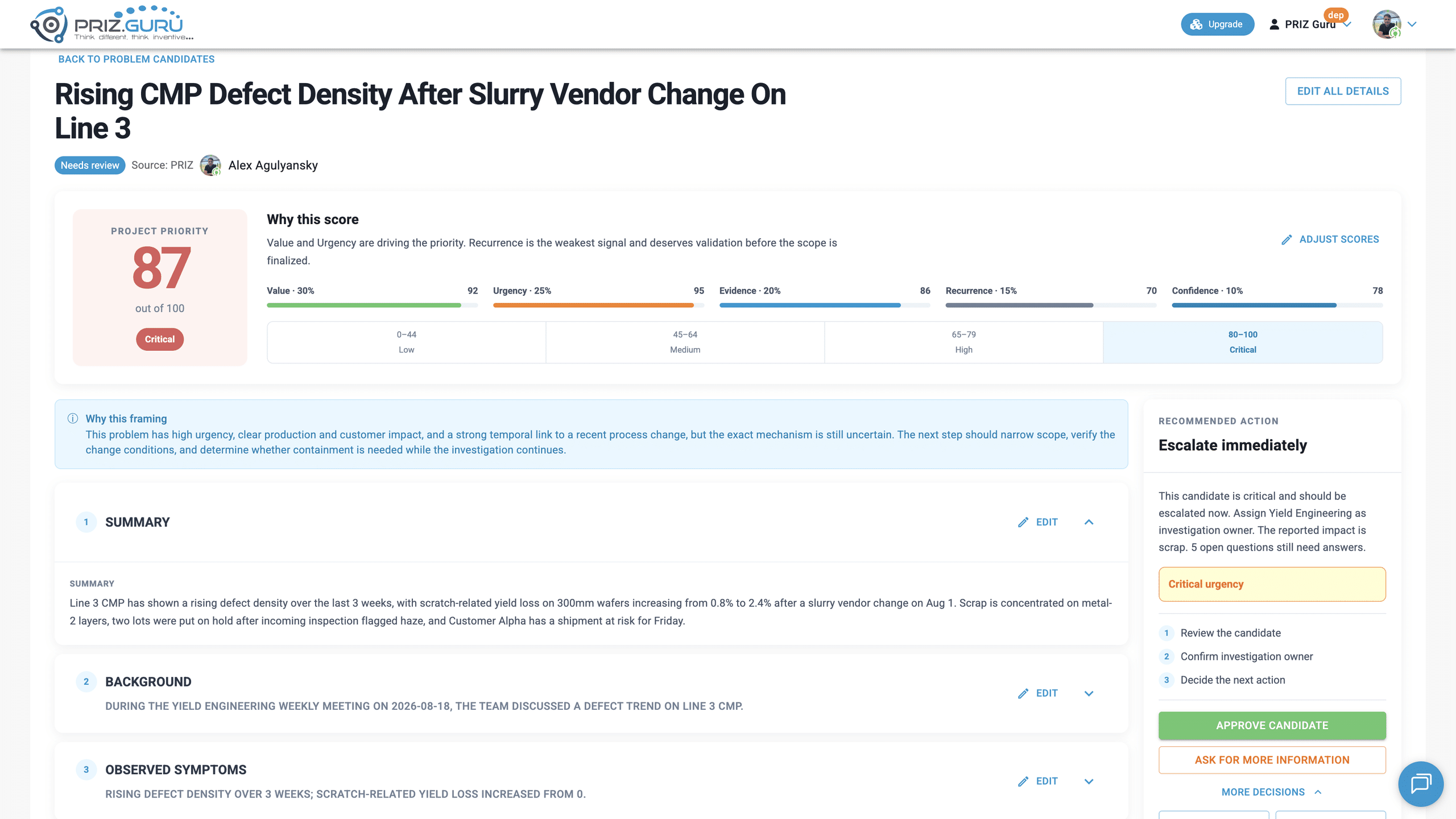
Candidate statuses and available actions
The available actions depend on status:
| Status | Primary | Secondary | More decisions |
|---|---|---|---|
| Needs review | Approve candidate | Ask for more information | Related projects, Merge, Reject, Archive |
| Needs more info | Approve candidate | — | Related projects, Merge, Reject, Archive |
| Approved | Convert to project | — | Related projects, Merge, Archive |
| Converted, Merged, Rejected, Archived | Review the record. The form is read-only. Related projects may still be available. | ||
Related projects appear only when similar-project search is enabled. Expand More decisions to see the extra actions.
A converted candidate also shows Converted to project #{id} with a link to Project Overview.
Ask for more information
Use this when the candidate is still in Needs review, but you need missing facts before approving it.
- Click Ask for more information.
- In the dialog, enter “What information is needed?“
- Click Request info. The button stays inactive until a message is entered. Cancel closes the dialog.
What information is needed?: Required. Request info stays inactive until you enter a message.
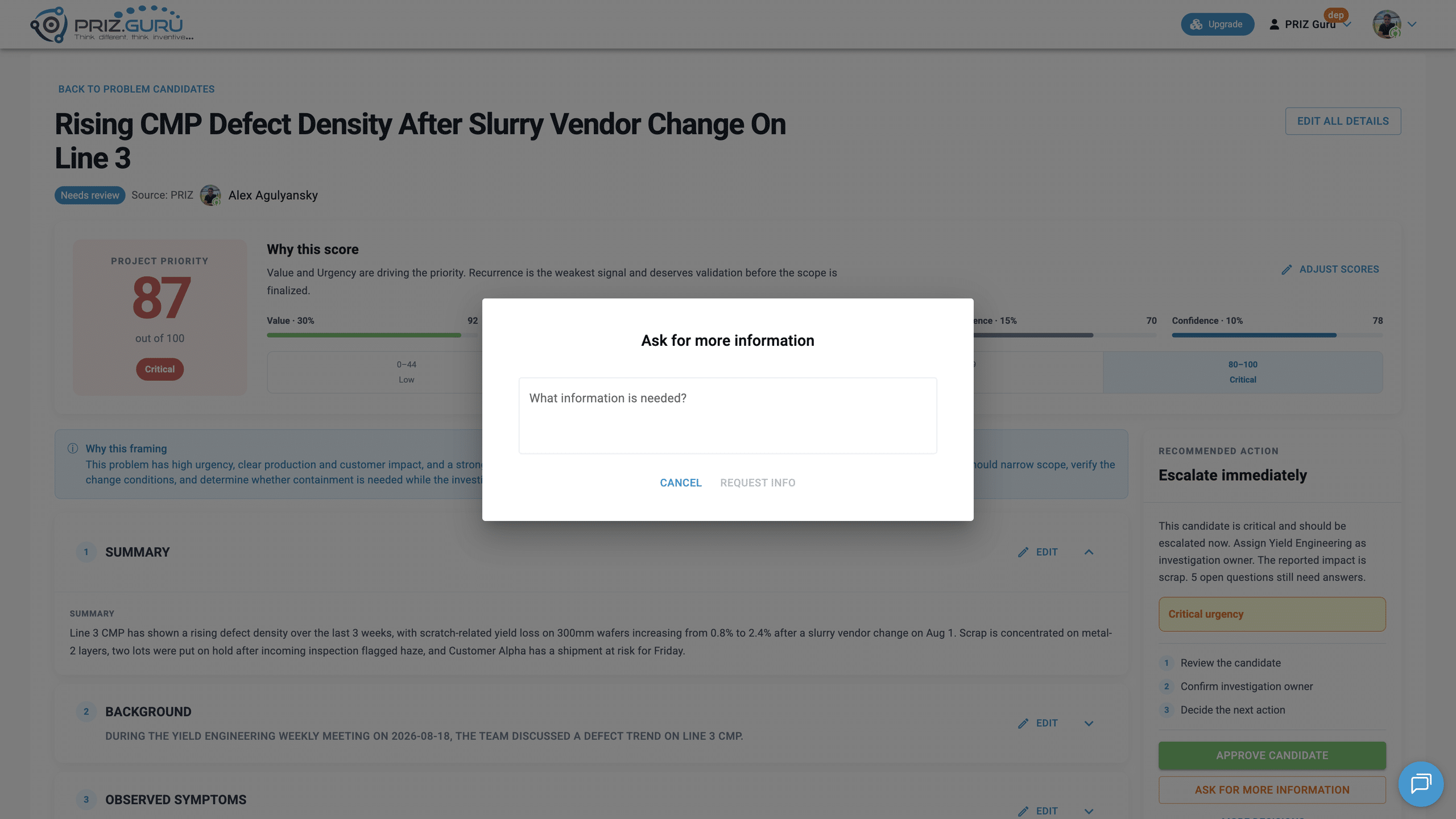
The candidate moves to Needs more info. The notice is More information requested. The message is stored in Review history and is also added to Open questions.
Approve
Click Approve candidate when the candidate is a real problem worth investigating.
The status becomes Approved. The notice is Candidate approved. After that, you can convert it into a PRIZ project. You can still archive or merge an approved candidate.
Convert to project
This action appears only after approval.
- Click Convert to project.
- PRIZ opens Convert to PRIZ project and generates a project brief. While it works: Generating project brief…
- Review Project title. It is pre-filled from the candidate title and can be edited.
- Review Project description. Helper: This brief is a draft. Review and edit it before converting to a project. Placeholder: Project brief.
- Optionally click Regenerate to create a new brief. If you already edited the description, PRIZ asks whether to replace your edits: Replace your edits with a newly generated brief?
- Click Convert, or Cancel to close without converting.
Project title: Pre-filled from the candidate title. You can edit it.
Project description: Helper: This brief is a draft. Review and edit it before converting to a project. Placeholder: Project brief.
If the brief cannot be generated: Could not generate a preview. You can still convert — PRIZ will generate the brief on create — or try Regenerate.
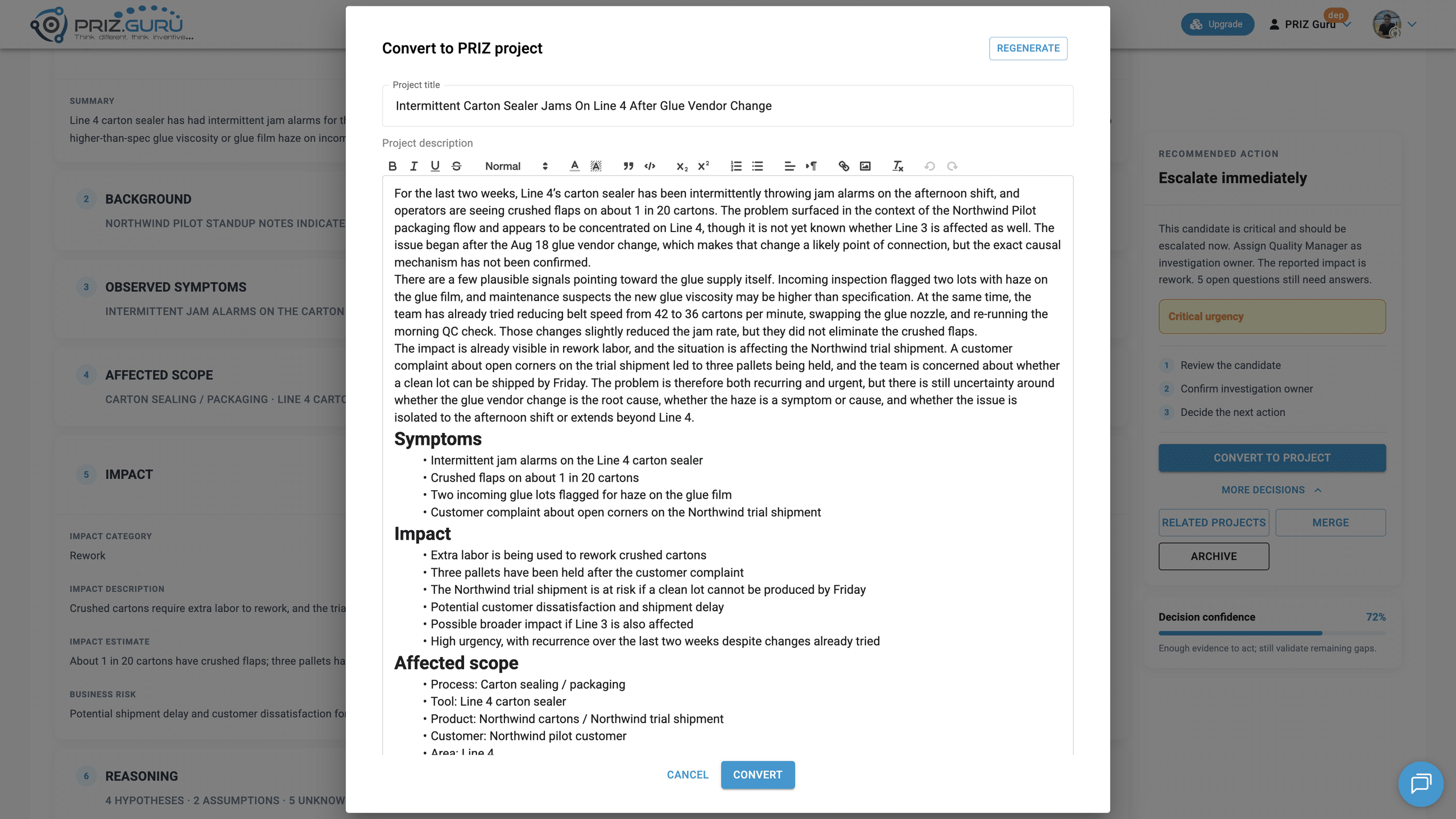
PRIZ creates the project and takes you to its Project Overview. The candidate status becomes Converted, and a link to the new project is shown on the candidate. For the project wizard, see Creating Projects.
Merge
Use Merge when this candidate is a duplicate of another one.
- Click Merge under More decisions.
- The dialog is Merge into another candidate.
- If related candidates exist, choose a Target candidate and click Merge.
- If none are found: No related candidates found to merge into.
Target candidate: Choose the candidate to merge into. If none are found: No related candidates found to merge into.
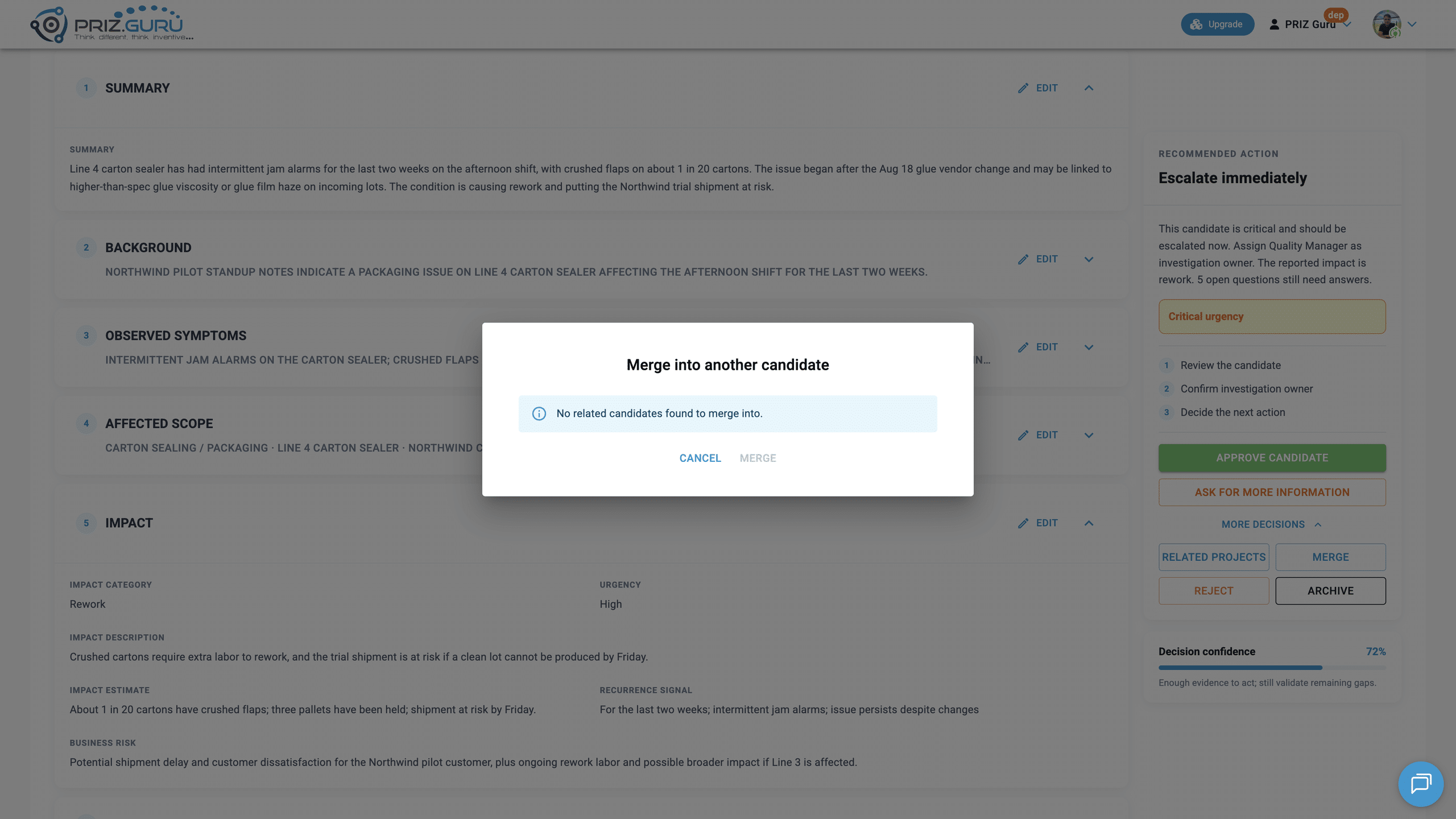
After a merge, this candidate is marked Merged. The notice is Candidate merged.
Reject
Use Reject when this is not a problem you want to keep in the queue.
- Click Reject under More decisions.
- The dialog is Reject candidate. Enter a Reason. The reject button stays inactive until a reason is entered.
- Click Reject to confirm, or Cancel to keep the candidate in review.
Reason: Required. The reject button stays inactive until a reason is entered.
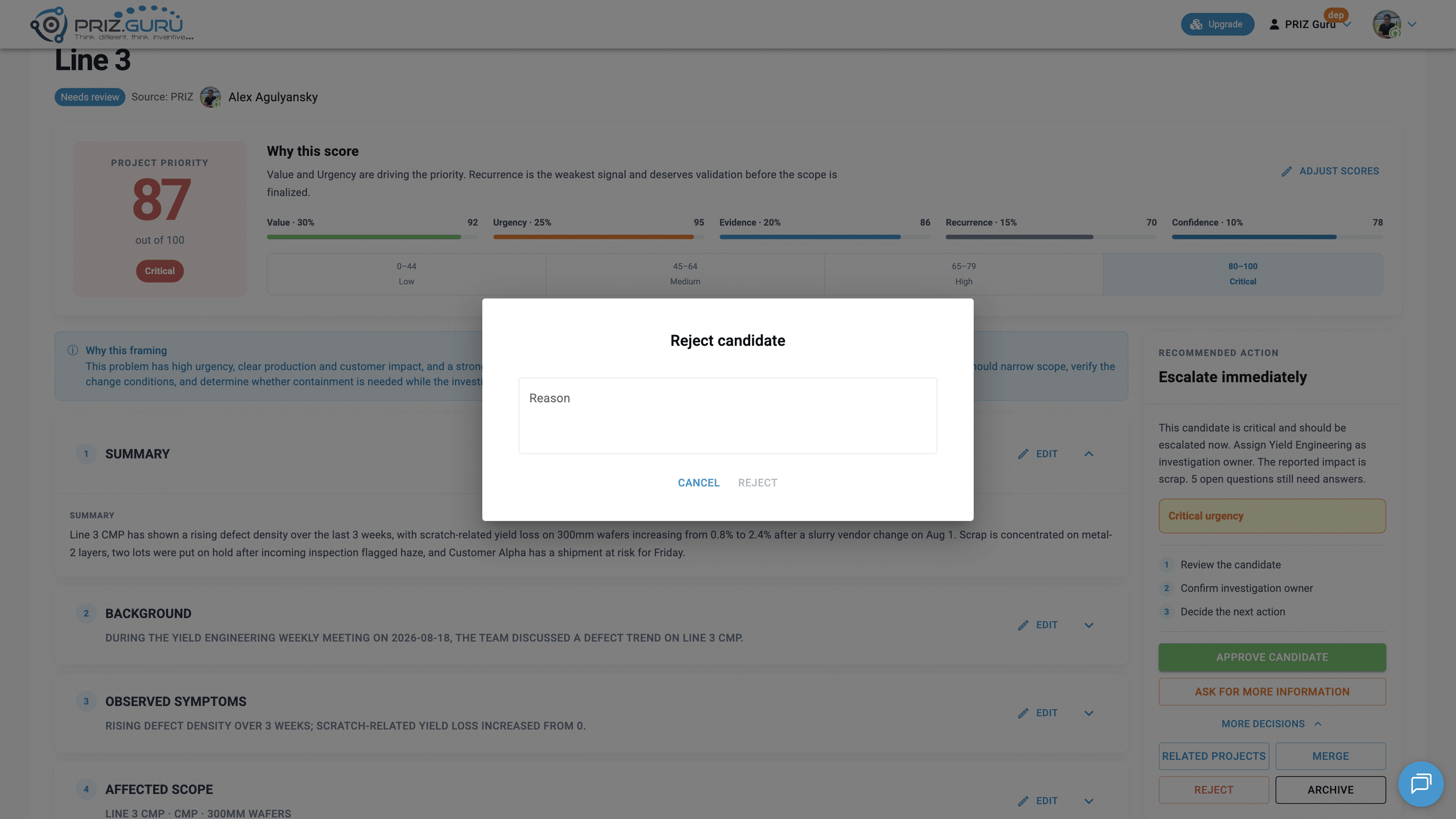
After rejecting, the status becomes Rejected. The notice is Candidate rejected. The reason is stored in Review history. The form becomes read-only.
Archive
Use Archive to remove a candidate from the active review queue without rejecting it. This is the right action when the candidate is valid enough to keep, but you do not want it in the default Needs review list.
You can archive a candidate from Needs review, Needs more info, or Approved. You cannot archive a candidate that is already Converted, Merged, Rejected, or Archived.
How to archive
- Open the candidate from the inbox.
- Click Archive under More decisions.
- PRIZ asks: Archive this candidate? Body: Archived candidates leave the active review queue.
- Optionally enter a Note (optional). This note is stored in Review history.
- Click Archive to confirm, or Cancel to keep the candidate in the active queue.
Note (optional): Stored in Review history.
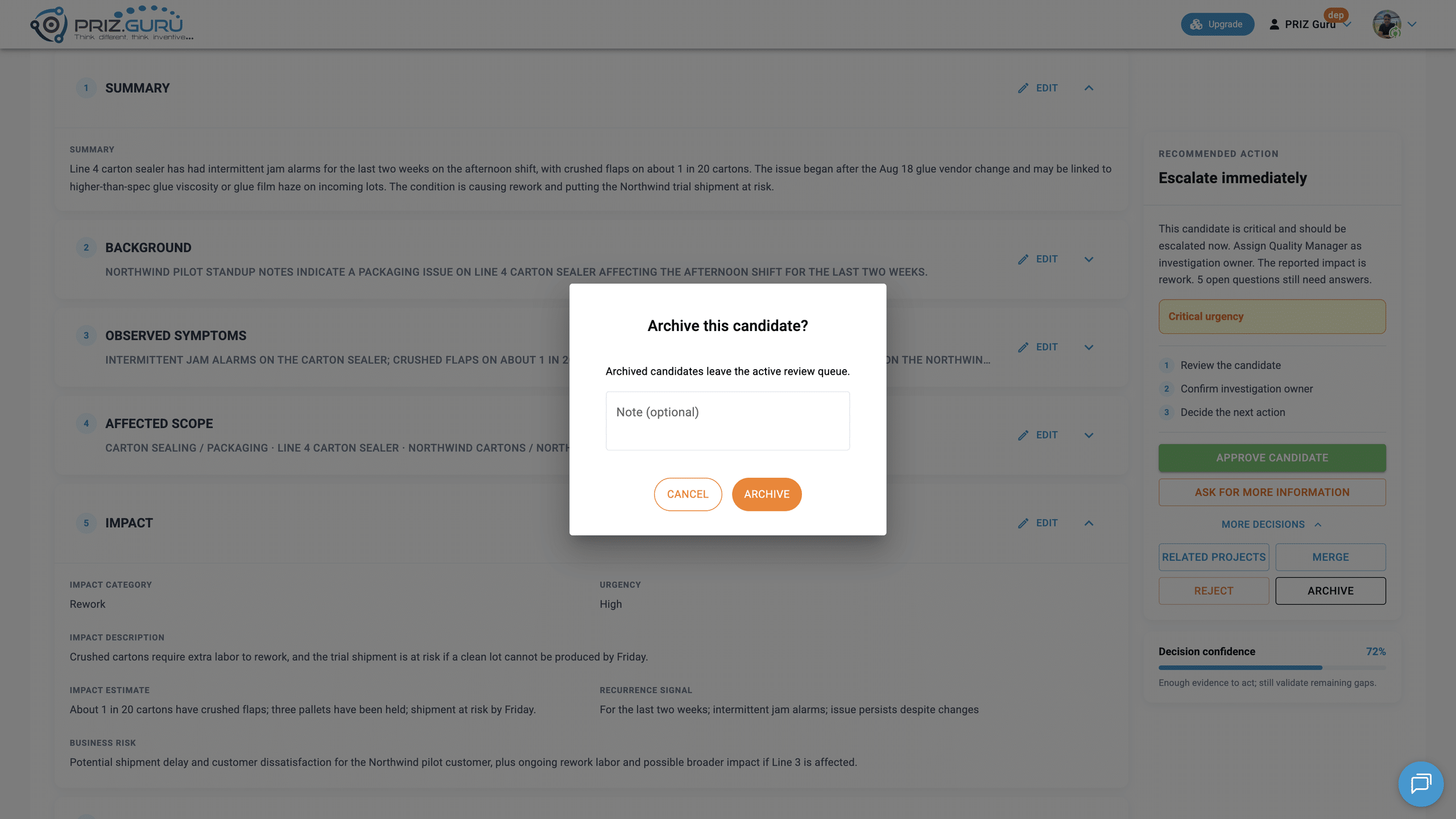
After archive:
- The status becomes Archived.
- The notice is Candidate archived.
- The candidate disappears from the default Needs review inbox.
- The form becomes read-only.
- Review actions such as Approve candidate, Reject, Merge, Edit all details, and Archive are no longer shown.
- Related projects may still be available.
- Review history shows the review time and the archive note, if you provided one.
Finding archived candidates
Archived candidates are not deleted. To find them:
- Open Problem Candidate Inbox.
- Change the Status filter from Needs review to Archived.
- Click the card to open the archived candidate.
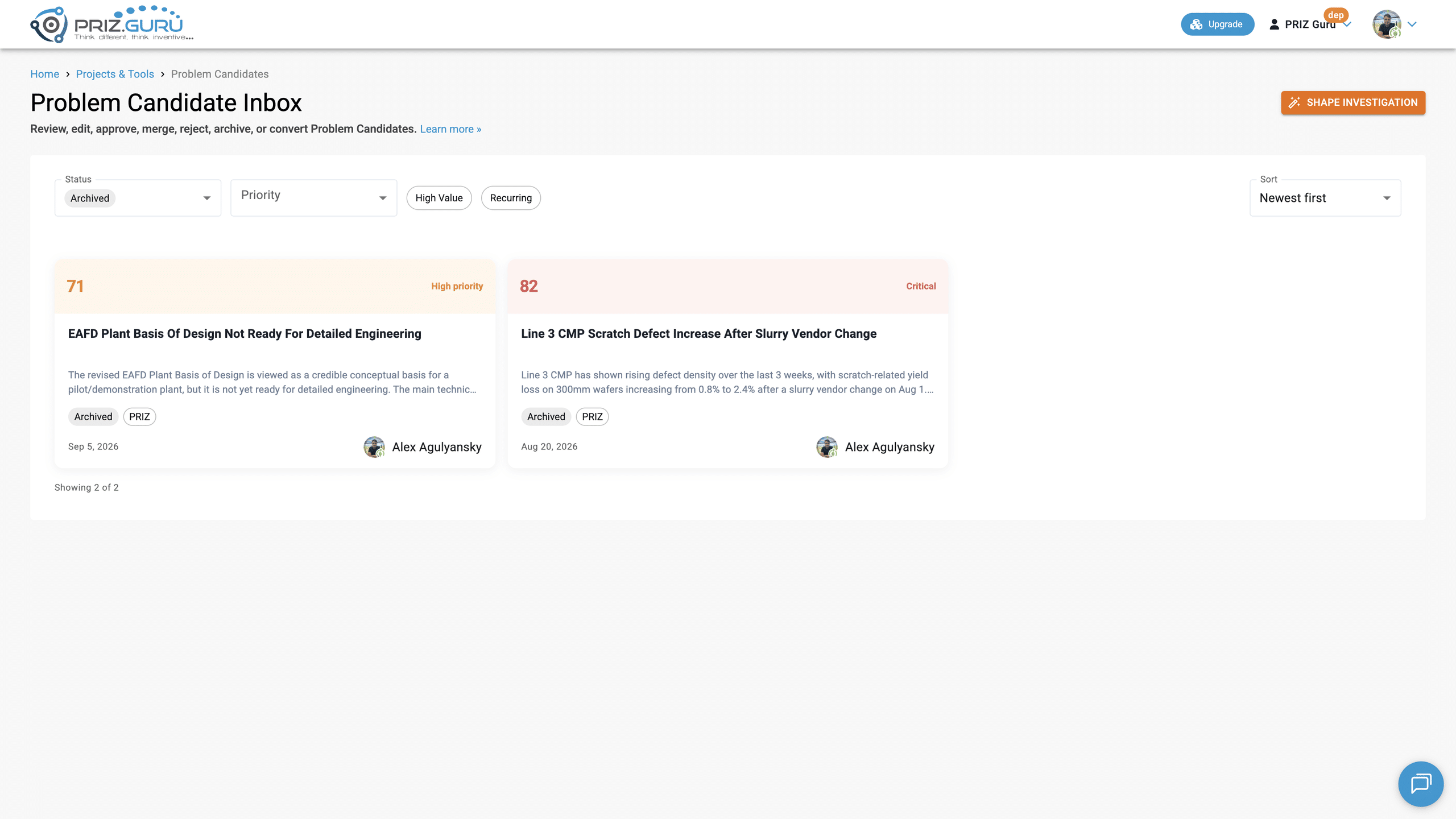
You can combine Archived with Source, Priority, High Value, and Recurring if you need a narrower list.
Unarchive
Unlike projects and tools, Problem Candidates currently cannot be unarchived.
Once a candidate is archived:
- There is no Unarchive action on the review page.
- The candidate stays in Archived status.
- The record remains viewable, but it is read-only.
If you later decide the problem should be investigated, start a new Shape Investigation from the original context, or continue from a related project if one already exists.
Related projects
If similar-project search is enabled, Related projects under More decisions opens a drawer titled Related projects. Subtitle: Projects that look related to this candidate.
Matches use the same closeness labels as Shape Investigation: Strong match, Related, Loosely related.
Tips
- Save edits (Done or Save all edits) before you approve, reject, or convert.
- Use Related projects before converting, so you do not create a duplicate project.
- Ask for more information when the facts are incomplete, rather than rejecting a candidate that might still be real.
- Archive instead of reject when you want to keep the record but take it out of the active queue.
- Convert only after approval. Conversion creates a PRIZ project and takes you to Project Overview.
That’s it. I hope it’s clear and easy.
P.S. Please let us know if you require any assistance.