

Billing is where a workspace admin chooses a plan, pays for seats and AI Assistance, updates the card and invoice details, downloads invoices, and cancels or resumes the subscription.
The page heading is Billing. Learn more » opens this article.
Plans are priced per seat, per workspace, in USD. Public plan descriptions live on Plans & Pricing. Education pricing is separate: individual licenses for students and teachers.
For the workspace admin area, see Workspace Settings. New accounts start in a default workspace named Personal — see Sign Up & Login Instructions.
Who can open Billing
Only workspace admins can open /workspace/billing. Members who are not admins do not see Billing in the left menu, and the page is not available to them.
If billing is managed by PRIZ (Enterprise / sales-led workspaces), the payment and invoice cards read Billing is managed by PRIZ. You can still view the plan. You cannot Upgrade, Cancel, Manage Seats, Manage AI Assistance, or change the card yourself.
If a charge fails, a banner appears across the app: It seems like there is a problem with charging the subscription fees. Please visit the billing page to update the payment method. Admins should open Billing and update the card. Non-admins see a billing-required message and should contact a workspace admin.
How to open Billing
In the header, click the workspace name. The menu lists Workspace Settings, your other workspaces, and Create a workspace. Open Settings, then click Billing in the left menu. The sibling pages are Settings, Billing, Team, and Slack.
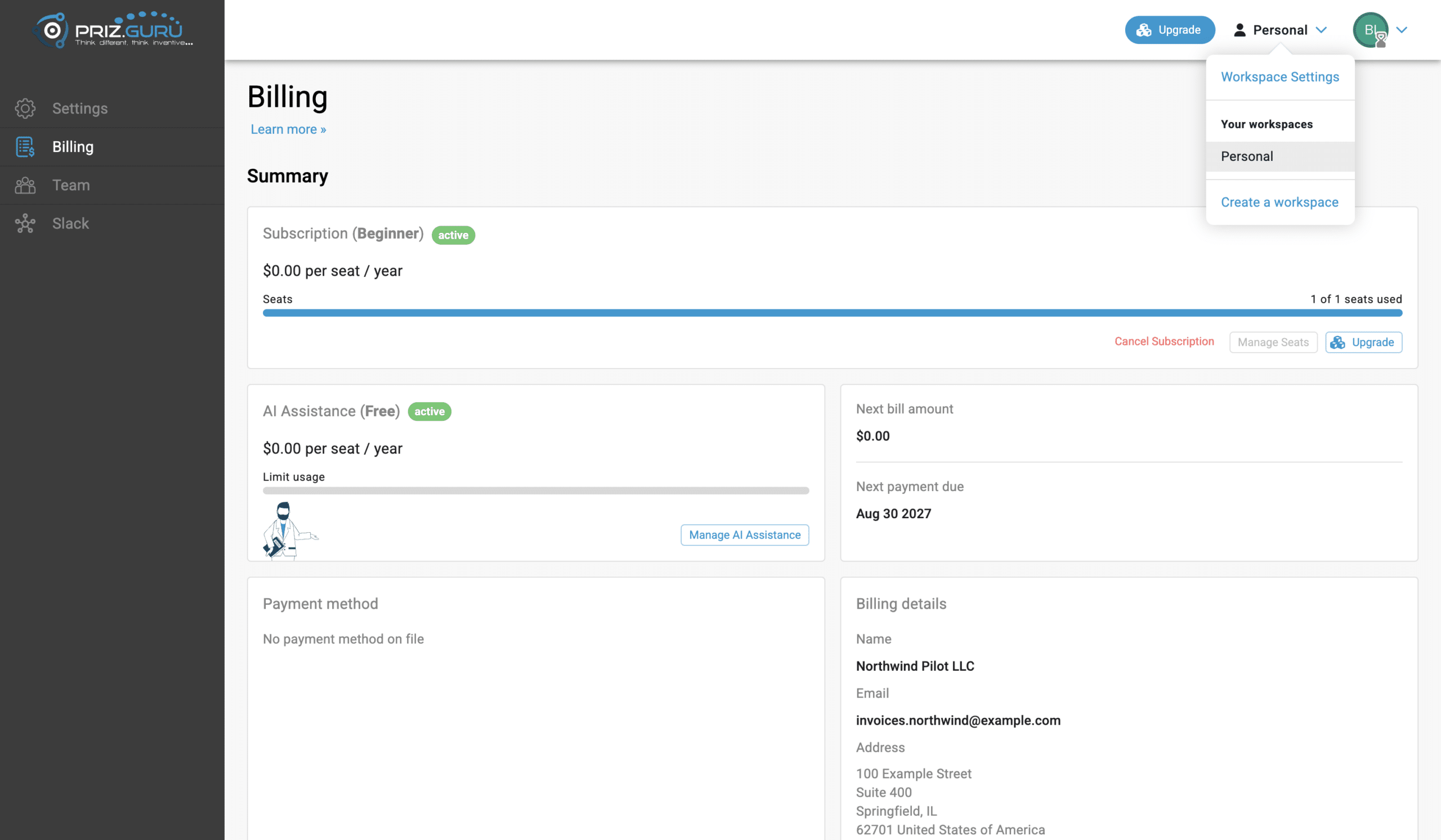
You can also go directly to https://app.priz.guru/workspace/billing. The header Upgrade button opens the same plan dialog as Upgrade on the subscription card.
What a new account looks like (Beginner, free)
When you create an account, PRIZ also creates a workspace named Personal on the Beginner plan. That plan is free, one seat, and already active. You do not pick a plan at signup.
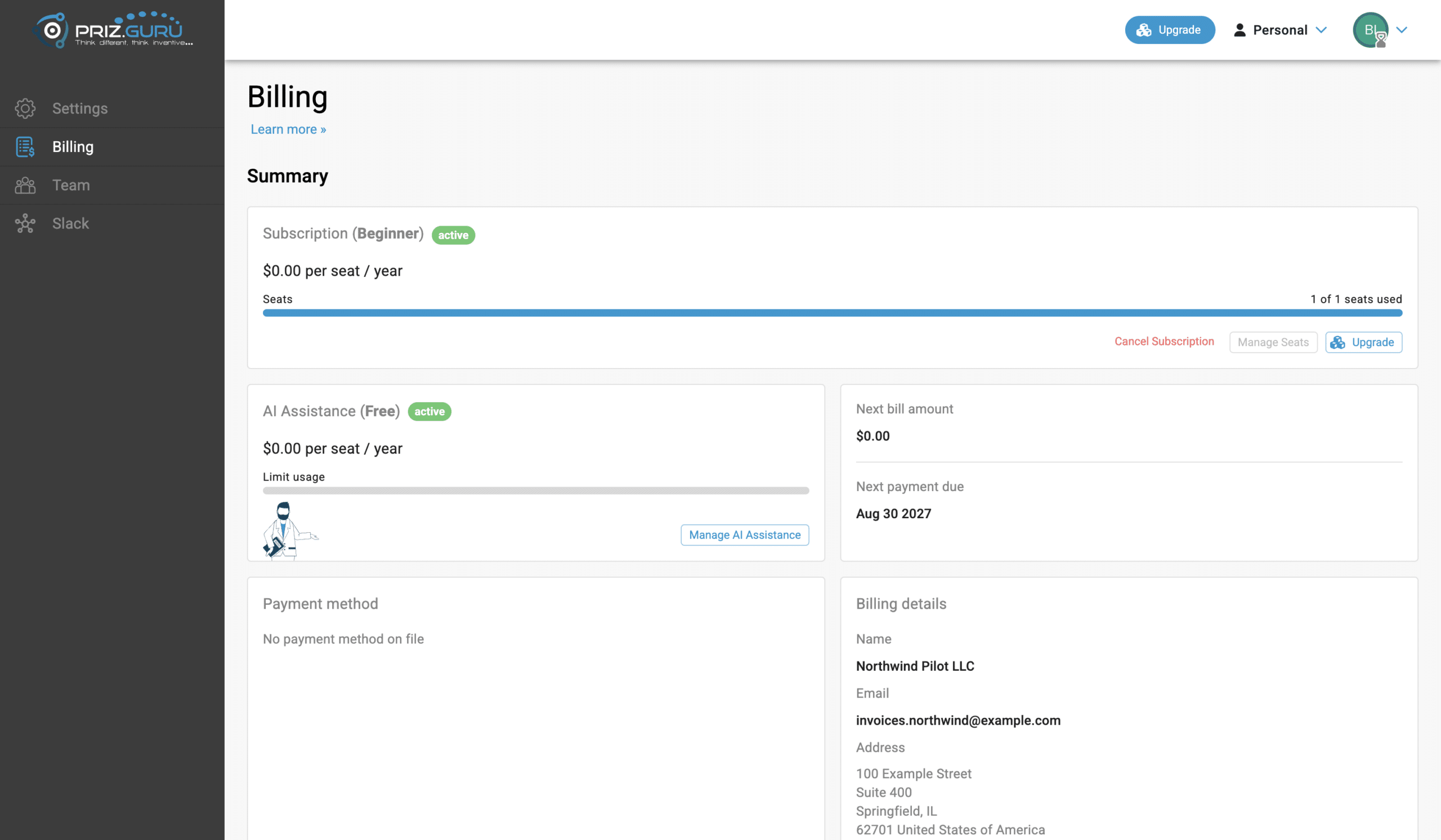
On this page you will see:
- Subscription (Beginner) with a green active chip, $0.00 per seat / year, and 1 of 1 seats used.
- Cancel Subscription, a disabled Manage Seats (individual plans are one seat), and Upgrade.
- AI Assistance (Free) at $0.00 per seat / year, with Manage AI Assistance.
- Next bill amount of $0.00 and a Next payment due date (the free subscription still has a billing cycle).
- Payment method — No payment method on file until you add a card.
- Billing details — Name starts as the workspace name (Personal). Email starts as the account email. Update these before you pay so invoices use the company name and inbox you want.
- Past Invoices — free plans can still generate $0 invoices. Those show as Paid. If nothing has been issued yet: There are no invoices yet.
Workspace with no plan selected
A workspace you create later (from Create a workspace) does not pick a paid plan at creation. Until an admin chooses one, Billing shows an info alert instead of the Summary cards:
This workspace does not have a plan selected. Please, choose a plan.
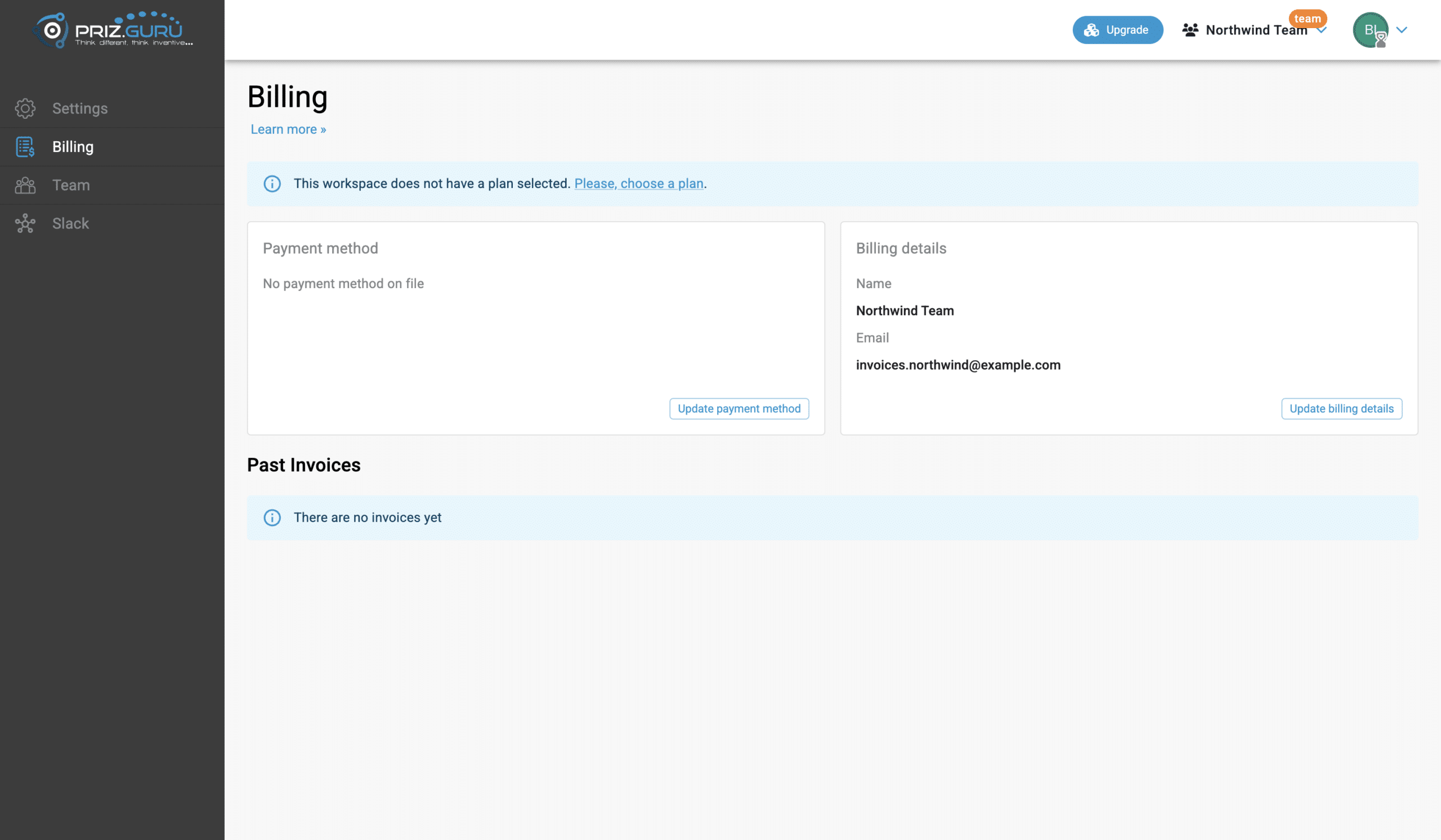
Click Please, choose a plan, header Upgrade, or Update payment method / Update billing details if you only need to store card or invoice data.
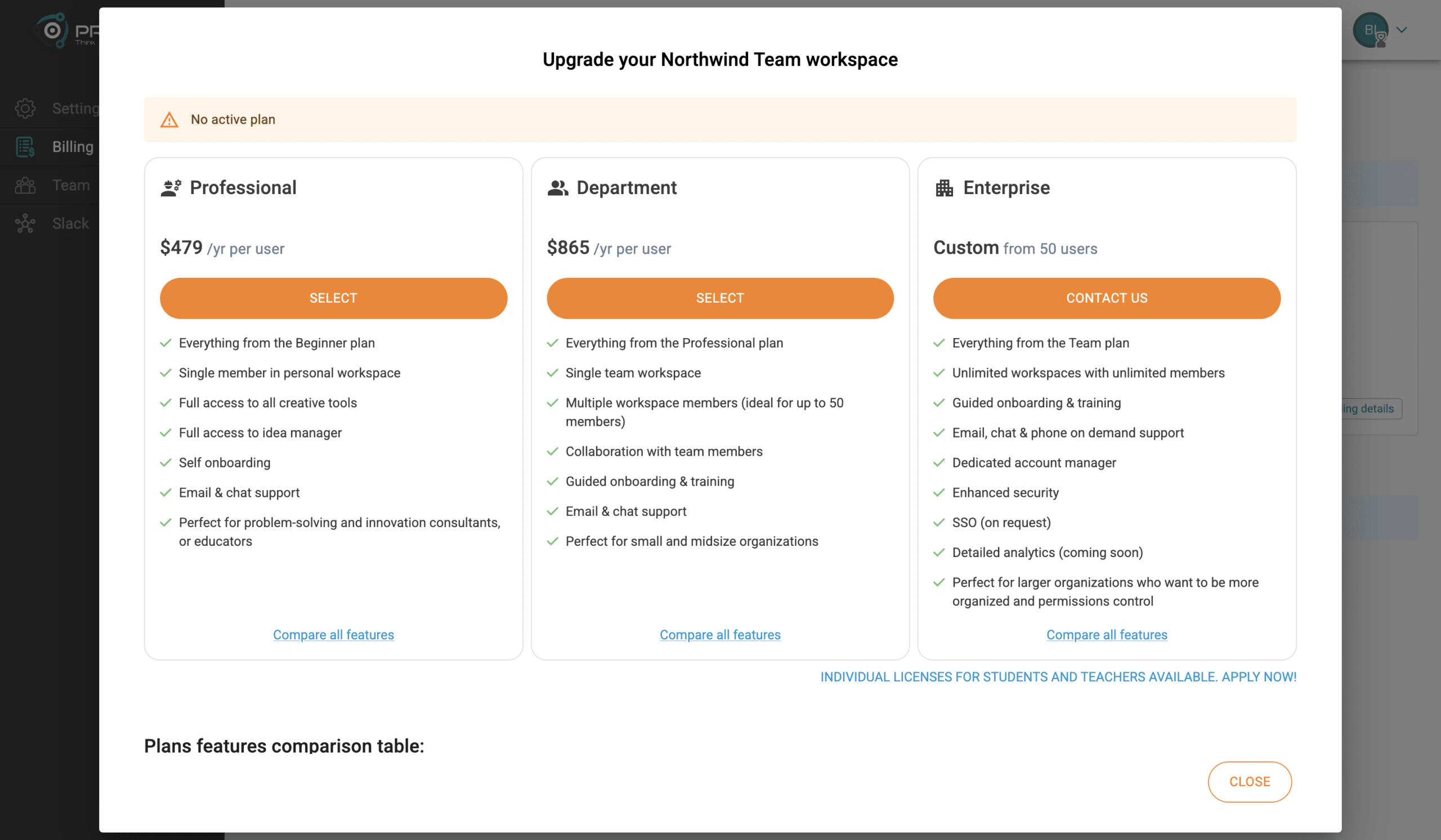
The upgrade dialog then shows a warning chip: No active plan.
The plans you can choose
Dialog title: Upgrade your {workspace name} workspace.
If you already have an active plan, a green banner says: You’re currently on the {plan} plan for $X per member per year. Discounts may apply if applicable. See invoices for more details.
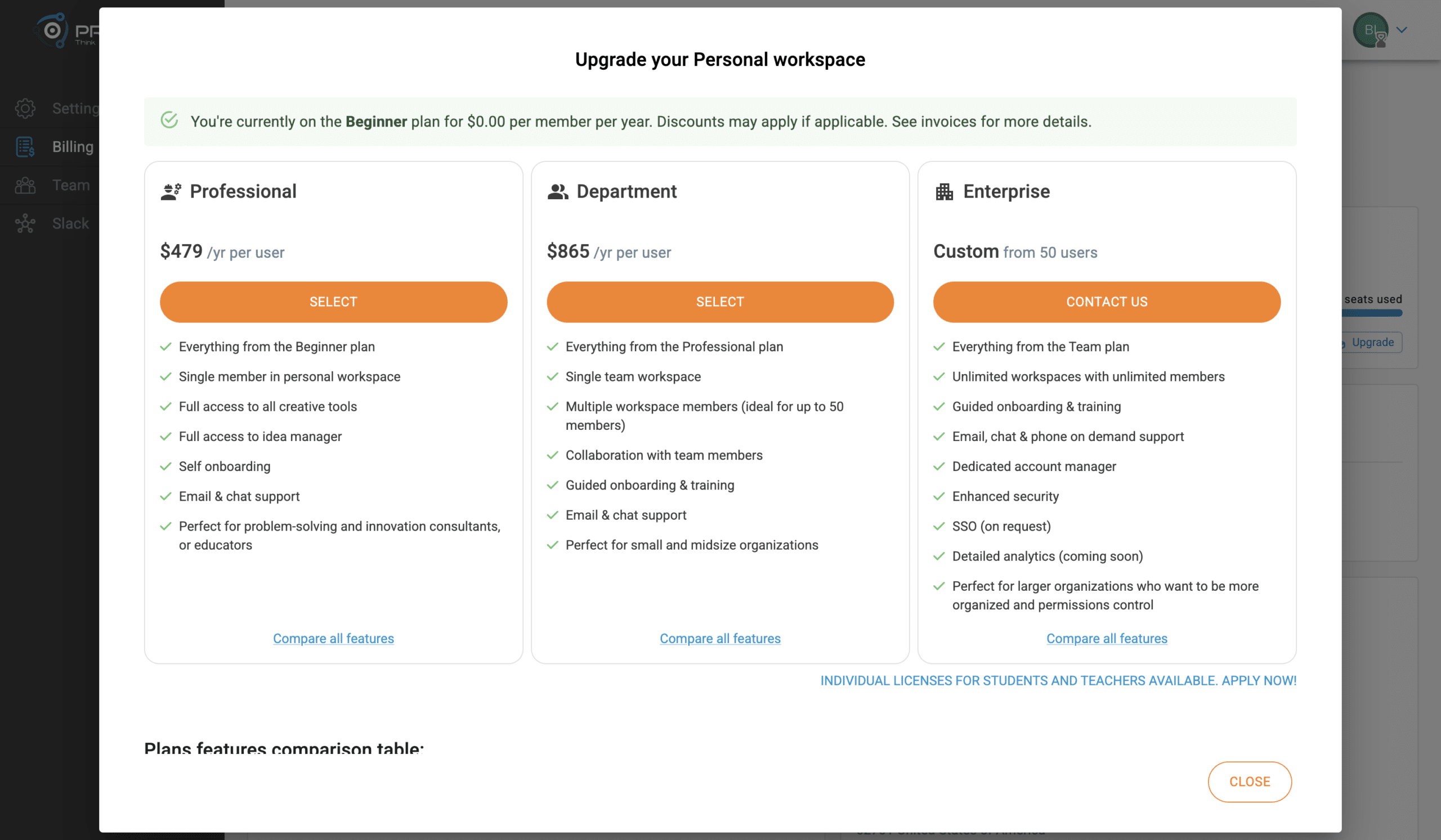
Cards you see today:
- Beginner — free, one member. Shown as Current when you are already on it. Not offered as a paid upgrade target from a paid plan.
- Professional — $479 /yr per user. One member in a personal workspace. Full creative tools and idea manager. Button: Select, or Current if this is your plan.
- Department — $865 /yr per user. Team workspace, up to 50 members, collaboration. Button: Select.
- Enterprise — Custom from 50 users. Button: Contact us (opens the contact page). No self-serve checkout.
Under the cards: Individual licenses for students and teachers available. Apply now! That link goes to the education license page.
Compare all features on a card scrolls to Plans features comparison table:
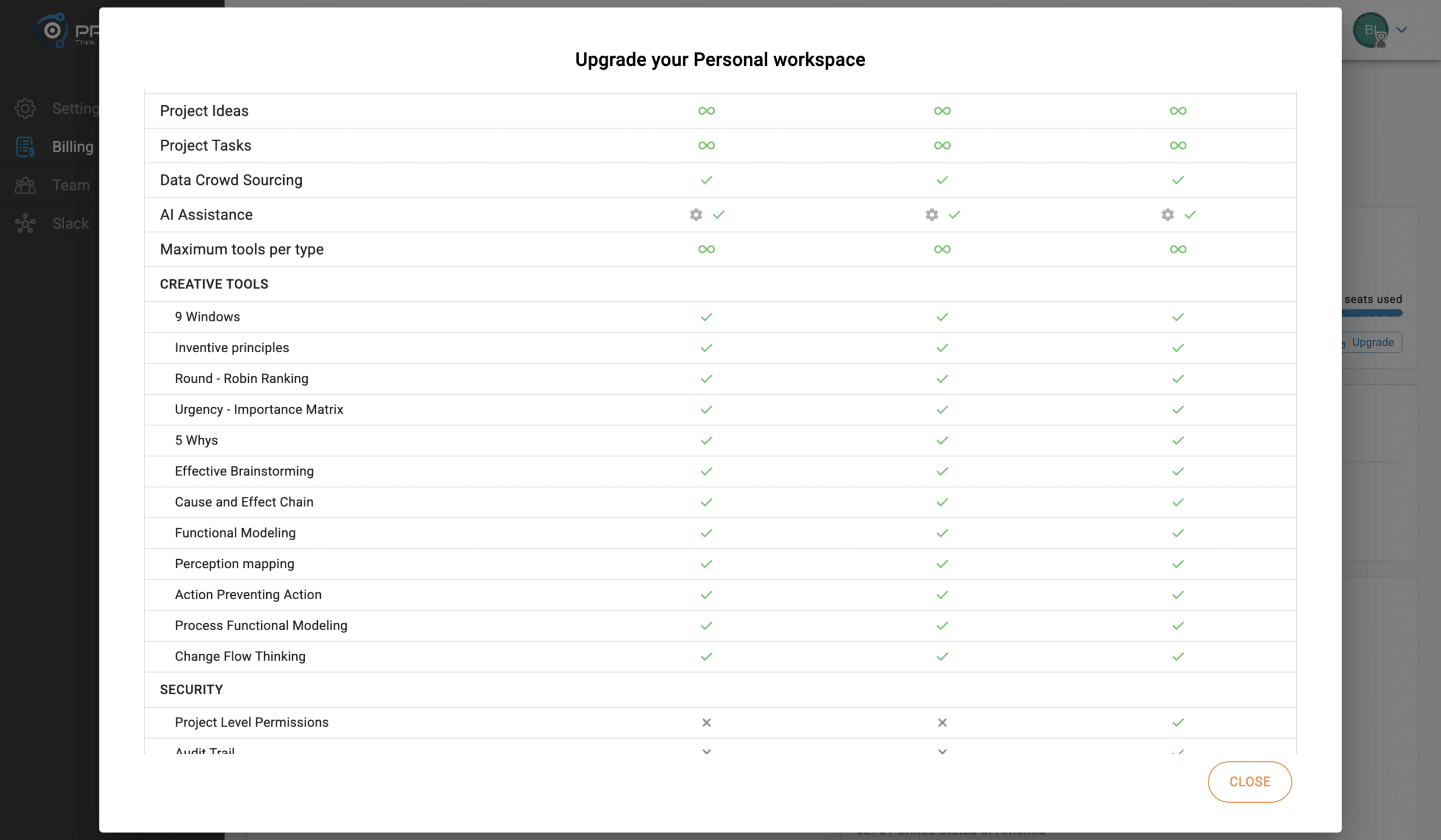
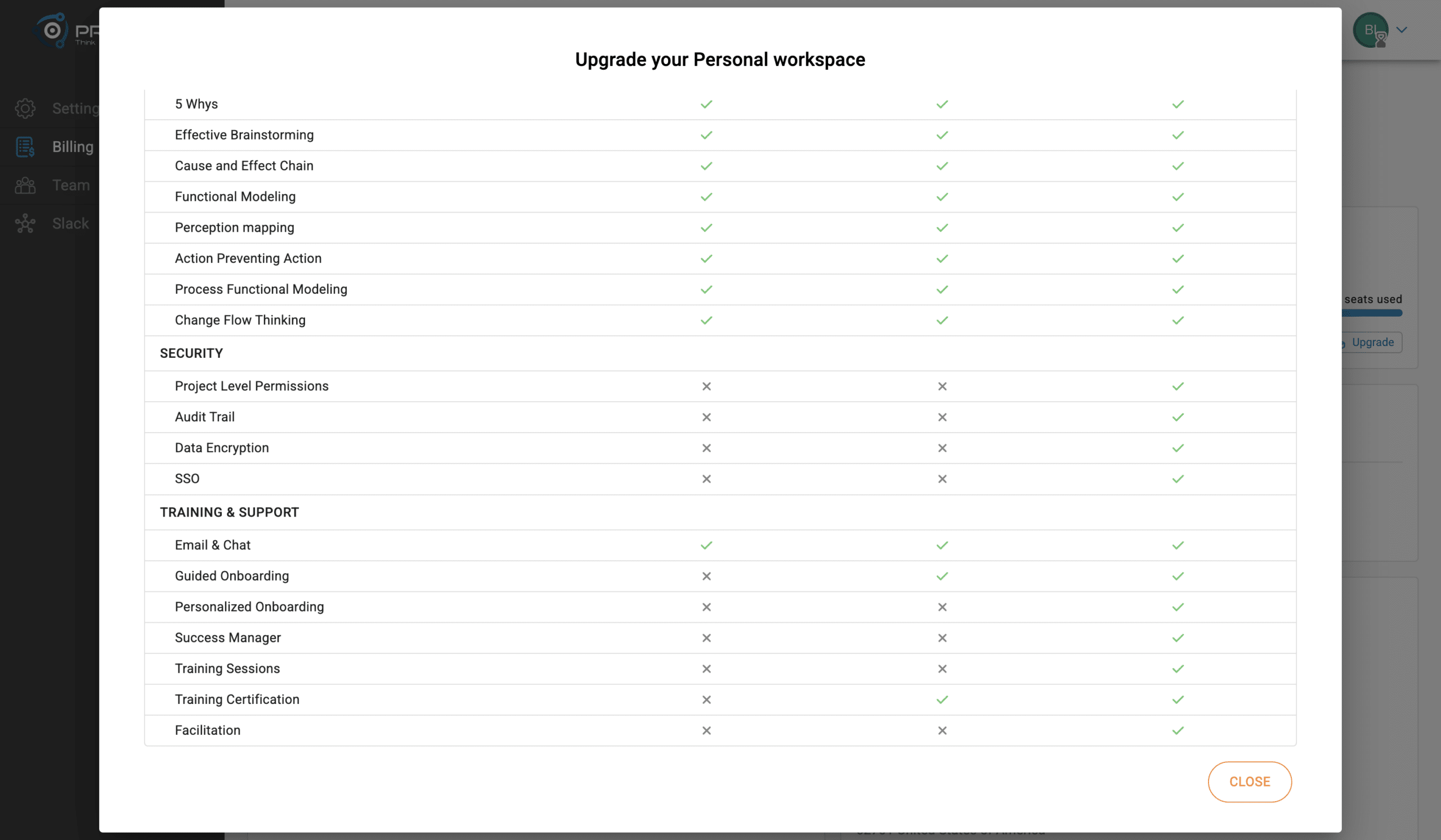
Table groups: Features (active projects, maximum members, project ideas, project tasks, data crowdsourcing, AI Assistance, maximum tools per type), Creative tools, Security, Training & Support.
Footer of the dialog: Close.
If you are already on Professional and open Upgrade again, that card’s button is Current (disabled). Department stays Select.
Legacy / inactive catalog plans show a red alert on Billing: You’re on a legacy plan. We’ll keep it running, but you can upgrade anytime to access the latest features. with an Upgrade link.
Configure the plan (seats, AI, promo)
After Select on a paid plan, you land on the configurator. Back to plans returns to the cards. Next goes to payment.
Professional (one seat)
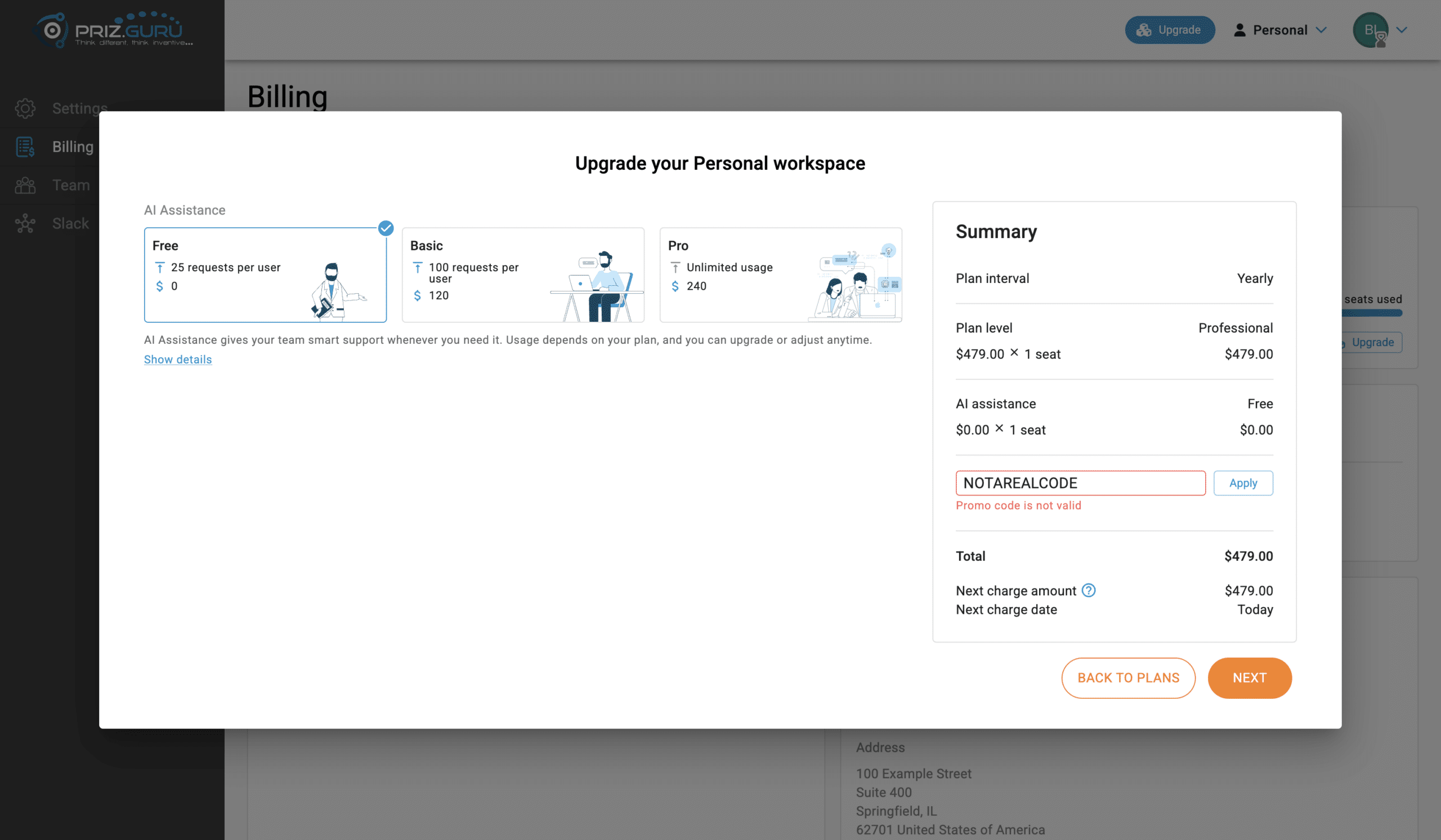
Professional is an individual plan. There is no seats slider. The summary already shows 1 seat. You choose AI Assistance and optionally a promo code.
Department (seats)
Field title: Seats quantity. Choose 5, 10, 20, 30, 40, or 50 seats. You cannot pick fewer seats than the current member count. The info line: Maximum number of seats: 50. If you need more, please contact us.
If the workspace already has more members than the plan allows, you do not reach checkout. See Too many members.
AI Assistance
Three cards:
- Free — 25 requests per user, $0 per seat.
- Basic — 100 requests per user, $120 per seat.
- Pro — Unlimited usage, $240 per seat.
Copy under the cards: AI Assistance gives your team smart support whenever you need it. Usage depends on your plan, and you can upgrade or adjust anytime. Show details expands How it works: each user has a monthly AI request budget that resets at the start of the billing cycle. Plans are billed annually. Changes take effect right away, with charges adjusted automatically. Hide details collapses that.
On Beginner, Basic and Pro are not available from Manage AI Assistance — you upgrade the workspace first. During a paid checkout you can attach Basic or Pro immediately.
Summary and promo code
Right column labels:
- Plan interval — Yearly
- Plan level
- Seat line: $X × N seats = $Y
- AI assistance — Free / Basic / Pro, or Not selected
- Promo code — placeholder Promo code, button Apply
- Total
- Next charge amount (tooltip: Price including previously paid invoices and promo code)
- Next charge date — Today on a first paid checkout
An invalid code shows Promo code is not valid. A check that fails shows Failed to check promo code.
Pay for the plan
The checkout step shows the configuration chips: Plan, Interval, Seats, AI assistance, Price. Buttons: Back to configurator and Upgrade.
If you chose a free plan, the alert is You have chosen a free plan. No payment required. The button is Accept.
If you already have a card on file:
- Use payment method on file:
- Card ending with {last 4}
- Or Add another card
If there is no card, you fill the form:
Billing email: Helper: Invoices will be sent to this email. Required: Email is required.
Billing/Company name: Helper: Invoices will be issued to this name. Required: Name is required.
Credit card: Stripe card field. Placeholder: Card number.
Address 1: Required: Address is required.
Address 2: Optional.
City: Required: City is required.
State / Province / Region: Optional.
Country: Dropdown.
Postal code: Required: Postal code is required.
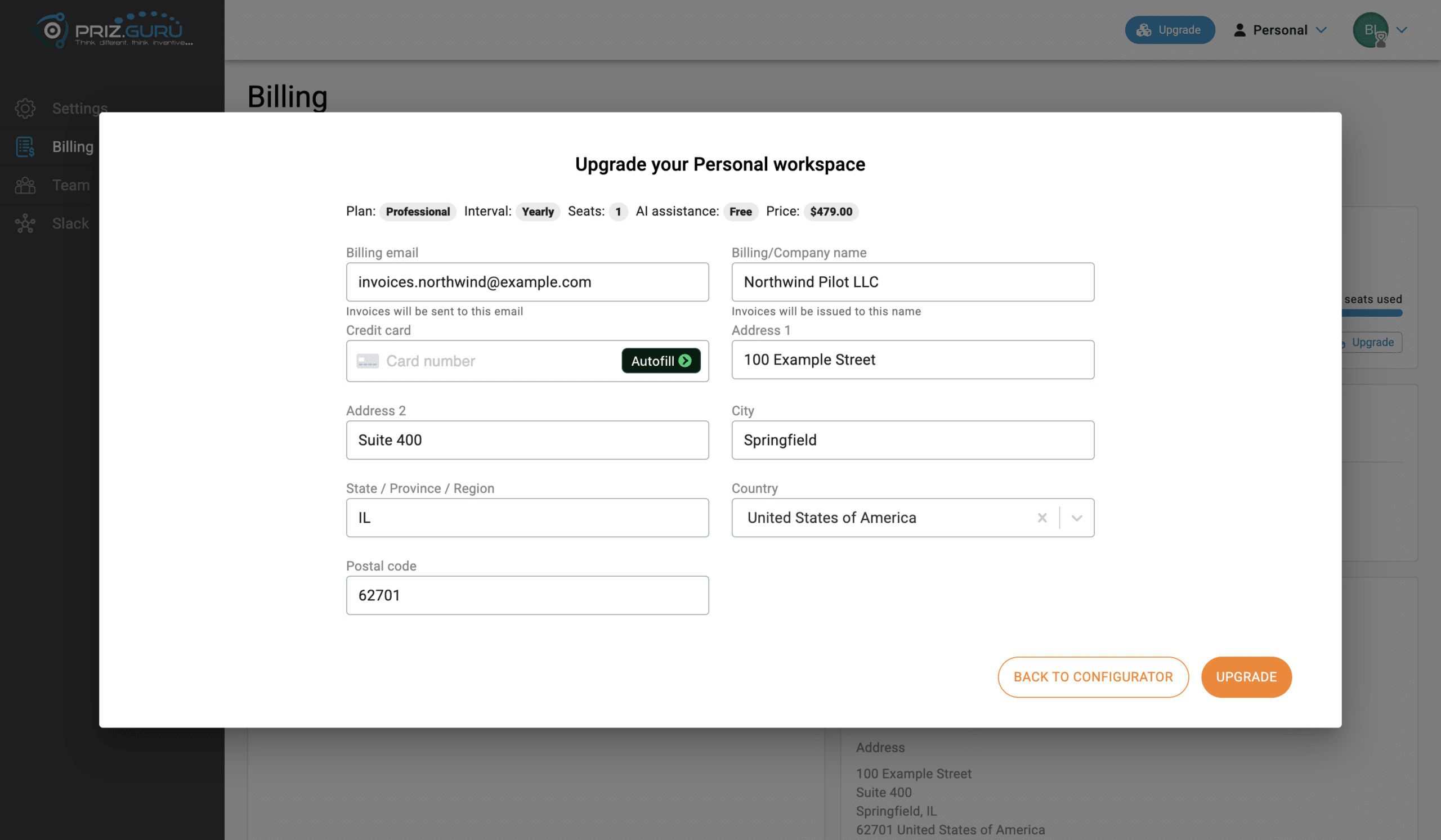
After a successful charge, the dialog shows Plan successfully updated! and a short configuration summary. Close returns you to Billing, now with a Summary.
Active subscription on Billing
After a plan is attached, the page heading Summary has three (or two) cards on the first row, then payment and invoice details.
Professional (individual)
- Subscription (Professional) — active, $479.00 per seat / year, 1 of 1 seats used.
- Cancel Subscription · disabled Manage Seats · Upgrade.
- AI Assistance (Basic) or Free / Pro — Manage AI Assistance.
- Next bill amount and Next payment due (workspace + AI, after discounts if any).
Department (team)
- Price is $865.00 per seat / year.
- Seats bar: {N} of {M} seats used.
- Manage Seats is enabled.
Status chips you may see
On the subscription card: active, unpaid, canceled, incomplete, incomplete expired, trialing, past due, plus cancels at period end after you cancel but still have time left.
While cancel is pending: You keep access until {date}. There will be no further charge. Cancel Subscription is replaced by Resume. Next bill reads No further charge and Access until that date.
Manage Seats
On a team plan, click Manage Seats. Dialog title: Manage Seats.
The header repeats Interval, Seats count, Plan level, Assistance level, Plan cost per seat, Assistance cost per seat, Total cost per seat.
Helper under the selector: Set the new number of licensed seats. It cannot be less than {members count}.
If you increase seats, a preview explains the prorated charge, for example that you will be charged today for the additional seats, to which card, and the new total. Then Save.
Individual plans (Beginner, Professional) keep Manage Seats disabled. Add people by upgrading to Department (or Enterprise via sales).
Manage AI Assistance
Click Manage AI Assistance. Dialog title: Manage AI Assistance. Same three cards as the configurator. Save is disabled until you pick a different available level. Close discards.
On Beginner, Basic and Pro show a not available chip. Warning: Current workspace plan is not supported AI assistance plan upgrade. To select a different AI Assistance plan, please upgrade your workspace. The word upgrade opens the plan dialog.
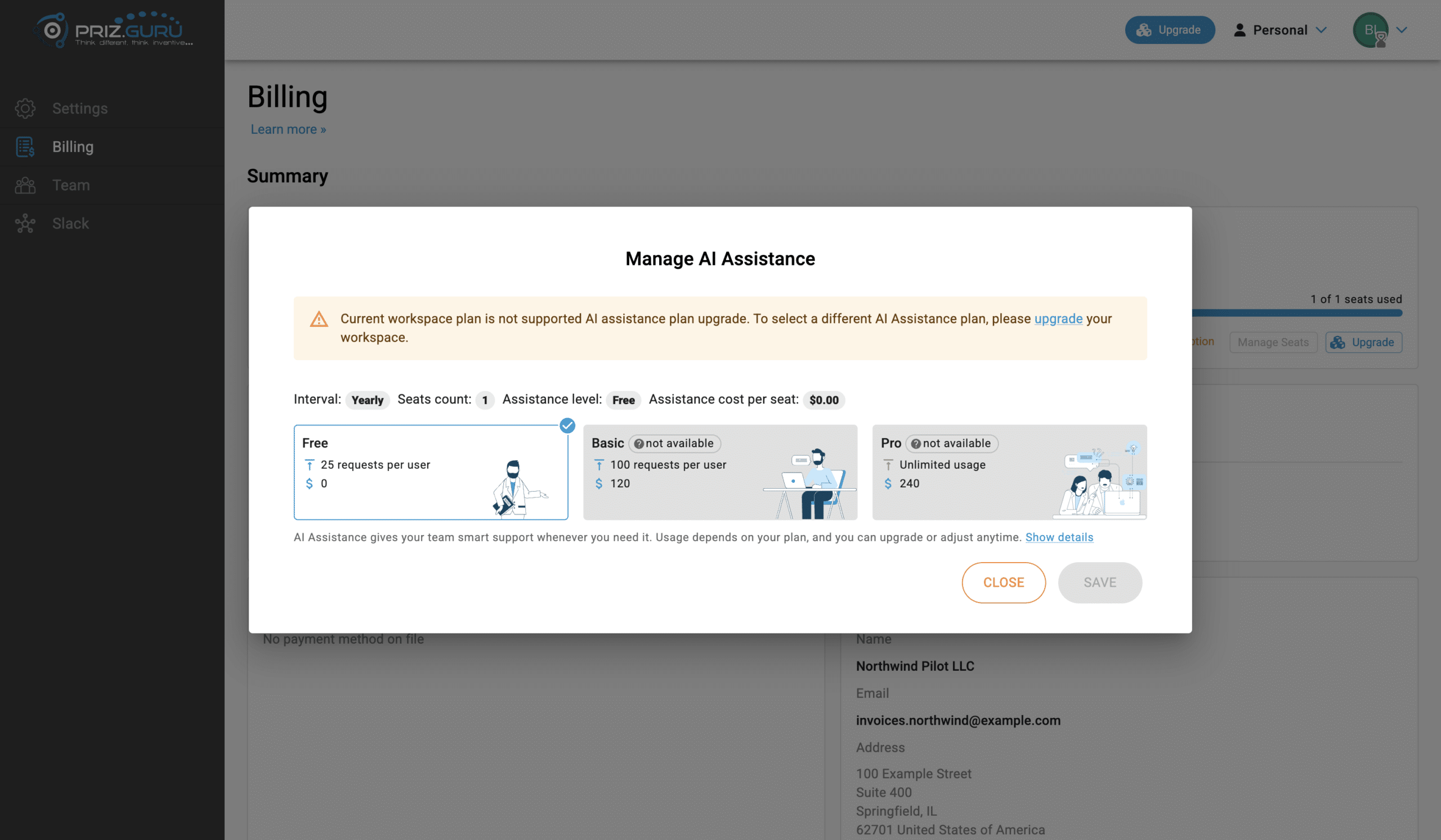
On a paid workspace the same three cards are selectable. Save enables after you change the level.
Payment method and billing details
These two cards sit under Summary whether or not a plan is selected.
Payment method — No payment method on file, or Card on file with Visa ending with {last4} (or another brand) and Expires. An expired card shows This card has expired. Load error: Failed to load payment method.
Click Update payment method. Dialog title: Update payment method. Field: Credit card. Cancel or Update. Success toast: Payment method updated.
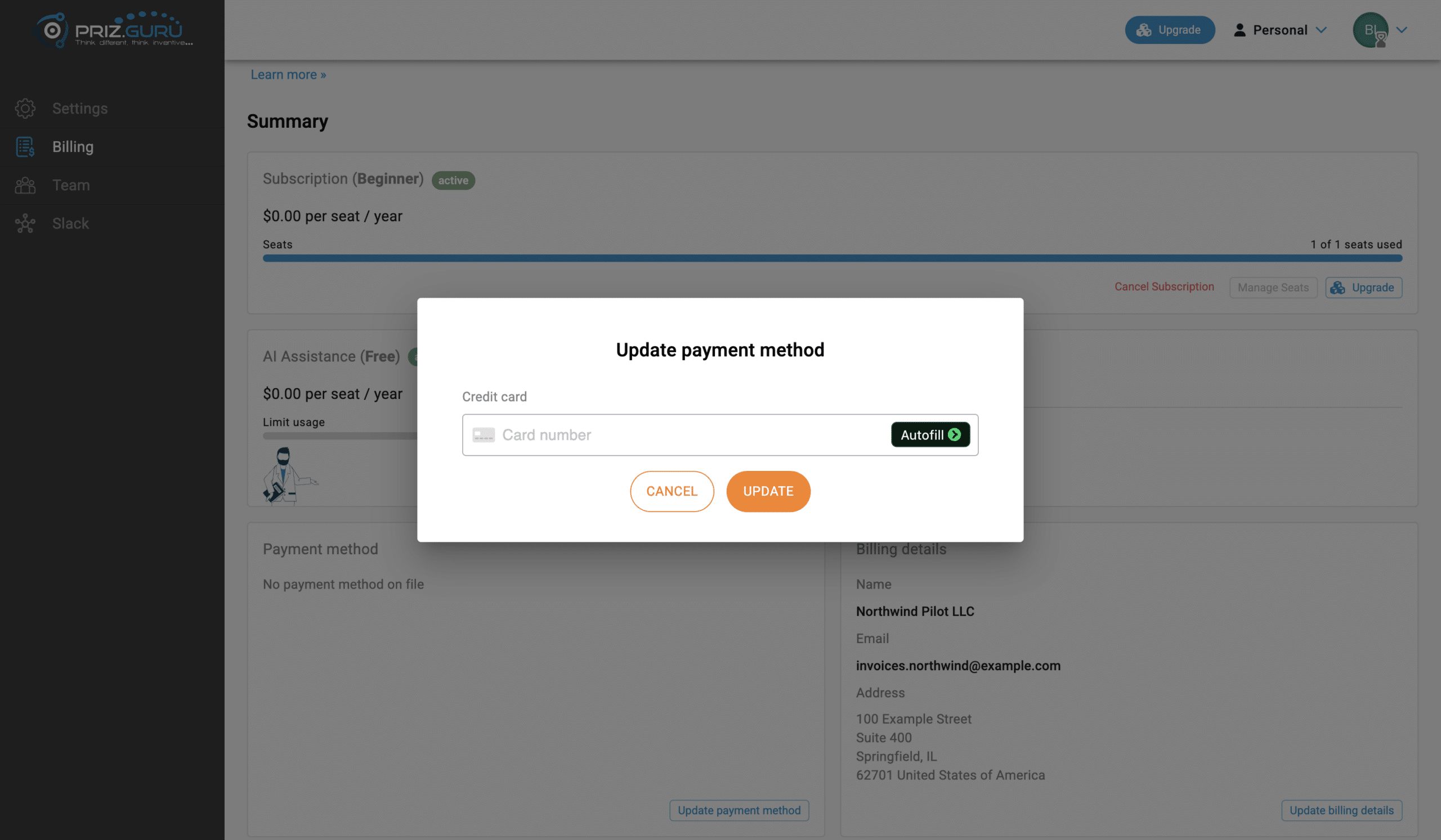
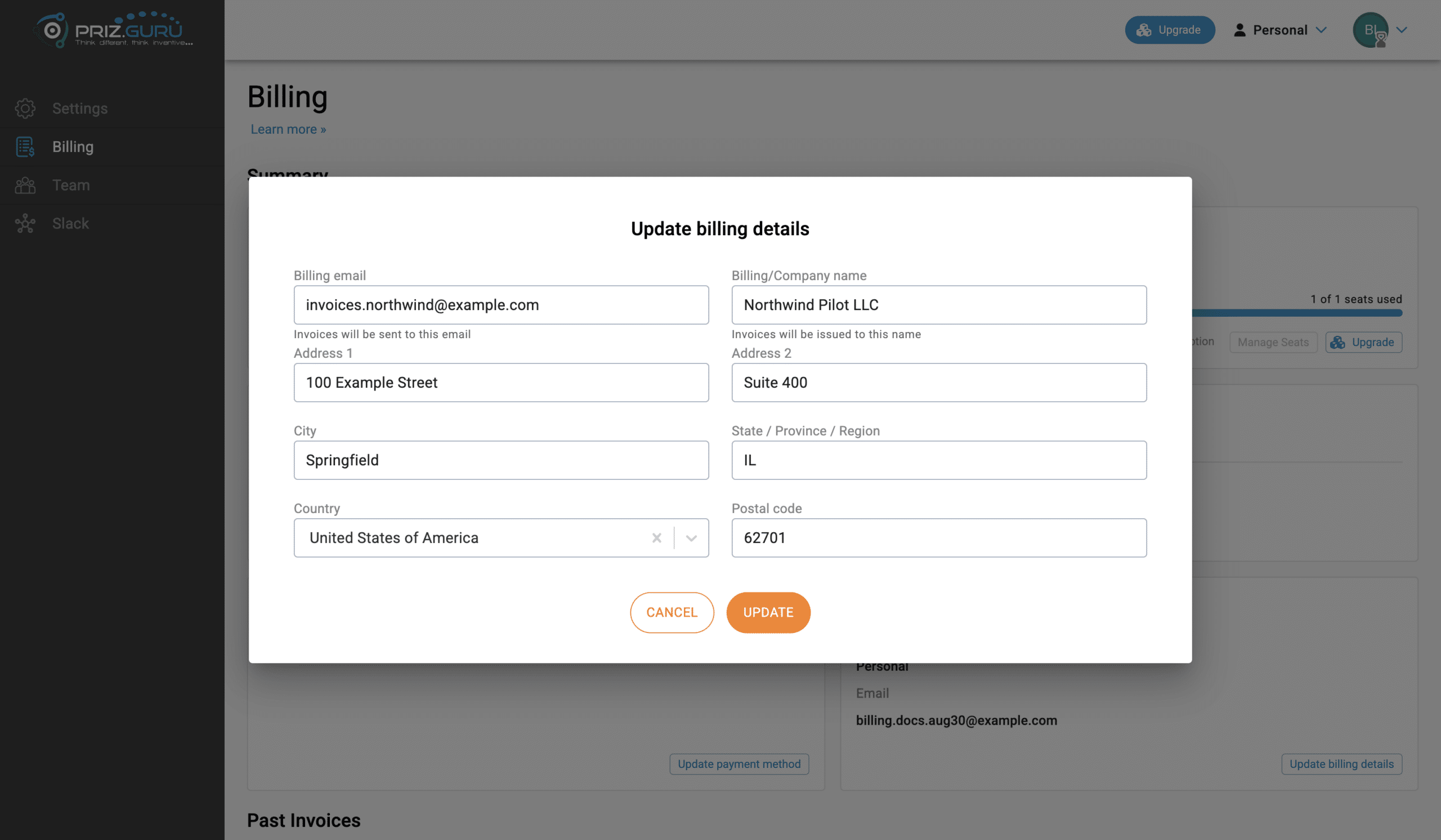
Billing details — Name, Email, Address. Empty: No billing details on file. Load error: Failed to load billing details.
Click Update billing details. Dialog title: Update billing details. Same identity fields as checkout (no card). Cancel or Update. Success toast: Billing details updated.
Past Invoices
Section heading: Past Invoices. The table lists recent invoices (the last ten). Columns: Date, Payment due by, Amount, Status, and Download pdf.
Paid invoices show a green Paid chip. Other statuses are capitalized as Stripe reports them. Empty: There are no invoices yet. Load error: Failed to load invoices list.
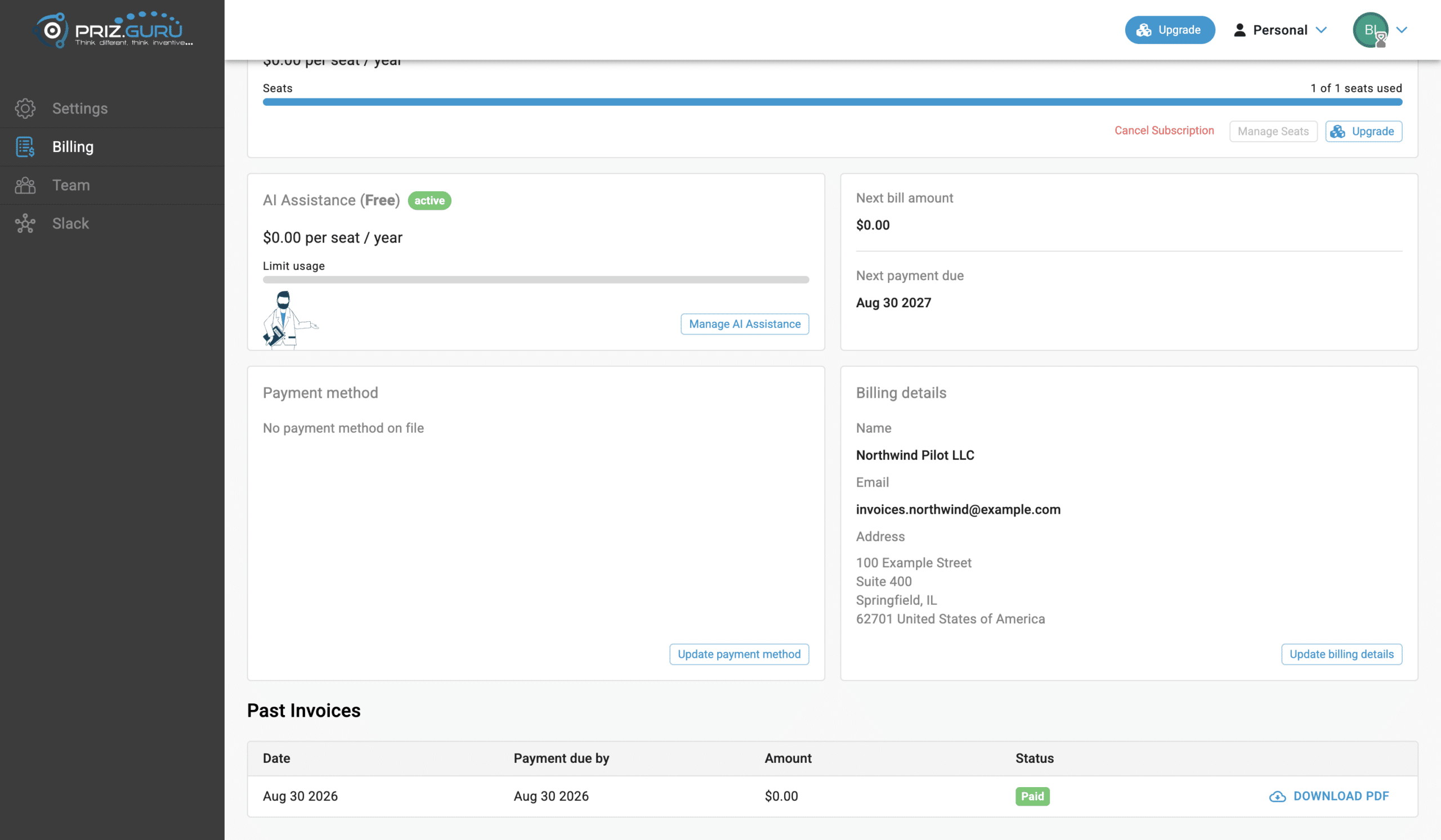
Free subscriptions can still create $0 invoices; those are treated as paid. If you need an invoice older than what the table shows, contact support.
Cancel or resume
Click Cancel Subscription. Confirm title: Confirm cancel the subscription.
Body: Are you sure you want to cancel the subscription for this workspace? If a period end is known: You keep access until {date}. Canceling stops the next charge. Otherwise: Canceling stops the next charge. You keep access through the paid term.
Buttons: Cancel (keep the subscription) and Yes, cancel.
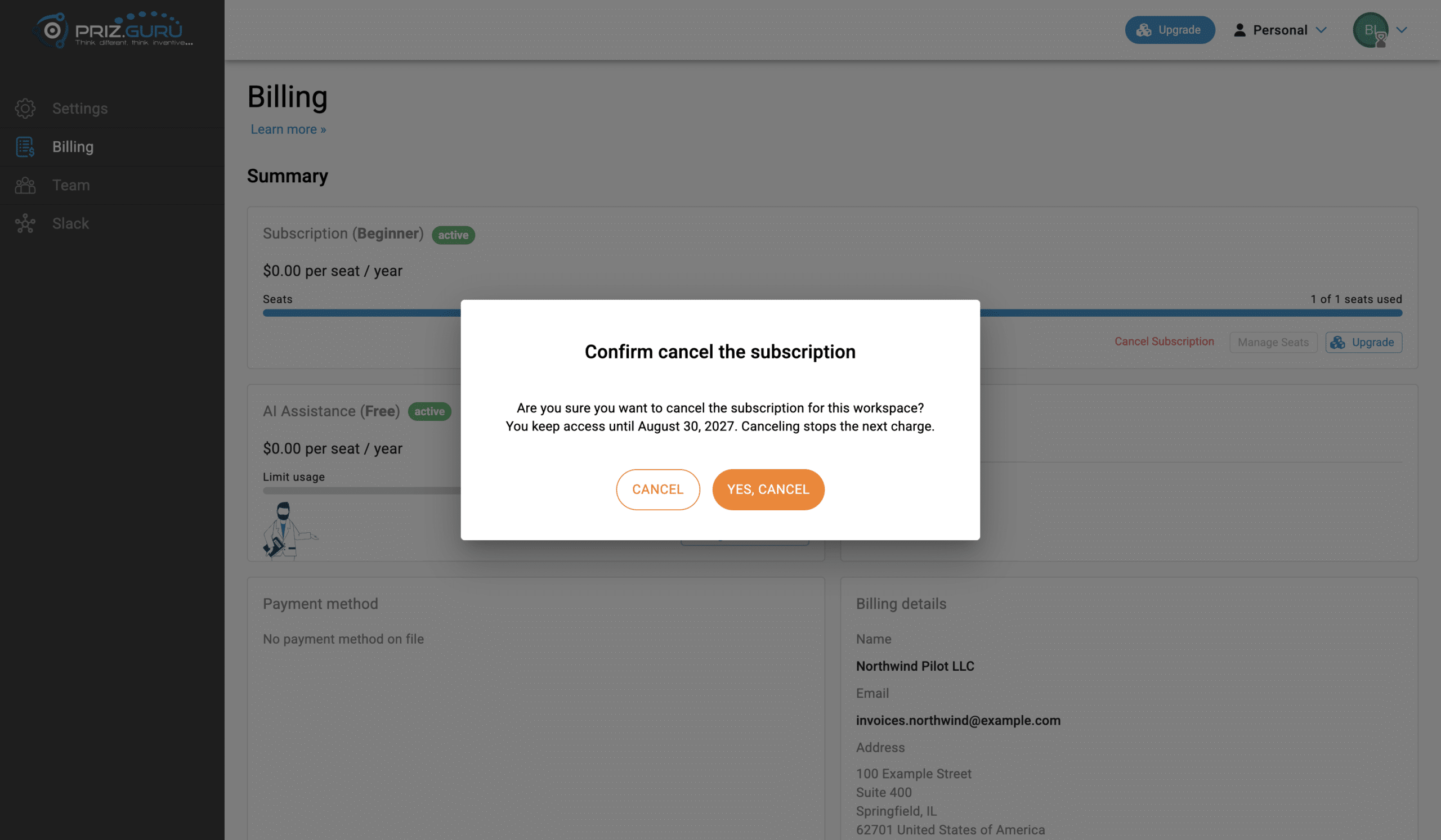
After cancel, the status becomes cancels at period end. Use Resume on the subscription card if you change your mind before that date.
Annual plans: cancel at least 30 days before the next billing date if you want to avoid the next charge (see the Terms of Service). You can also write to [email protected].
Deleting the workspace from Settings also cancels its subscription. That is permanent. See Workspace Settings.
Too many members for the plan
Individual plans allow 1 member. Department allows up to 50 in the self-serve selector. If the workspace already has more members than the plan you picked, checkout is blocked:
{Plan} Current workspace has more members than selected plan is supported. Please visit team page to remove members from this workspace.
Remove extra people on Team, or pick a plan that supports the current count. Then try Upgrade again.
Create another workspace
Anyone signed in can click Create a workspace. You become its admin. The form asks for New workspace name and Workspace contact email. That workspace starts without a paid plan — open Billing and choose one. Each workspace is billed separately.
Tips
- Billing is per workspace. Switching workspaces in the header switches the plan, card, and invoices you are looking at.
- Beginner is enough to evaluate the platform. Upgrade when you need all tools, more than one member, or paid AI.
- Keep the invoice name and email accurate before the first paid charge — those values appear on PDFs.
- On Department, raise seats before you invite past the licensed count. You cannot save a seat number below current members.
- If a charge fails, update the card on Billing before the unpaid state blocks the rest of the workspace.
- Enterprise, extra seats beyond 50, and education licenses go through Contact us / the education page — not this checkout form.
That’s it. I hope it’s clear and easy.
P.S. Please let us know if you require any assistance.