

A workspace is the container for your team’s projects, members, and billing. Workspace Settings is where an admin changes the name, security options, and weekly summary emails for the workspace you are currently in.
The page heading is Workspace Settings. The one-liner is: Here you can manage general settings of this workspace
Only workspace admins can open this area. If you are a member but not an admin, you will not see Workspace Settings in the workspace menu, and /workspace/settings is not available to you.
Sign Up & Login
This document assumes you have already registered and logged in. If you need help with those steps, see Sign Up & Login Instructions. New accounts start in a default workspace named Personal. See Creating Projects for how projects sit inside a workspace.
How to open Workspace Settings
In the header, click the workspace name (next to Upgrade, if your plan shows it). The menu lists:
- Workspace Settings — admins only. Opens
/workspace/settings. - Your workspaces — switch to another workspace you belong to.
- Create a workspace — opens the create form (name + contact email). Anyone signed in can create a workspace; they become its admin.
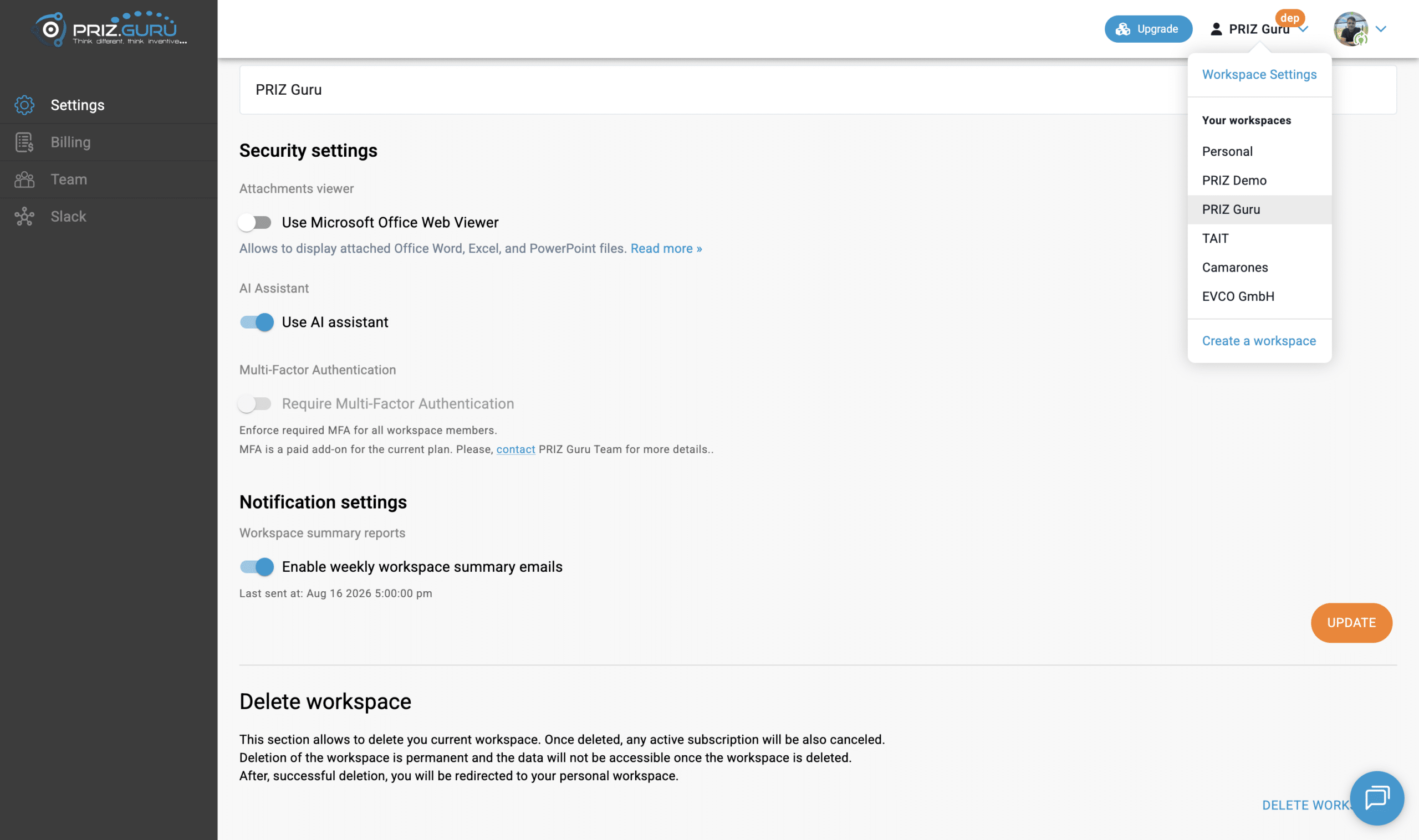
You can also go directly to https://app.priz.guru/workspace/settings. Learn more » on the page points to this article.
The workspace admin area
Settings shares a left menu with three sibling pages. They are not covered in detail here:
- Settings — this article.
- Billing — plan, invoices, and seats.
- Team — invite and manage workspace members. Heading: Workspace Members. That page has its own knowledge-base article when it is published.
- Slack — Slack captures and connection, if you use that integration.
Opening /workspace redirects to Settings.
What you can change
Change the fields you need, then click Update. Nothing is saved until you do.
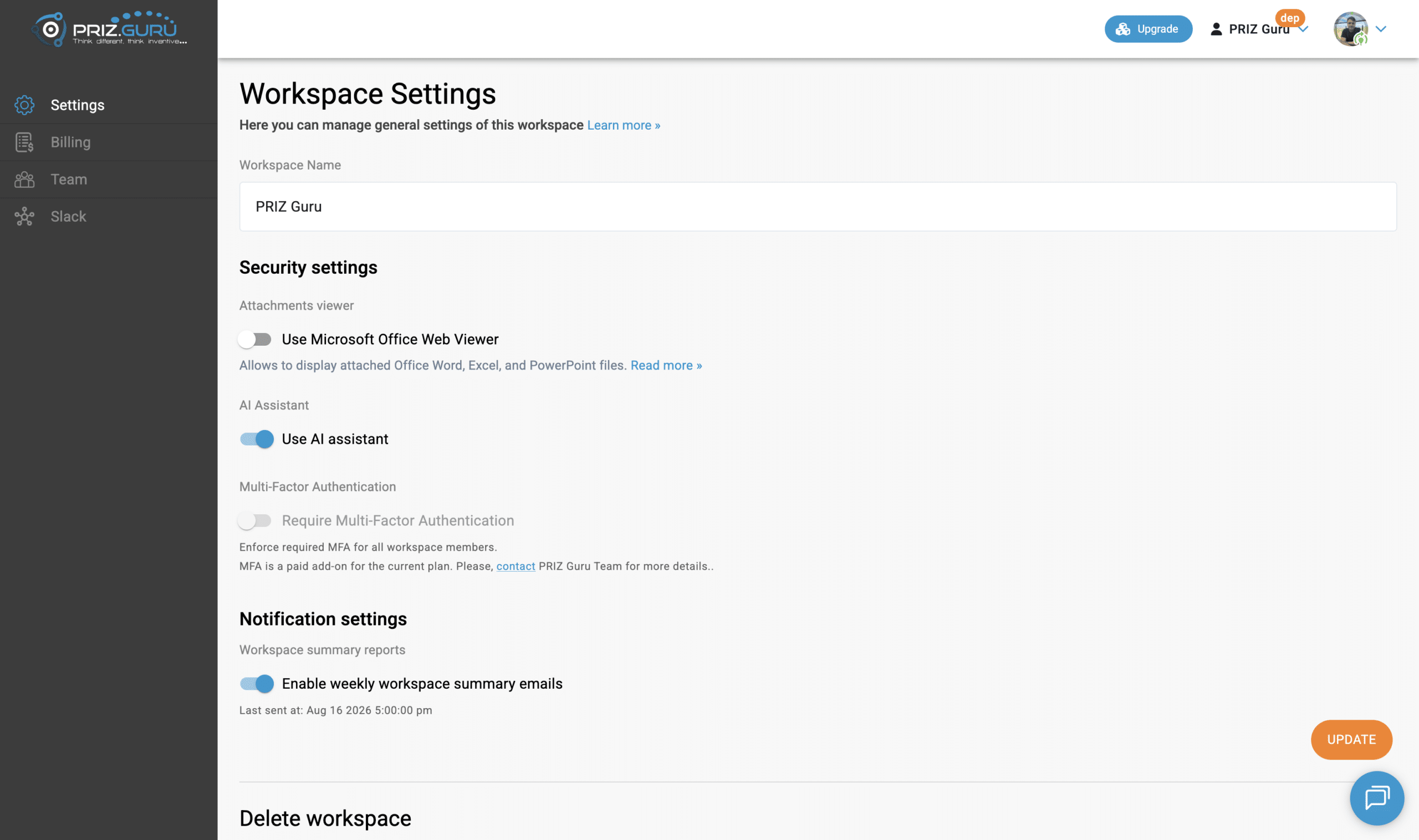
Workspace Name
Required. This is the name in the header selector and in emails. It is not the same as your personal profile name.
Security settings
Attachments viewer — Use Microsoft Office Web Viewer. When on, attached Word, Excel, and PowerPoint files can be displayed in the browser.
AI Assistant — Use AI assistant. Shown only when AI assistance is included in the workspace plan. Turning it off hides AI help in that workspace. If you do not see this switch, the plan does not include the assistant.
Multi-Factor Authentication — Require Multi-Factor Authentication. Helper text: Enforce required MFA for all workspace members. If your plan does not include this add-on, the switch is disabled, and you see: MFA is a paid add-on for the current plan. Use contact to reach the PRIZ Guru team (https://www.priz.guru/contact-us). When the add-on is enabled for the workspace, you can turn the requirement on or off and save with Update.
Notification settings
Workspace summary reports — Enable weekly workspace summary emails. When on, PRIZ sends a weekly digest about the workspace. If a report has already gone out, you see Last sent at with the timestamp.
Create a workspace
From the same header menu, choose Create a workspace. The form heading is Create new workspace (or Create workspace if you have no workspace at all). Enter:
- New workspace name (required)
- Workspace contact email (required; pre-filled with your account email)
Then Create, or Cancel to return to the home page.
Delete workspace
At the bottom of Settings: Delete workspace. The copy on the page is:
- This section allows you to delete your current workspace. Once deleted, any active subscription will also be canceled.
- Deletion of the workspace is permanent, and the data will not be accessible once the workspace is deleted.
- After successful deletion, you will be redirected to your personal workspace.
Click Delete workspace. A confirmation asks: Are you sure you want to delete this workspace? And all the data will be lost once deleted! Confirm only if you mean it. Projects, members, and files in that workspace are gone. The subscription is canceled. You land in Personal.
Do not use this to leave a team. Ask an admin to remove you from Team instead, or switch workspaces from the header.
Tips
- Name the workspace for the organization or team, not one project.
- Turn on weekly summaries if you want a regular pulse without opening every project.
- Require MFA when your company policy needs it, and the add-on is on the plan.
- Invite people from Team. Being in the workspace is not the same as being on a project team.
That’s it. I hope it’s clear and easy.
P.S. Please let us know if you require any assistance.