

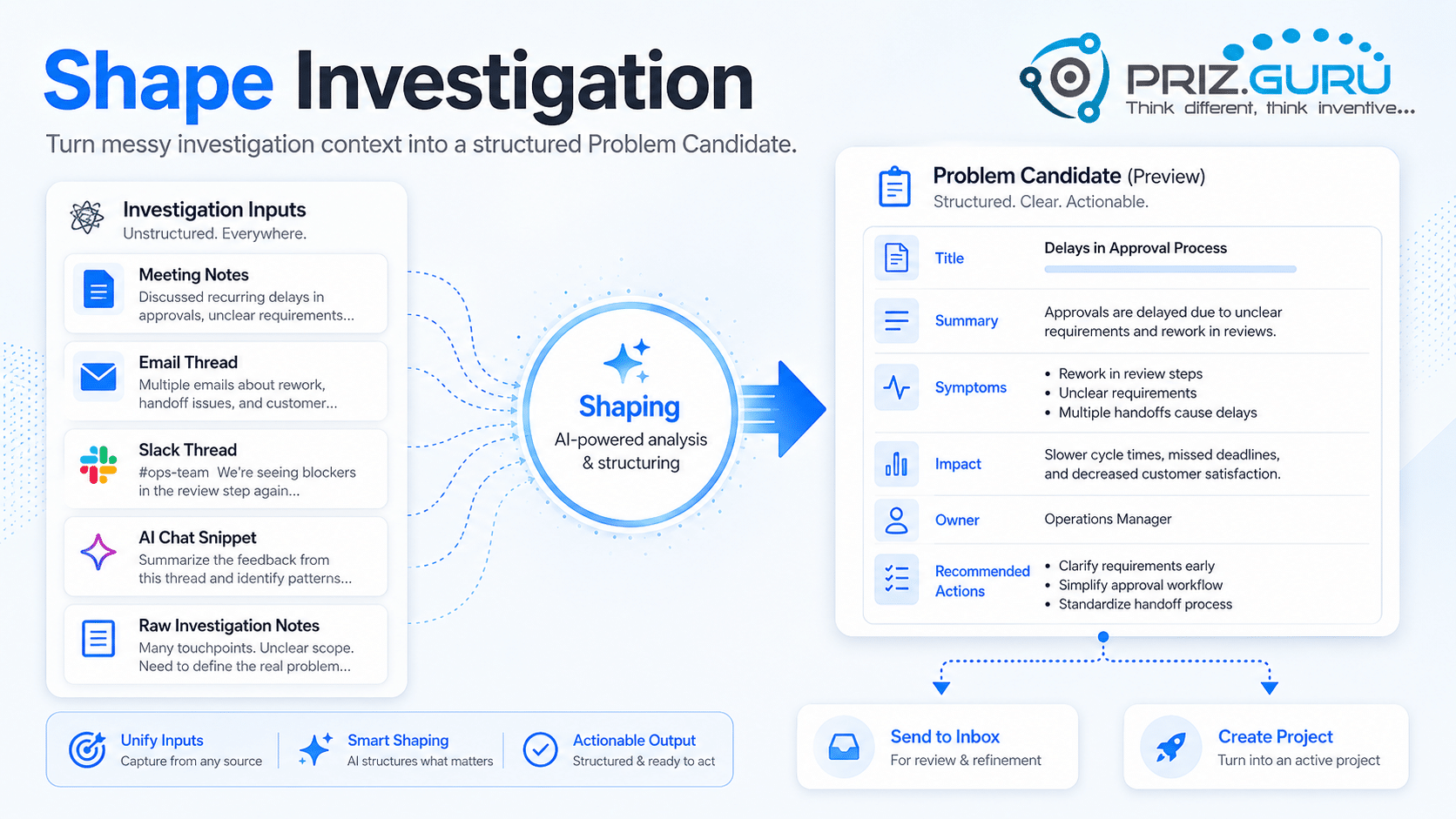
In PRIZ, a project is the place where you investigate a problem, use creative tools, and track ideas. Shape Investigation sits one step before that. It takes messy investigation context, meeting notes, an email, a Slack thread, an AI chat, or anything you can paste, and turns it into a structured Problem Candidate you can review before starting a project.
This is useful when you already have a lot of raw text, but you are not yet sure how to frame the problem, who should own it, or whether it is even a real investigation.
The flow has three steps:
- Paste context — drop in the source notes.
- Review draft — check the AI-shaped candidate, edit anything that is wrong, then Save candidate.
- Save — the candidate goes to the Problem Candidate Inbox as Needs review.
Nothing is stored until you click Save candidate. After that, continue in Problem Candidate Inbox to approve, archive, or convert the candidate into a project.
Sign Up & Login
This document assumes you have already registered and logged in. If you need help with registration or authentication, please refer to our Sign Up & Login Instructions.
Shape Investigation is available when the feature is enabled for your workspace.
Starting Shape Investigation
You can open Shape Investigation from several places:
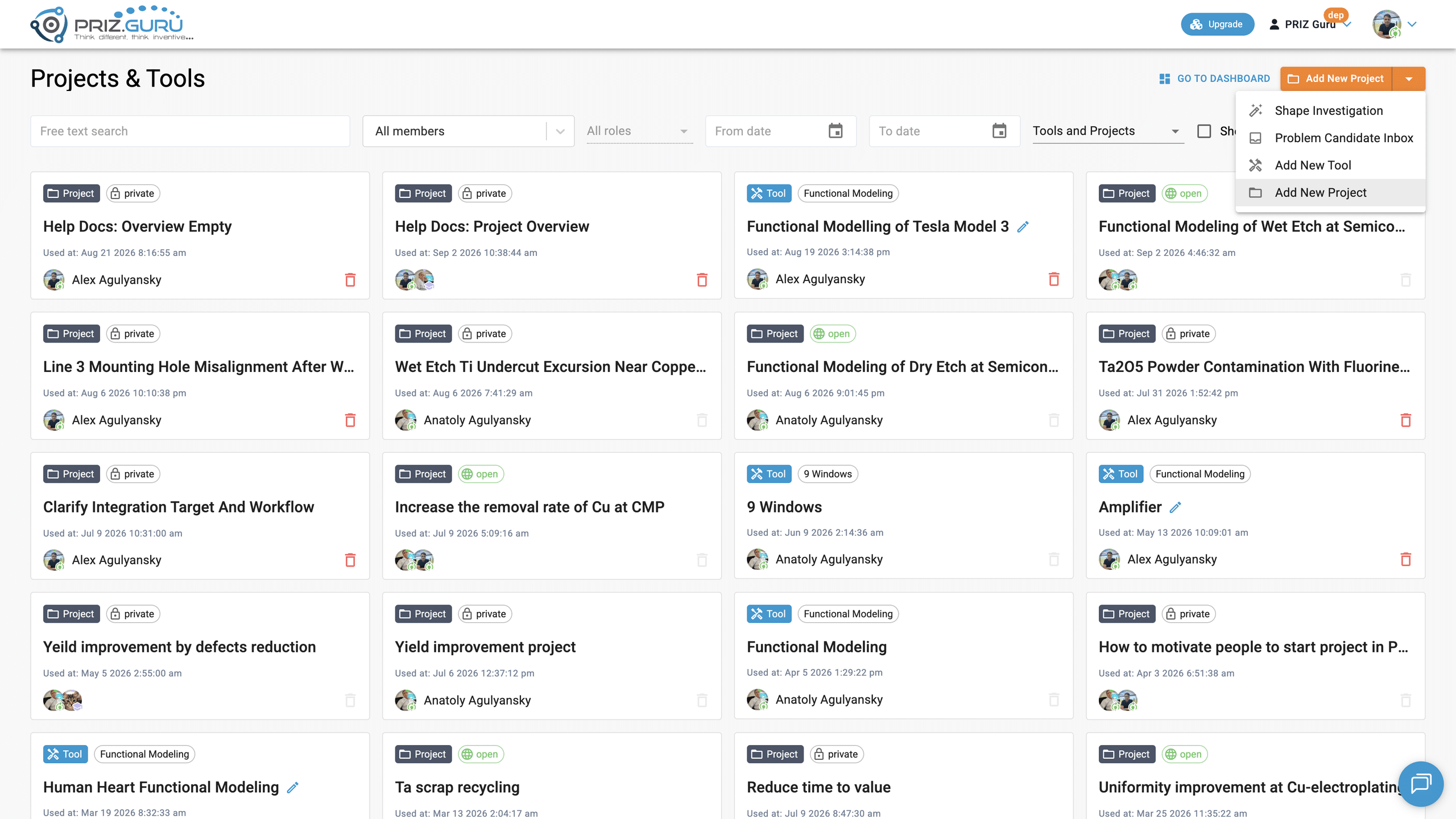
- On the Projects & Tools page, open the create menu next to Add New Project and choose Shape Investigation. Tooltip: Turn notes or investigation context into a reviewable Problem Candidate with AI assistance.
- Open Problem Candidate Inbox, then click Shape Investigation in the top-right.
- If you have no projects yet, use the Shape Investigation button on the empty Projects & Tools page.
- Go directly to https://app.priz.guru/shape-investigation.
The workspace path is Home > Projects & Tools > Problem Candidates > Shape Investigation. Learn more » opens this article.
The same create menu also includes Problem Candidate Inbox (tooltip: Review, edit, approve, reject, or convert Problem Candidates into projects.), Add New Tool, and Add New Project. For Add New Project, see Creating Projects.
Step 1 of 3 · Paste context
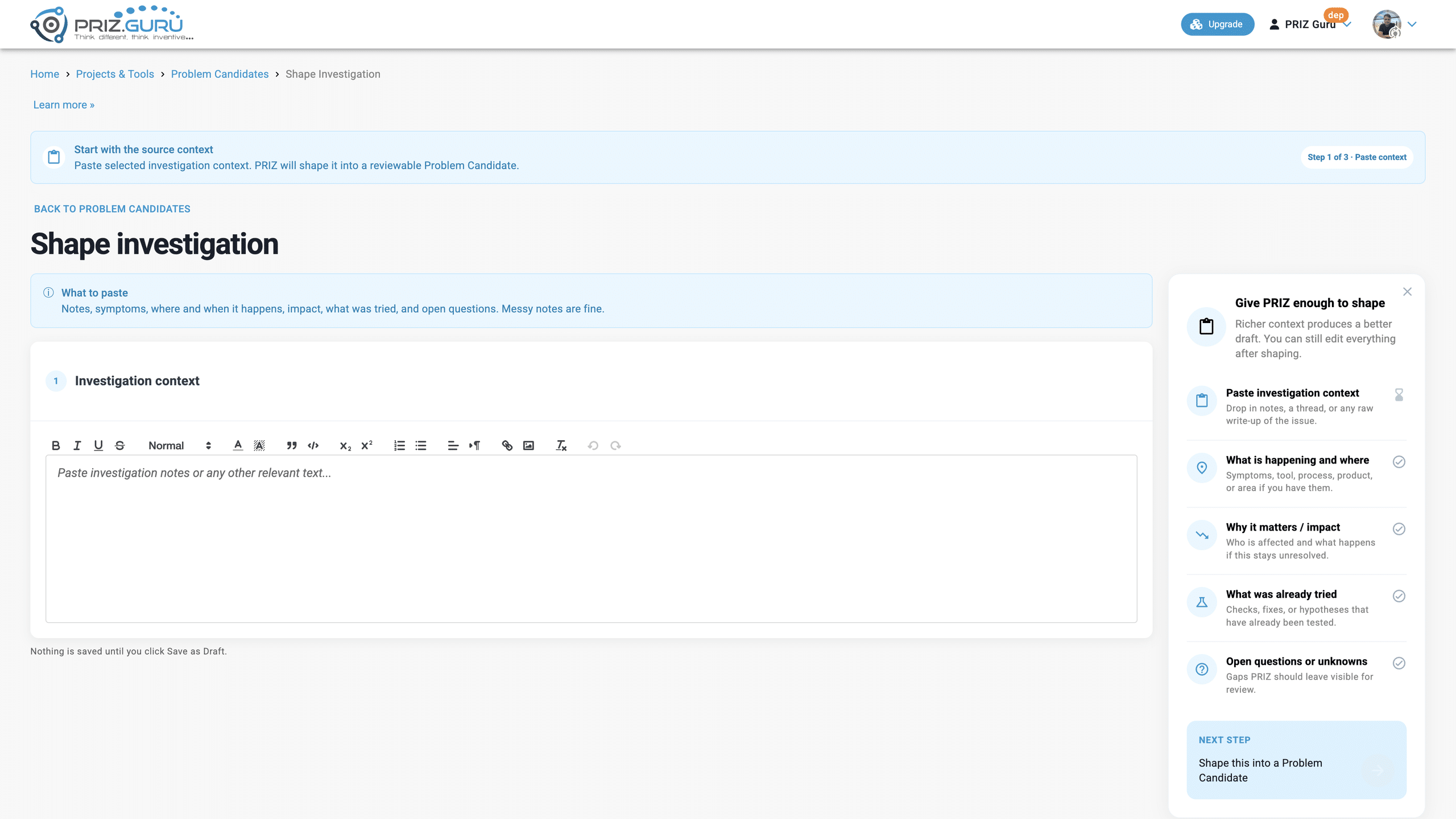
The first screen is split: the paste editor on the left, a guide on the right.
The banner reads Start with the source context. Body: Paste selected investigation context. PRIZ will shape it into a reviewable Problem Candidate. The step chip is Step 1 of 3 · Paste context.
The page heading is Shape investigation. Back to problem candidates returns you to the inbox.
The callout What to paste says: Notes, symptoms, where and when it happens, impact, what was tried, and open questions. Messy notes are fine.
Investigation context
The editor card is numbered 1 and titled Investigation context. Placeholder: Paste investigation notes or any other relevant text…
You can format the text with the toolbar (bold, lists, links, images, and similar options), but formatting is not required. What matters is that the text contains a real situation, symptoms, impact, and any open questions you already have.
Good source material includes:
- Meeting notes
- Email text
- Slack thread text
- AI chat
- Investigation notes
The caption under the editor says Nothing is saved until you click Save as Draft. That is still true: shaping only builds an unsaved preview. The button that actually stores the candidate (on the next step) is Save candidate.
Give PRIZ enough to shape
The right-hand guide is titled Give PRIZ enough to shape. Subtitle: Richer context produces a better draft. You can still edit everything after shaping.
The checklist:
- Paste investigation context (required) — Drop in notes, a thread, or any raw write-up of the issue. This item marks complete when the editor has content.
- What is happening and where — Symptoms, tool, process, product, or area if you have them.
- Why it matters / impact — Who is affected and what happens if this stays unresolved.
- What was already tried — Checks, fixes, or hypotheses that have already been tested.
- Open questions or unknowns — Gaps PRIZ should leave visible for review.
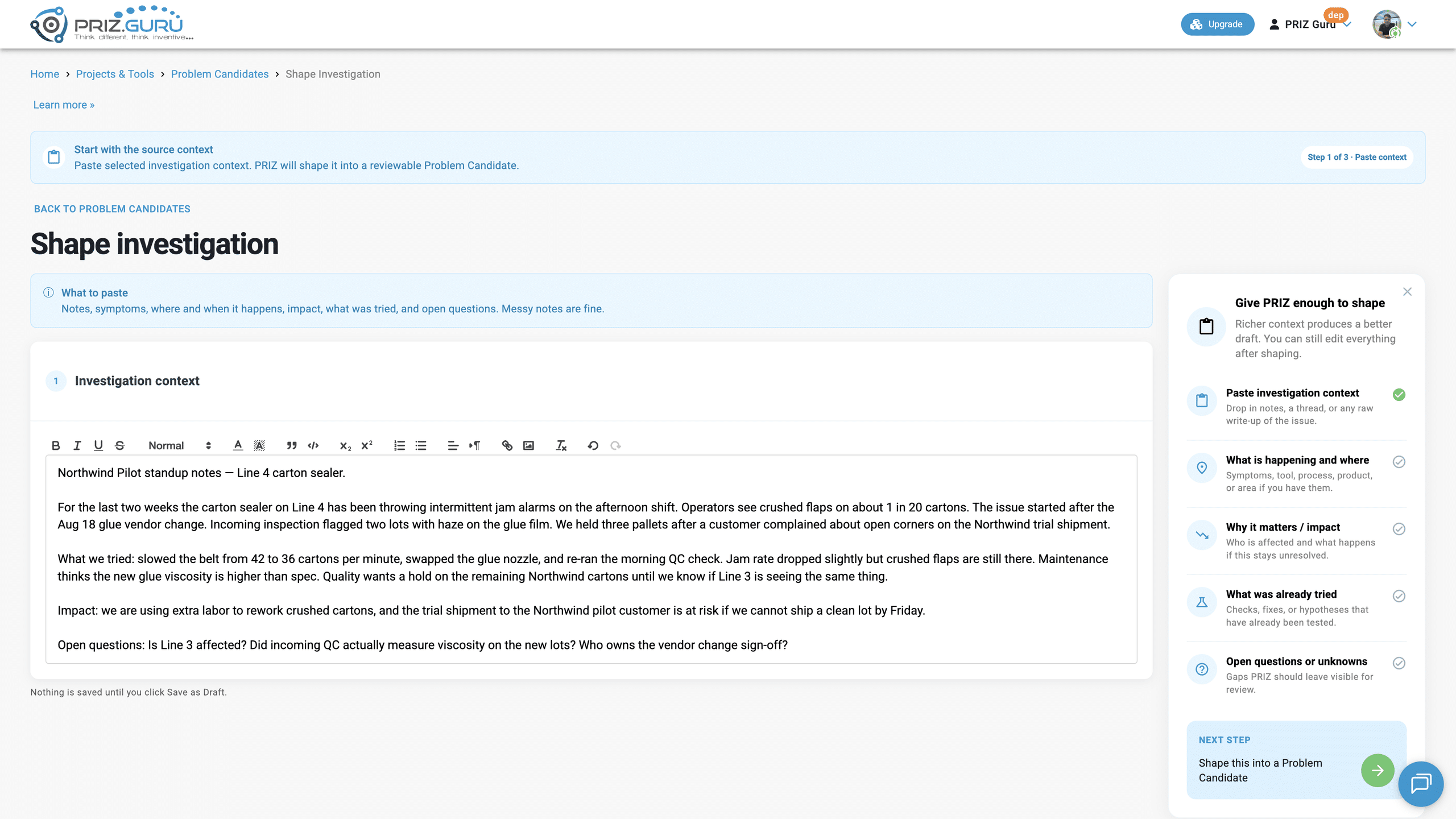
The guide CTA is labeled NEXT STEP with the button Shape this into a Problem Candidate. It stays inactive until the editor has content.
You can close the guide. A rocket Show guide control brings it back. When the guide is closed, Shape into Problem Candidate appears under the editor instead.
Shaping into a Problem Candidate
When you are ready, click Shape into Problem Candidate (or Shape this into a Problem Candidate in the guide).
PRIZ sends the pasted text to AI shaping and returns a structured draft. This can take a short while. Stay on the page until Step 2 of 3 · Review draft appears.
If shaping fails, the error is AI shaping failed. Please try again. (or a more specific server message). The generic fallback is Something went wrong. Please try again. You can dismiss the alert and try again.
Depending on the content, the draft may also include one of these alerts:
- AI shaping was unavailable. Fields were pre-filled from your submitted context. plus a Reason when a fallback was used.
- Needs review, when PRIZ is not sure this is a clear problem.
- No problem detected, with a confidence percent, when PRIZ is highly confident the text is not a problem. You can still edit the draft and save it if you believe it is a real investigation.
Step 2 of 3 · Review draft
Shaping does not create a Problem Candidate yet. PRIZ first shows you an unsaved draft so you can check whether the AI understood the situation.
The banner reads Intake processed — review before saving. Body: PRIZ extracted and organized the information. Change any details that need correction, then save the candidate as a whole. The step chip is Step 2 of 3 · Review draft.
This checkpoint is intentional. Meeting notes, emails, Slack threads, and chats are messy. The AI may miss a constraint, overstate the impact, leave a field empty, or write a title that does not match how your team talks about the issue. Saving immediately would put that draft straight into the inbox. The preview lets you correct it first — or discard it if it is not a problem worth keeping.
Treat the draft as a working copy, not as the final record. If the fields look right, save it. If they are close, edit them. If this is not a useful investigation, click Discard draft. Nothing enters the inbox until you click Save candidate.
Title and metadata
Title is an editable field at the top. Keep it specific — what failed, where, and what changed — so reviewers can recognize it in the inbox.
Under the title:
- Chip: Unsaved draft
- Source: processed intake · Submitted by {your name}
Back to problem candidates is still available if you want to leave without saving.
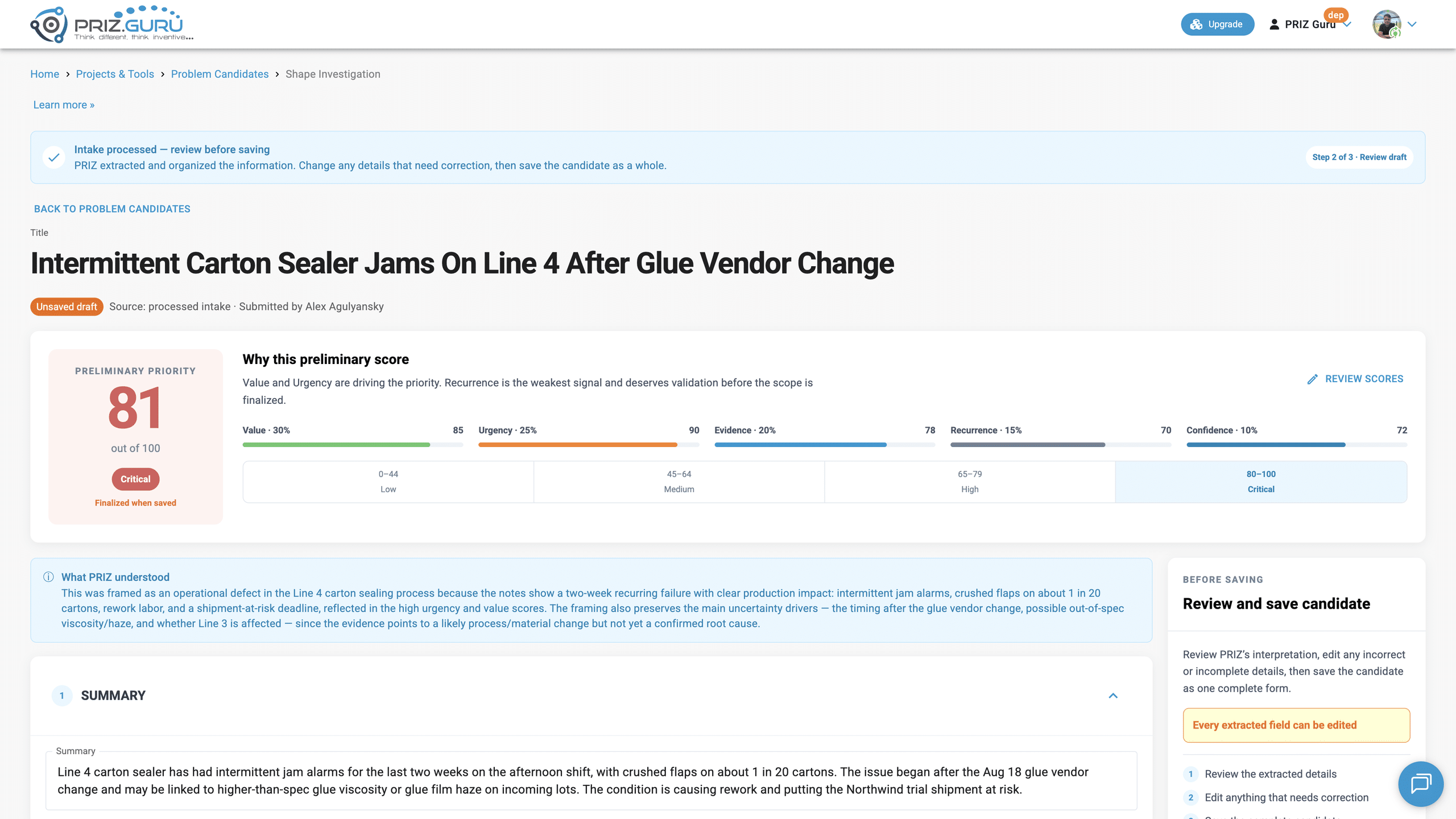
Preliminary priority
The Preliminary priority card is a 0–100 score with a tier badge and the footnote Finalized when saved.
Tiers:
- Low priority — 0–44
- Medium priority — 45–64
- High priority — 65–79
- Critical — 80–100
The score is a weighted reading of five sub-scores (each 0–100):
- Value · 30% — Expected business impact
- Urgency · 25% — How quickly action is required
- Evidence · 20% — Strength of supporting facts
- Recurrence · 15% — Likelihood or frequency of repetition
- Confidence · 10% — Confidence in the problem framing
Why this preliminary score explains which two signals are driving the priority and which is the weakest. Example: Value and Urgency are driving the priority. Evidence is the weakest signal and deserves validation before the scope is finalized.
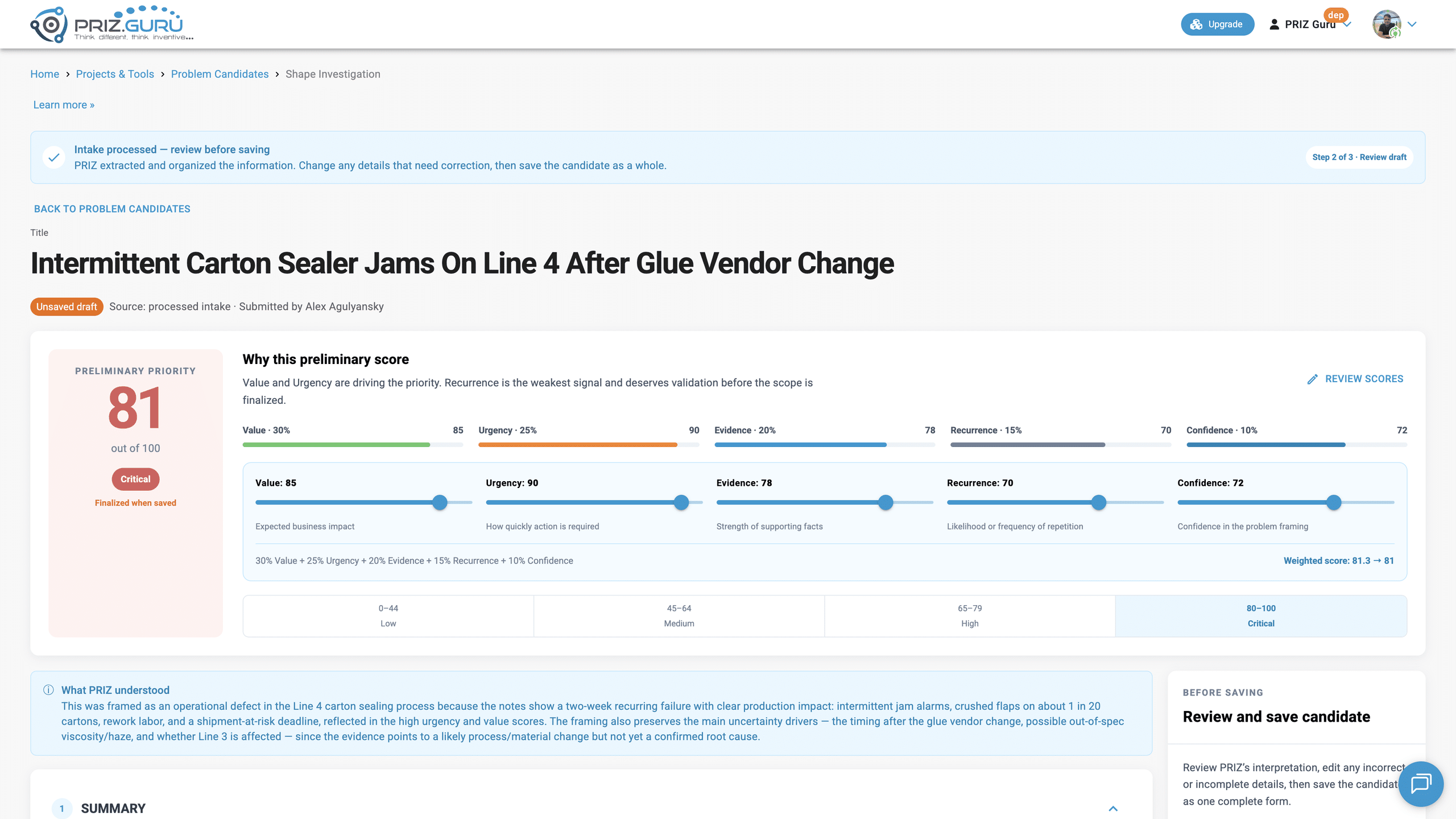
Click Review scores to open sliders for each sub-score. The formula line shows 30% Value + 25% Urgency + 20% Evidence + 15% Recurrence + 10% Confidence and Weighted score: {exact} → {rounded}.
If a score looks too high or too low, adjust it here, then check the related fields below.
What PRIZ understood
The callout What PRIZ understood shows the AI rationale when one was returned. If there is no rationale, it says: Review the extracted fields below and directly edit anything PRIZ misunderstood before saving.
The eight sections
The main column is eight numbered, collapsible section cards. On this draft step every section is already in edit mode. Expand a section to read or change its fields.
1. Summary
A short synthesis of the situation, usually a few sentences. This is what people will read first. Make sure it states the issue, the impact, and why it matters now.
2. Background
The fuller story from your pasted context: when it started, what changed, who is involved, and any related history.
3. Observed symptoms
What people can actually see or measure: defect signals, error messages, holds, haze, scrap, downtime. Keep this to facts, not suspected causes.
4. Affected scope
These fields bound the problem. Leave a field empty if the pasted context does not say.
Process: The process or step, such as CMP or incoming inspection.
Tool: The equipment or tool family, if named.
Product: What is being made or affected.
Customer: A customer at risk or already involved.
Area / line / fab: Line, area, layer, or fab.
The collapsed preview joins Process · Tool · Product.
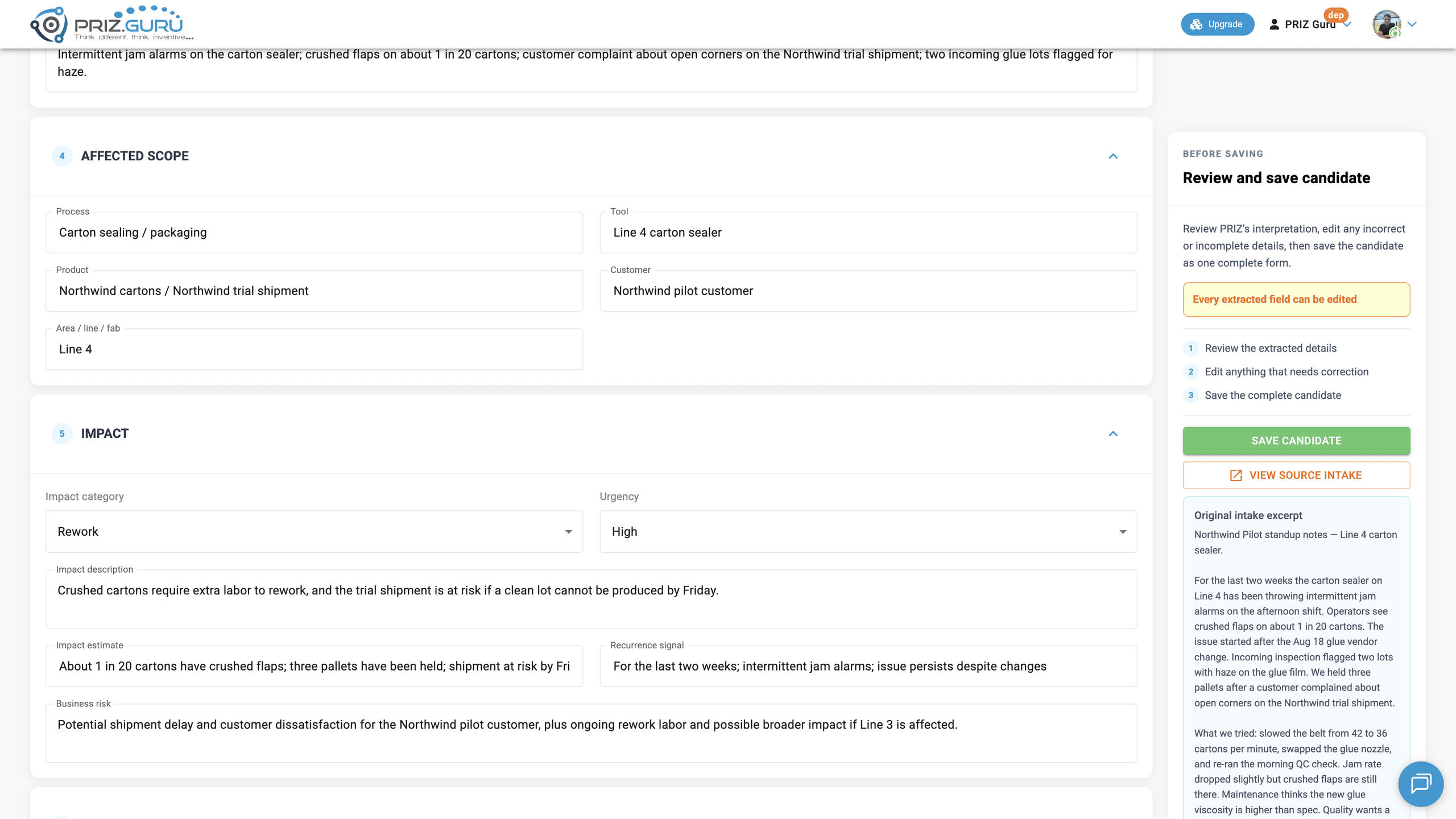
5. Impact
Why the problem is worth investigating. Open by default.
Impact category: Yield Loss, Scrap, Downtime, Customer Escalation, Capa Exposure, Rework, Shipment Delay, Engineering Time Loss, or Other.
Urgency: Low, Medium, High, or Critical. Match this to real time pressure, such as a shipment deadline.
Impact description: Who is affected, how, and what is at stake.
Impact estimate: Numbers from the context, if any. Do not invent them.
Recurrence signal: A prior excursion, intermittent pattern, workaround, or known issue.
Business risk: What happens if the team does nothing.
6. Reasoning
Separate what is known from what is only suspected. Enter one item per line.
Hypotheses: Possible causes stated or clearly implied in the text.
Assumptions: Claims treated as true but not proven.
Unknowns: Missing facts (a QC result, a process setting, whether another line is affected).
Open questions: Questions the team should answer next. If you later ask for more information from the inbox, that request is also added here.
The collapsed preview counts each list: 2 hypotheses · 1 assumption · 3 unknowns · 2 open questions.
7. Recommendations
The proposed owner, not a project plan.
Suggested owner: Usually a role or team from the pasted context, such as Yield Engineering.
Suggested stakeholders: Other people or functions. Enter one per line.
8. Evidence
Read-only excerpts PRIZ pulled from your text. Each item is labeled Excerpt 1, Excerpt 2, and so on. The meta line may show a type:
- Excerpt
- Observation
- Measurement
- ActionTried
- Other
If an excerpt is wrong or incomplete, correct the related fields above. The collapsed preview says N excerpts from the source conversation, or No excerpts from the source conversation.
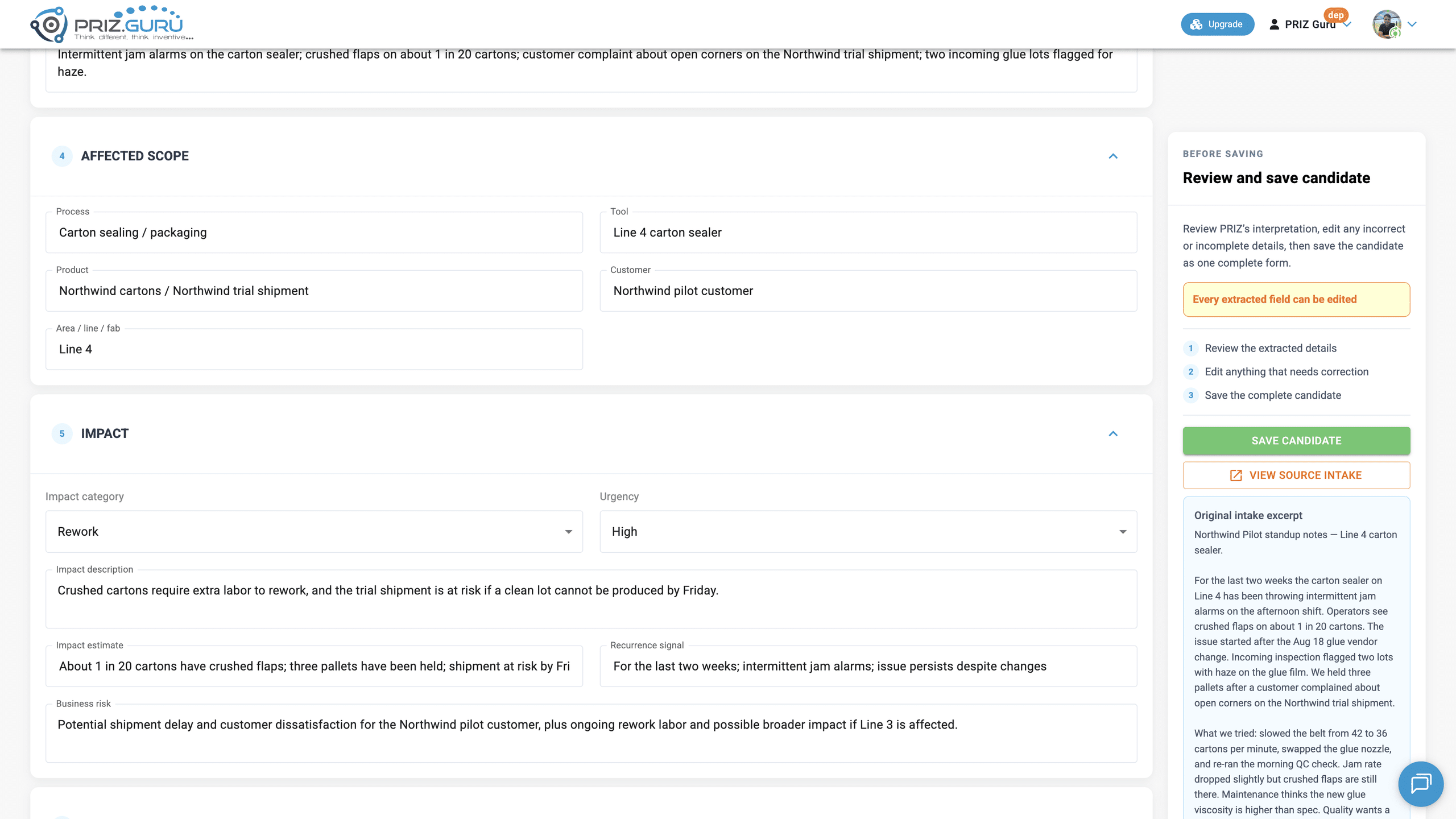
Before saving (decision panel)
The right rail is the Before saving panel. Heading: Review and save candidate. Body: Review PRIZ’s interpretation, edit any incorrect or incomplete details, then save the candidate as one complete form. Risk note: Every extracted field can be edited.
Numbered steps:
- Review the extracted details
- Edit anything that needs correction
- Save the complete candidate
Buttons:
- Save candidate (green) — stores the draft in the inbox.
- View source intake — toggles Original intake excerpt (or No source text is available.).
- Find similar projects — if similar-project search is enabled for your workspace.
- Discard draft
Under the panel, Extraction confidence shows the confidence sub-score as a percent bar. The caption under the bar is a short reading of that score, for example, Enough evidence to act; still validate remaining gaps.
Finding similar projects
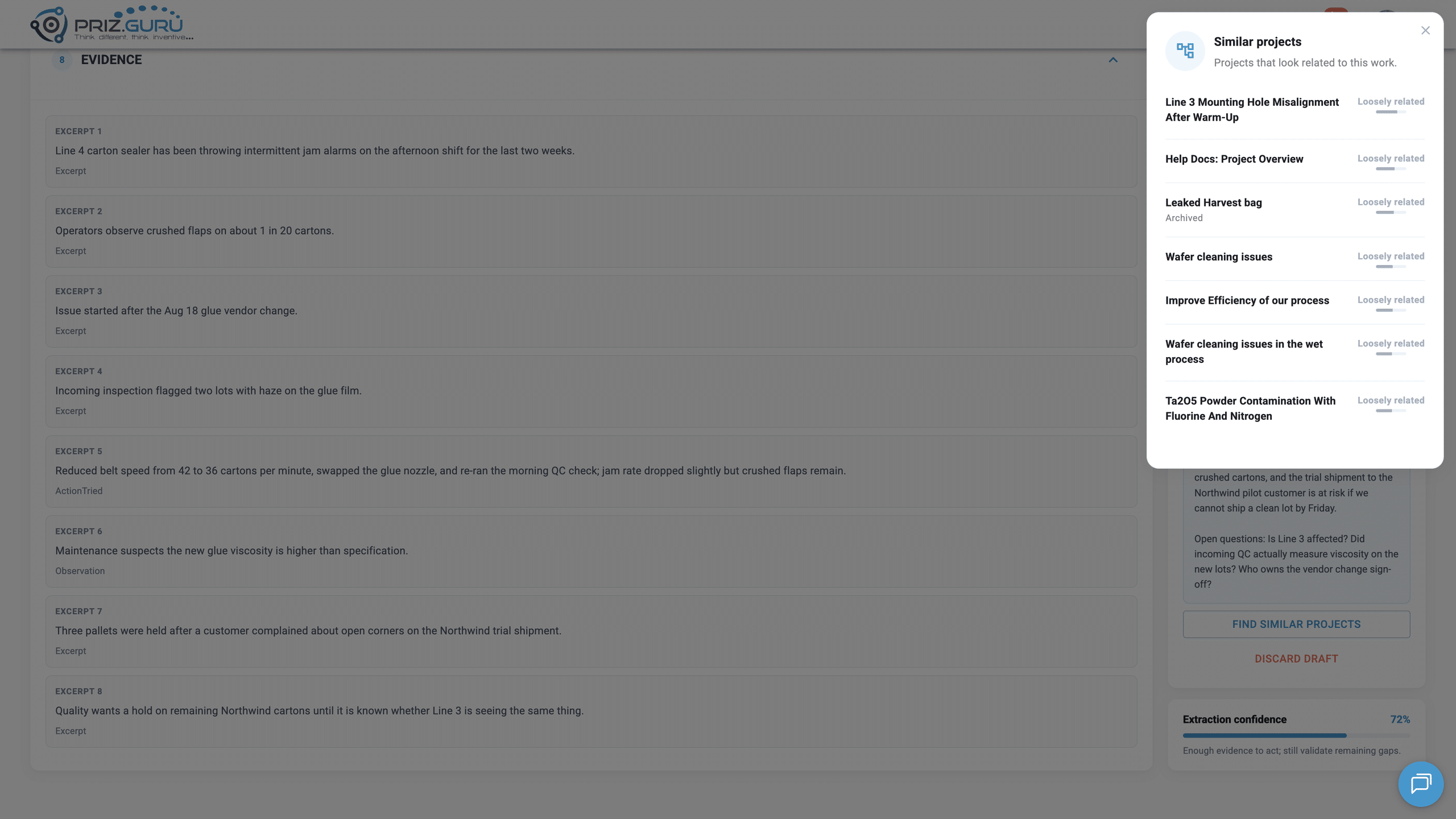
If similar-project search is enabled, click Find similar projects.
A side drawer opens with Similar projects and the subtitle Projects that look related to this work. Matching projects are listed with a closeness label:
- Strong match
- Related
- Loosely related
An Archived badge appears when the match is an archived project. Tooltip: How closely this matches.
Use this to check whether the issue already exists as a PRIZ project before you save a new candidate. Click a result to open that project, or close the drawer and continue editing.
Empty or error states you may see:
- No similar projects found.
- Similar-projects search is temporarily unavailable. Please try again. with Retry
- Could not load similar projects… with Retry
- Similar projects is not available.
Discarding the draft
If the draft is not useful, click Discard draft.
PRIZ asks: Discard this draft? Body: Your shaped Problem Candidate preview will be discarded. Nothing has been saved.
Click Yes to return to the empty paste editor, or Cancel to keep reviewing.
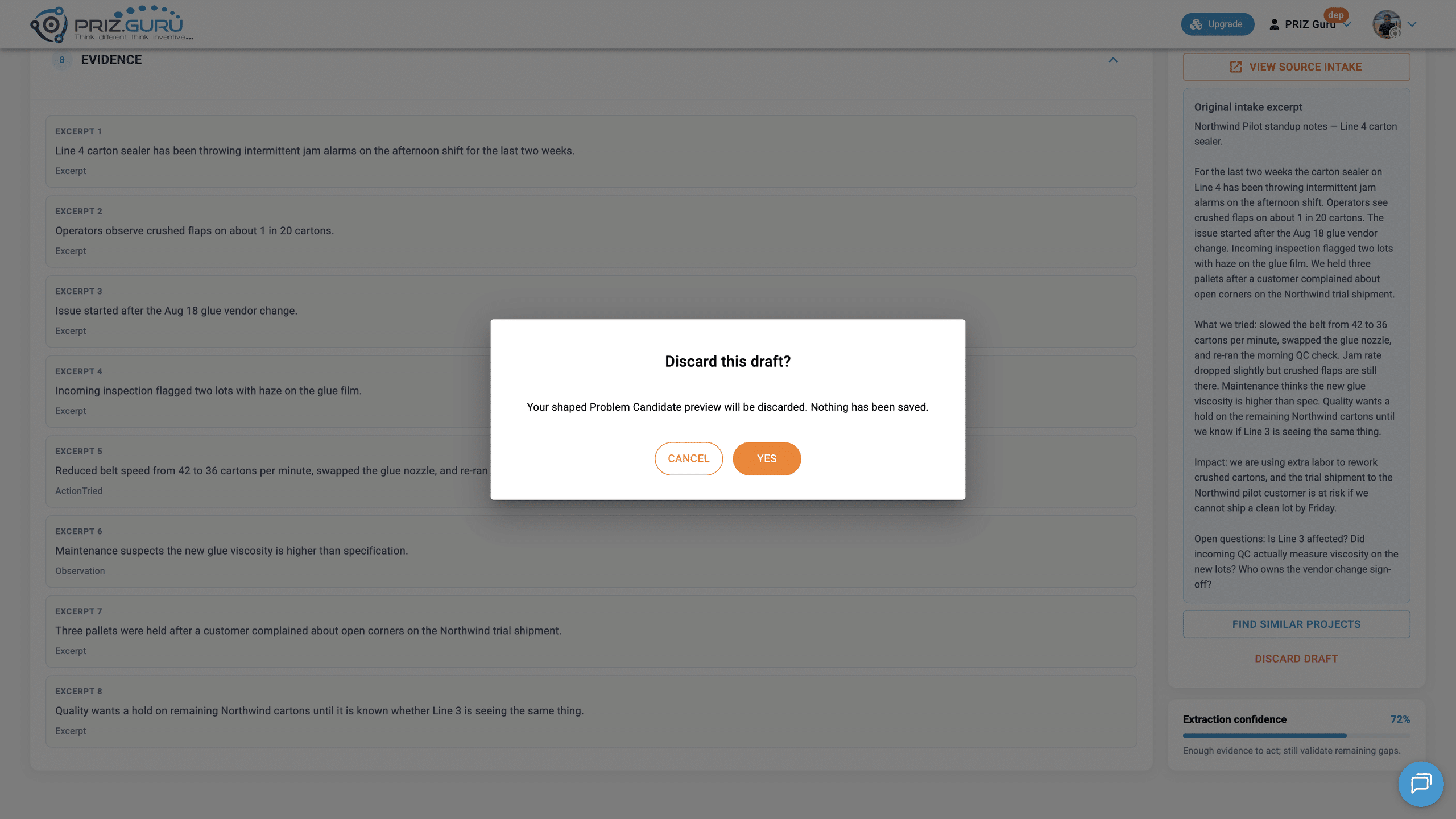
Discarding only removes the unsaved preview. It does not create a Problem Candidate.
Saving the candidate
When the draft looks right, click Save candidate.
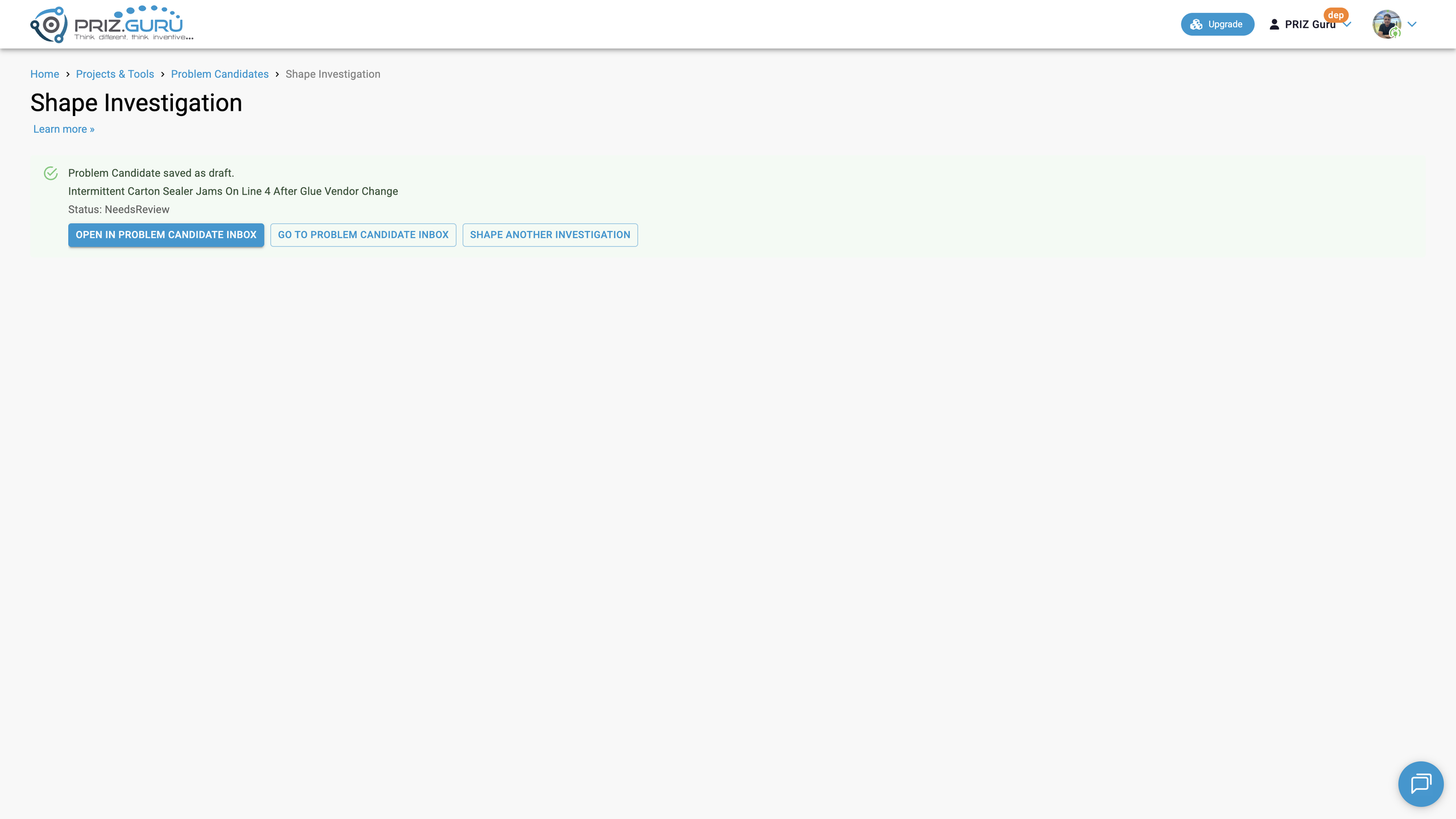
PRIZ stores the candidate with status Needs review. A success message appears:
- Problem Candidate saved as draft.
- The candidate title
- Status: NeedsReview
- Open in Problem Candidate Inbox — opens that candidate’s review page
- Go to Problem Candidate Inbox — opens the list
- Shape another investigation — returns you to an empty paste editor
A candidate created from Shape Investigation is stored with source PRIZ. The source title PRIZ-native investigation is generic and is not shown next to the source chip.
What happens next
Saving a draft does not start a project. The next step is human review in the Problem Candidate Inbox.
From the inbox, you can edit, approve, ask for more information, merge, reject, archive, or convert an approved candidate into a PRIZ project. See Problem Candidate Inbox for that flow.
Tips for better shaping
- Paste selected investigation context, not an entire unfiltered dump.
- Include what happened, where it happened, measured impact, timing, and open questions.
- After shaping, treat the form as a draft. Correct the title, scope, impact, owner, and scores before saving.
- Use Find similar projects before saving if you think this issue may already exist.
- Save first. Approve and convert only after a person has reviewed the candidate in the inbox.
That’s it. I hope it’s clear and easy.
P.S. Please let us know if you require any assistance.