
When you have more than two options, a list debate often stalls. Round Robin Ranking (RRM) asks you to pick the better of two at a time. After enough pairs, PRIZ turns those wins into a rank for every option.
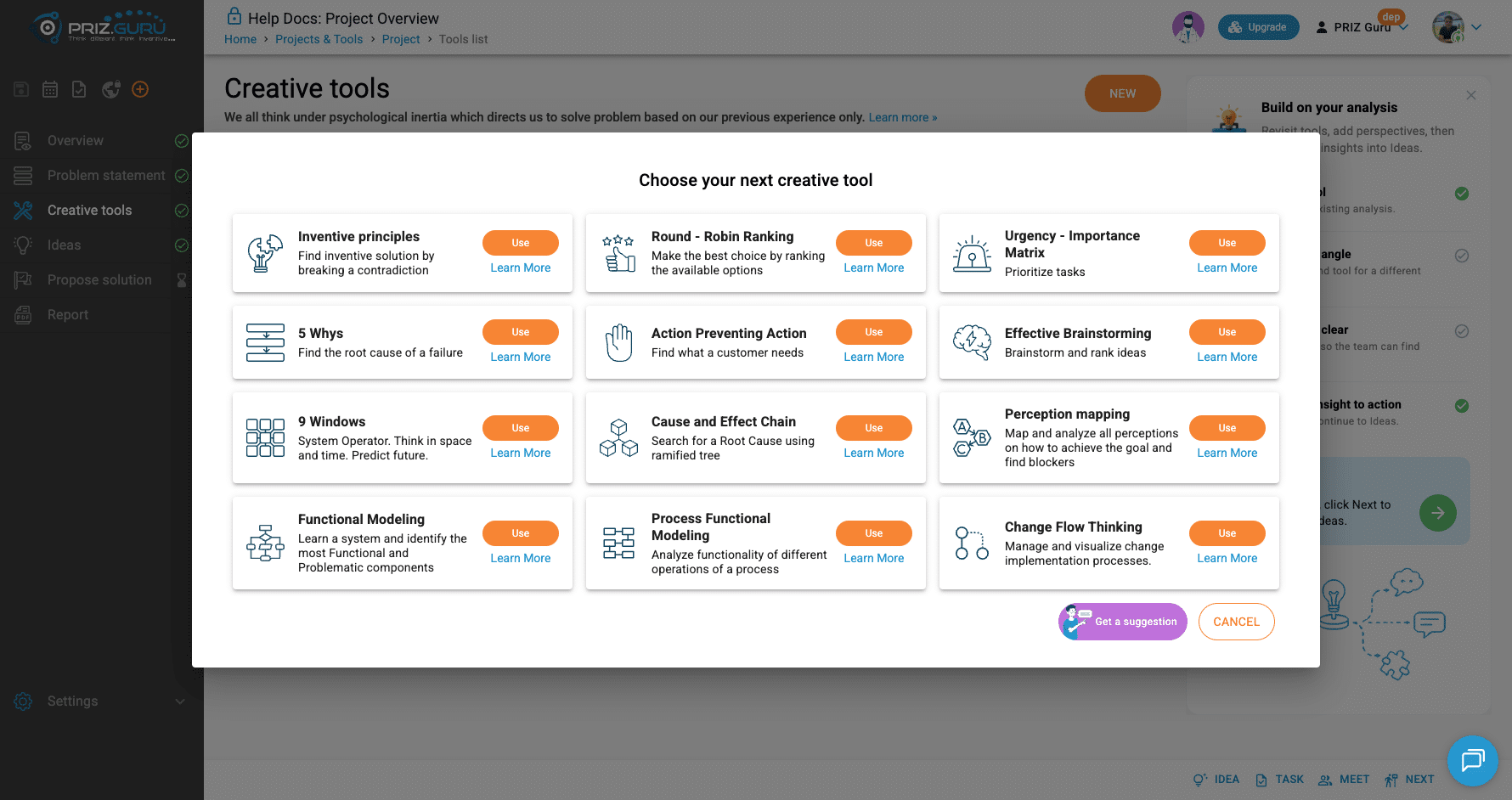
In the tool picker, the name is Round – Robin Ranking. Description: Make the best choice by ranking the available options.
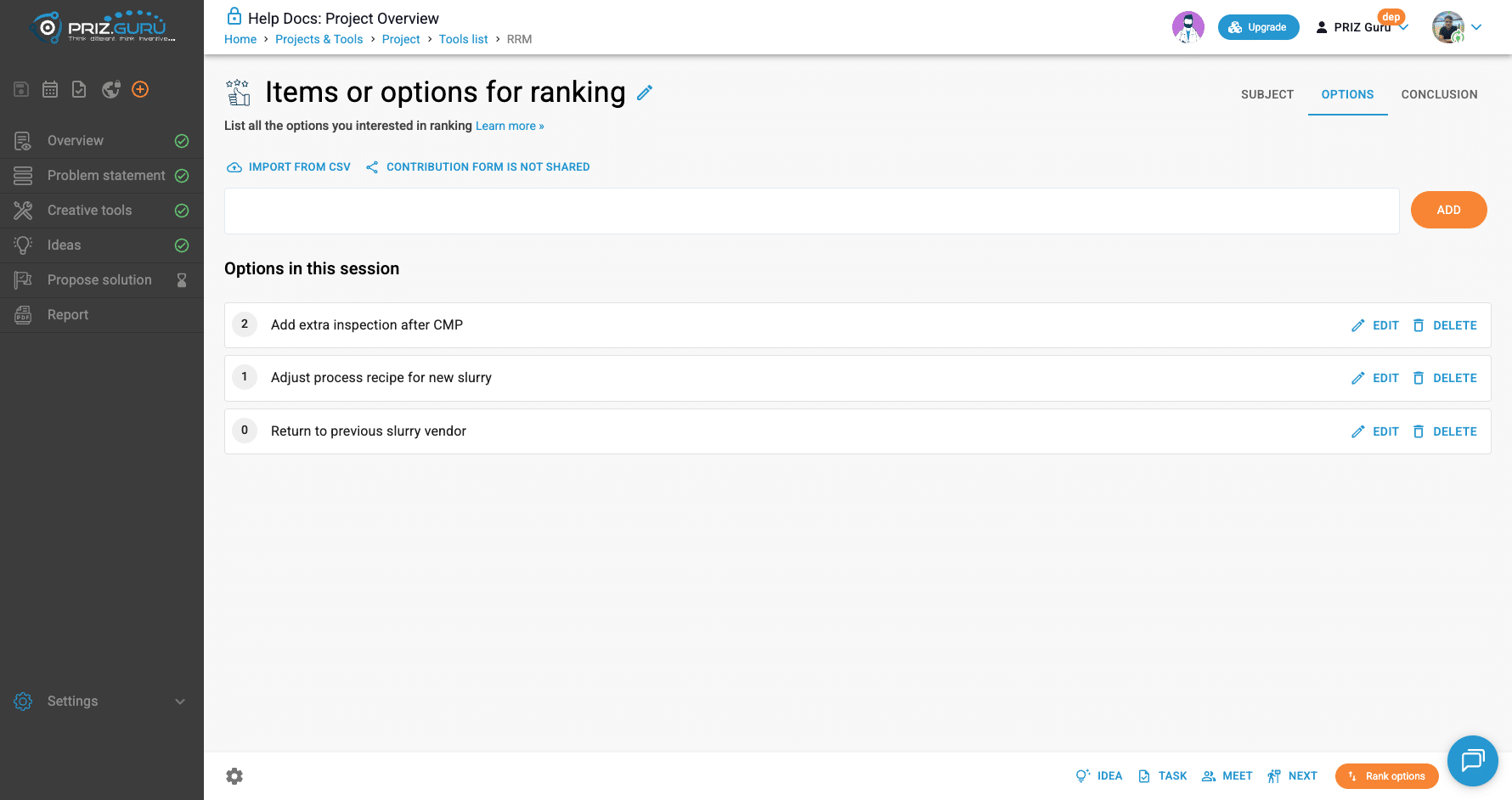
The session heading starts as Items or options for ranking (you can rename it). On the Options tab, the one-liner is: List all the options you are interested in ranking. During comparisons, it changes to Ranking the options, with: The easiest known method to compare more than two items.
You also use the same ranking engine from Ideas, Tasks, 5 Whys, and other tools. Those sessions skip the Options list — the items already exist — and they finish on a Ranking summary table. This article walks the standalone Creative tools session first.
For the tools list, see Creative tools. For the project map, see Project Structure.
Sign Up & Login
This document assumes you have already registered, logged in, and created a project. If you need help with those steps, see Sign Up & Login Instructions and Creating Projects.
Start the tool
Open Creative tools, click New, then Use on Round – Robin Ranking. You can also start it from header Start new tool. Breadcrumb: Home → Projects & Tools → Project → Tools list → RRM.
Subject, Options, Conclusion
Three tabs. Ranking uses Options. Subject and Conclusion are notes for you and the report.
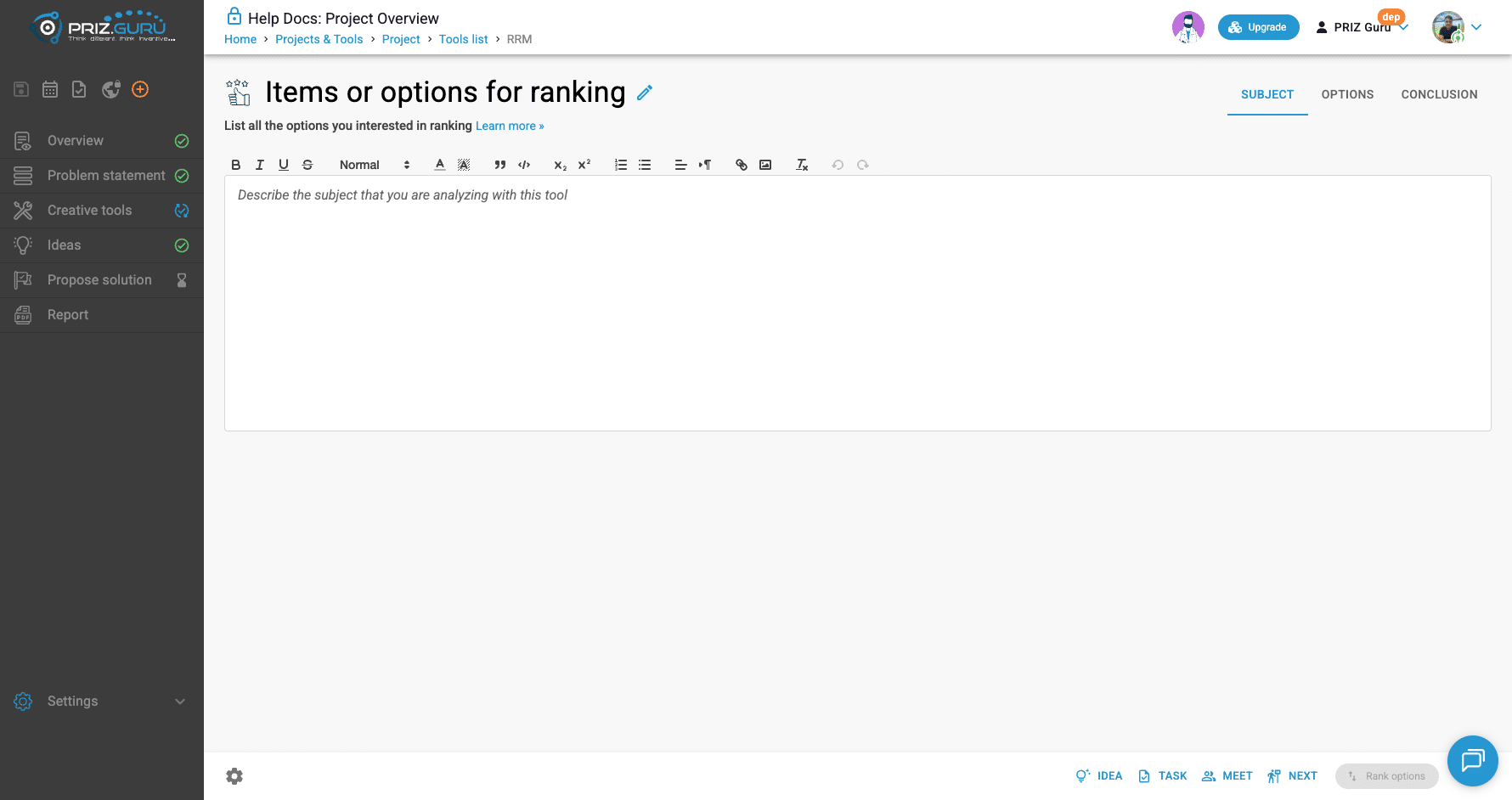
Subject — placeholder: Describe the subject that you are analyzing with this tool.
Conclusion — placeholder: Describe your conclusion that resulted from this Round – Robin Ranking tool. Write this after you have ranks.
List the options
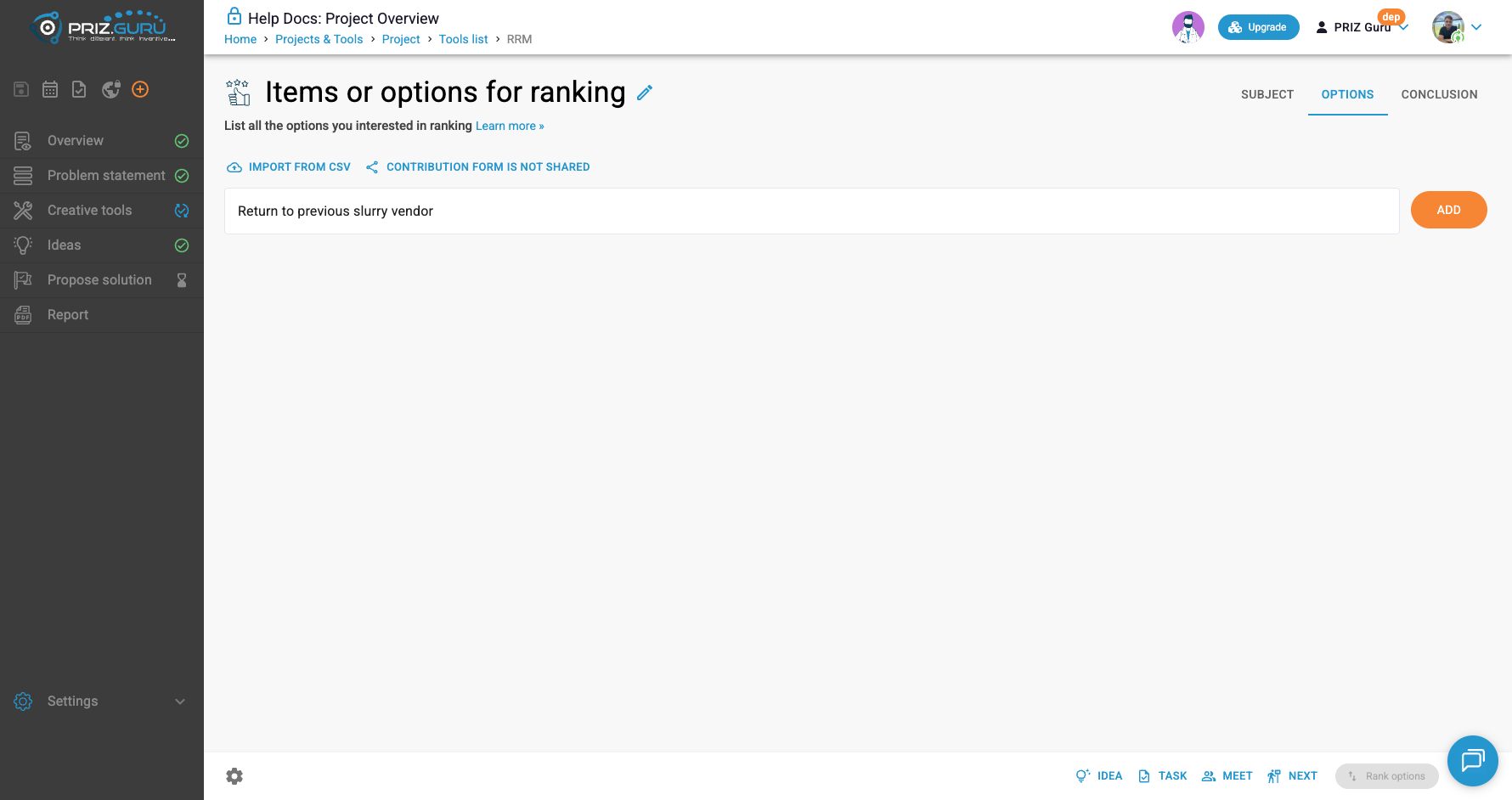
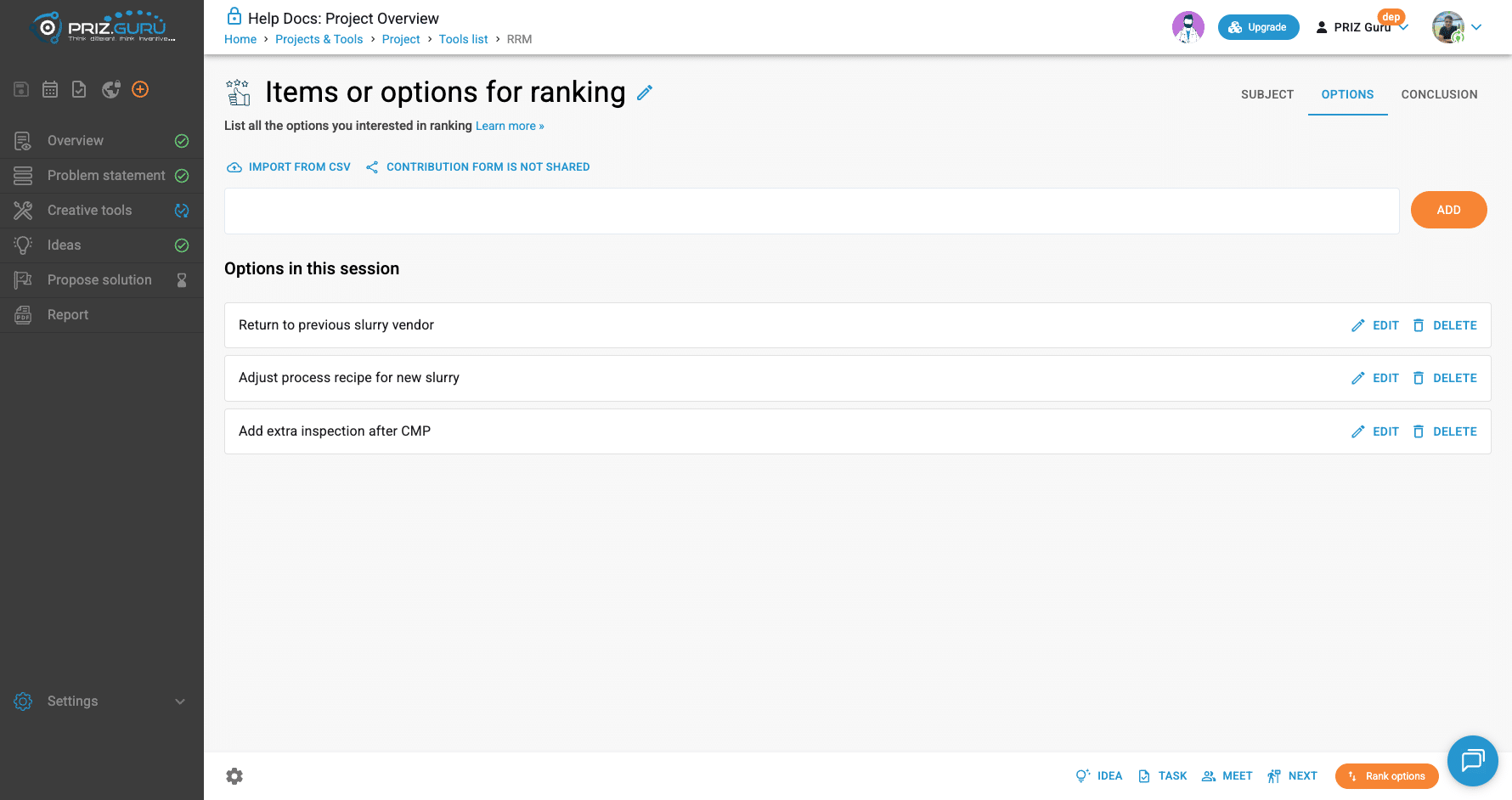
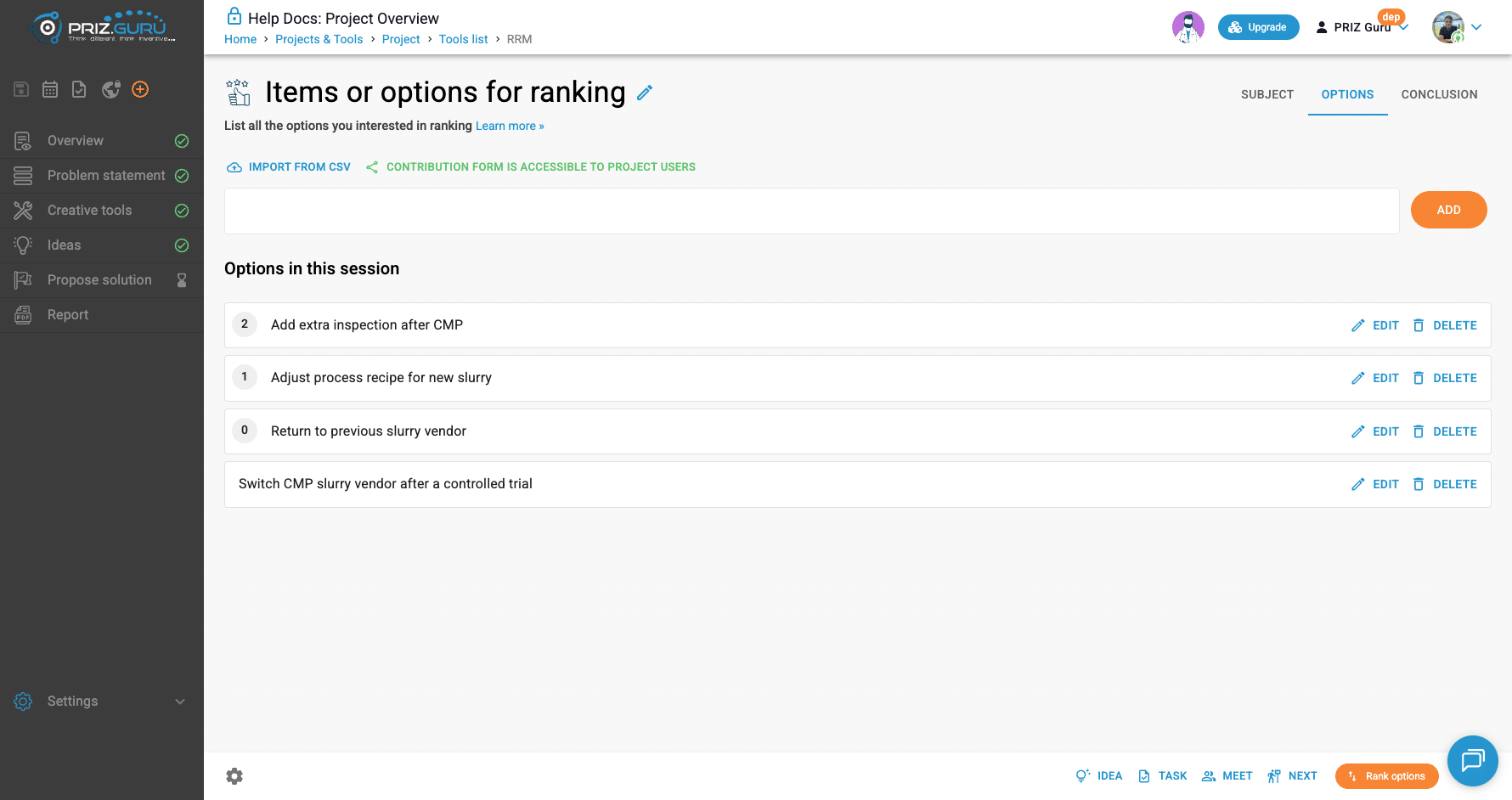
Open Options. Type an option, click Add (or Ctrl+Enter). You need at least three before Rank options turns on.
Also on this tab:
- Import from CSV — add or replace options from a file. Choose the column and Import type (Add or Replace), then Import.
- The share control next to it. When nobody can submit, it reads Contribution form is not shared. See Collect options through a shared form.
Added items appear under Options in this session, with Edit and Delete. Delete asks: Are you sure you want to delete this perception?
Collect options through a shared form
Use this when people who are not sitting in the tool with you still have options to add. They fill a public page. You accept or reject each line. Accepted text becomes an option in this session — the same as if you had typed it and clicked Add.
On Options, click Contribution form is not shared. Dialog title: Collaboration Settings.
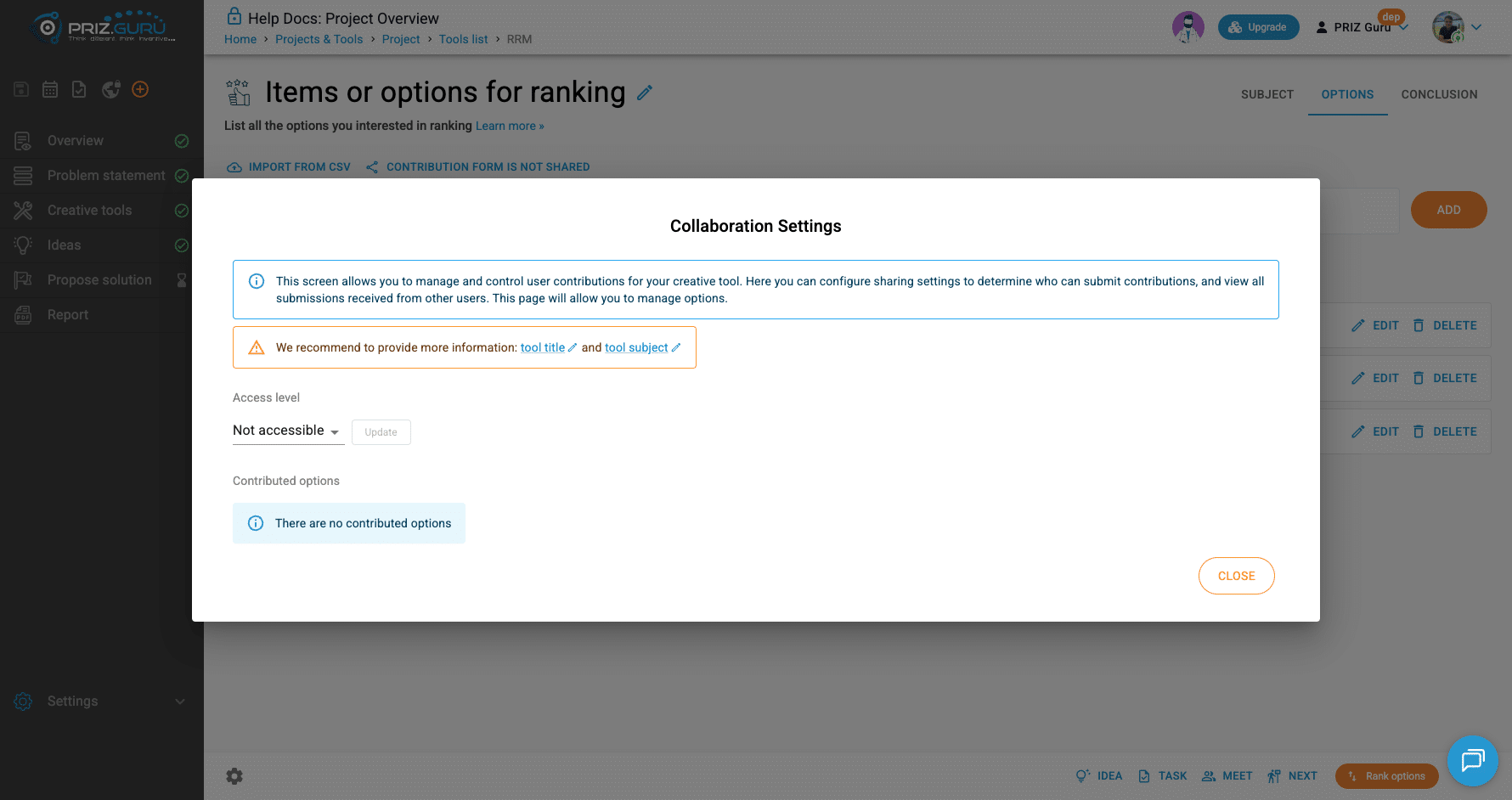
The info banner: This screen allows you to manage and control user contributions for your creative tool. Here you can configure sharing settings to determine who can submit contributions, and view all submissions received from other users. This page will allow you to manage options.
If the session still uses the default title and an empty Subject tab, you also see: We recommend providing more information: tool title and tool subject. Those links edit the heading and jump you to Subject so contributors know what they are ranking.
If your plan does not include this, the dialog warns: Data crowdsourcing is not supported by your current plan. Workspace admins can upgrade the workspace. Other members see: Please contact workspace administrator to activate this feature.
Access level — pick who may open the form, then click Update:
- Not accessible — form off. This is the default. The Options button stays Contribution form is not shared.
- Open for everyone — anyone with the link. The button becomes Contribution form is accessible to everyone.
- Workspace users — people in this workspace. Button: Contribution form is accessible to workspace users.
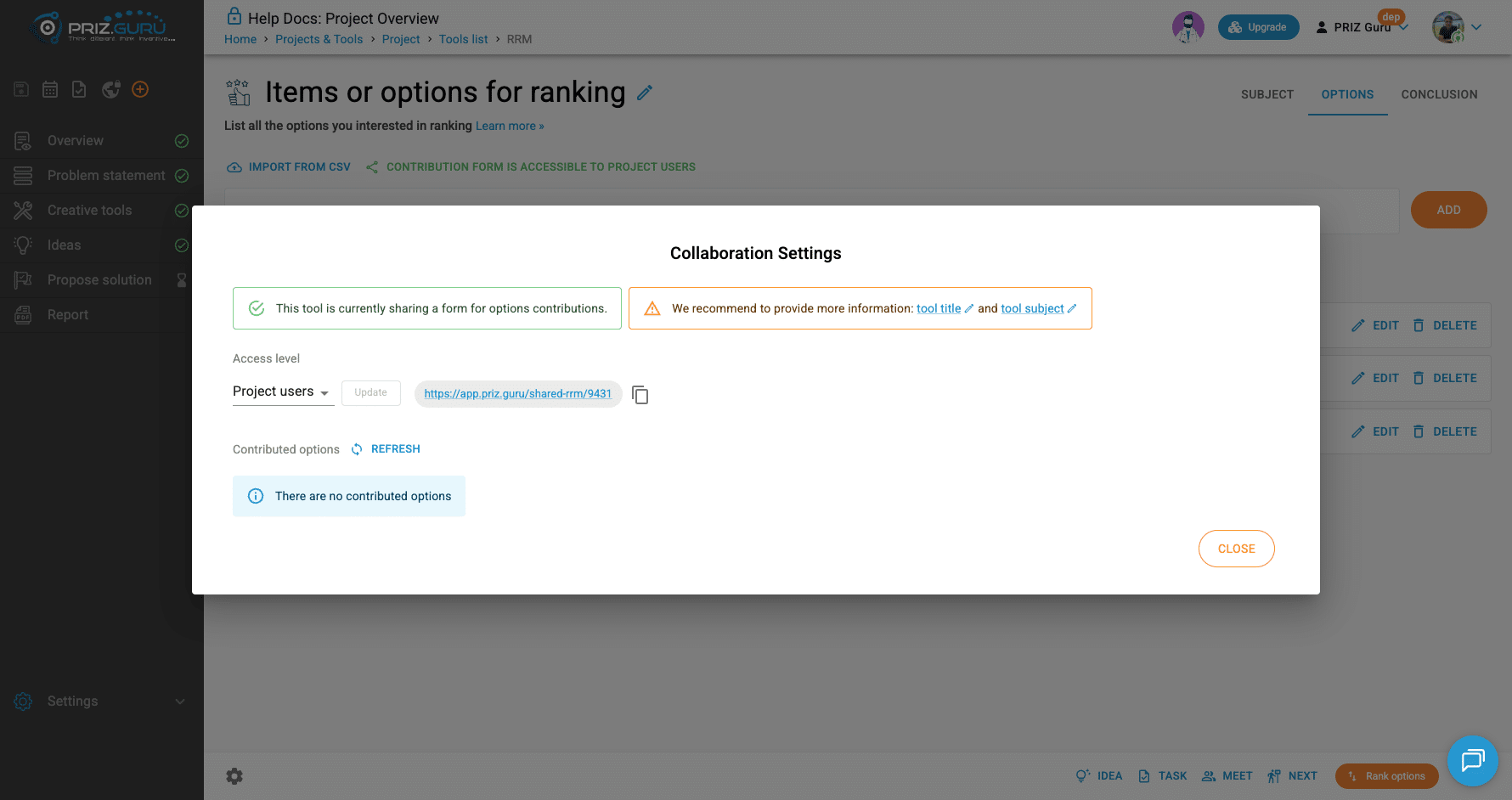
- Project users — people on this project. Button: Contribution form is accessible to project users.
After you share, the banner turns green: This tool is currently sharing a form for options contributions. A chip shows the URL: https://app.priz.guru/shared-rrm/{id}. Tooltip on the copy control: Copy link to clipboard. Send that link.
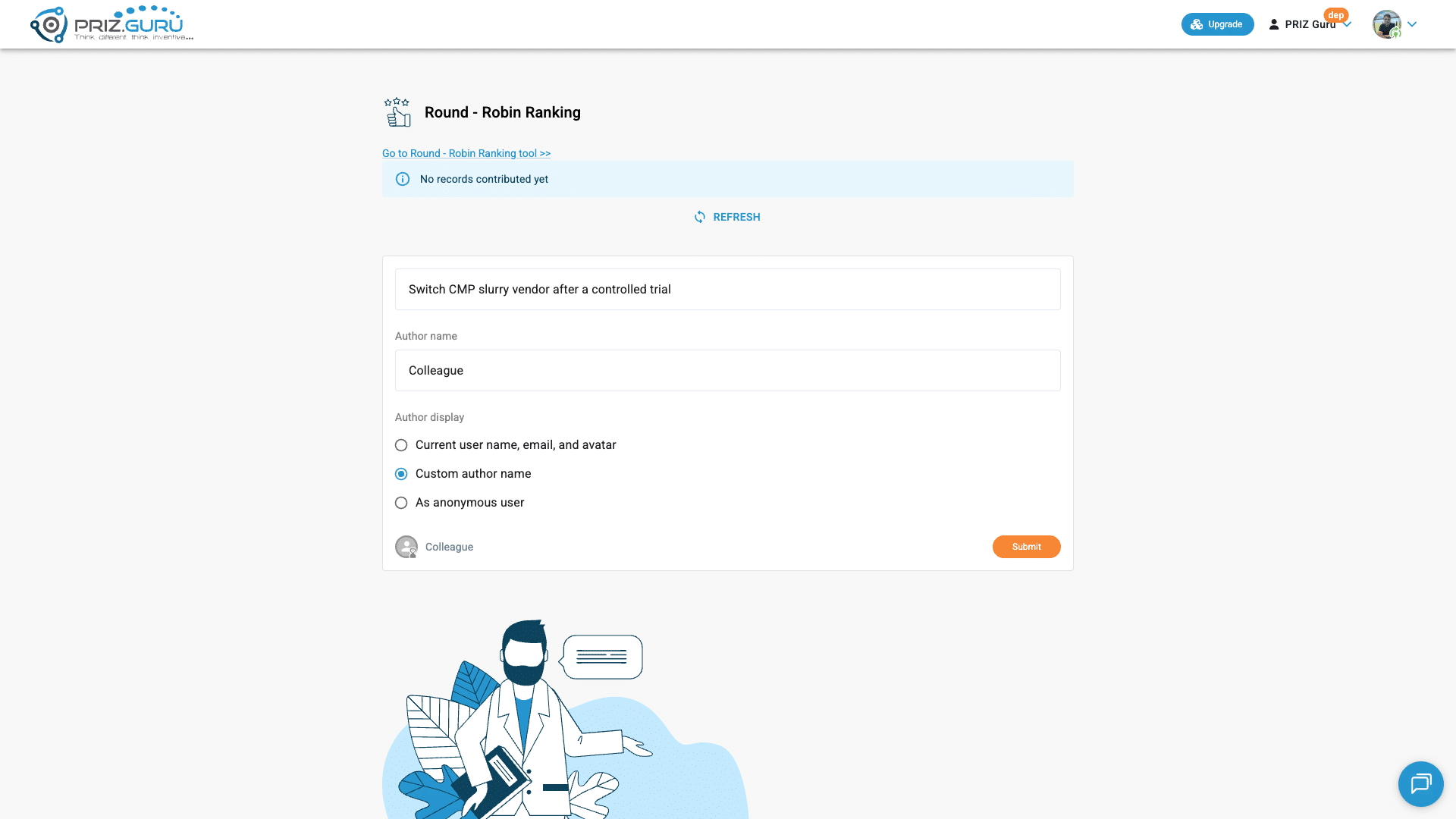
Contributors land on a page titled Round – Robin Ranking (or your custom tool title). Project-level sharing also shows Go to Round – Robin Ranking tool >> for people who can open the session. If they cannot access the form, they see Page not found or access denied.
On the form:
- Type the option, then Submit.
- Author display — Current user name, email, and avatar (needs login), Custom author name, or As anonymous user.
- Custom author name adds an Author name field. Use a first name or a role, not an email.
- If send fails: Message failed to send. Please try again.
The tool owner also sees No records contributed yet and a refresh control on that page until the first submit.
Back in Collaboration Settings, under Contributed options, click Refresh (tooltip: Refresh contributed options) if the list is stale. Empty state: There are no contributed options.
Each pending line has Accept (check) and Reject (X). The info control shows Email and Date. A badge on the share button counts pending lines. The Options tab polls about every 20 seconds while the form is shared.
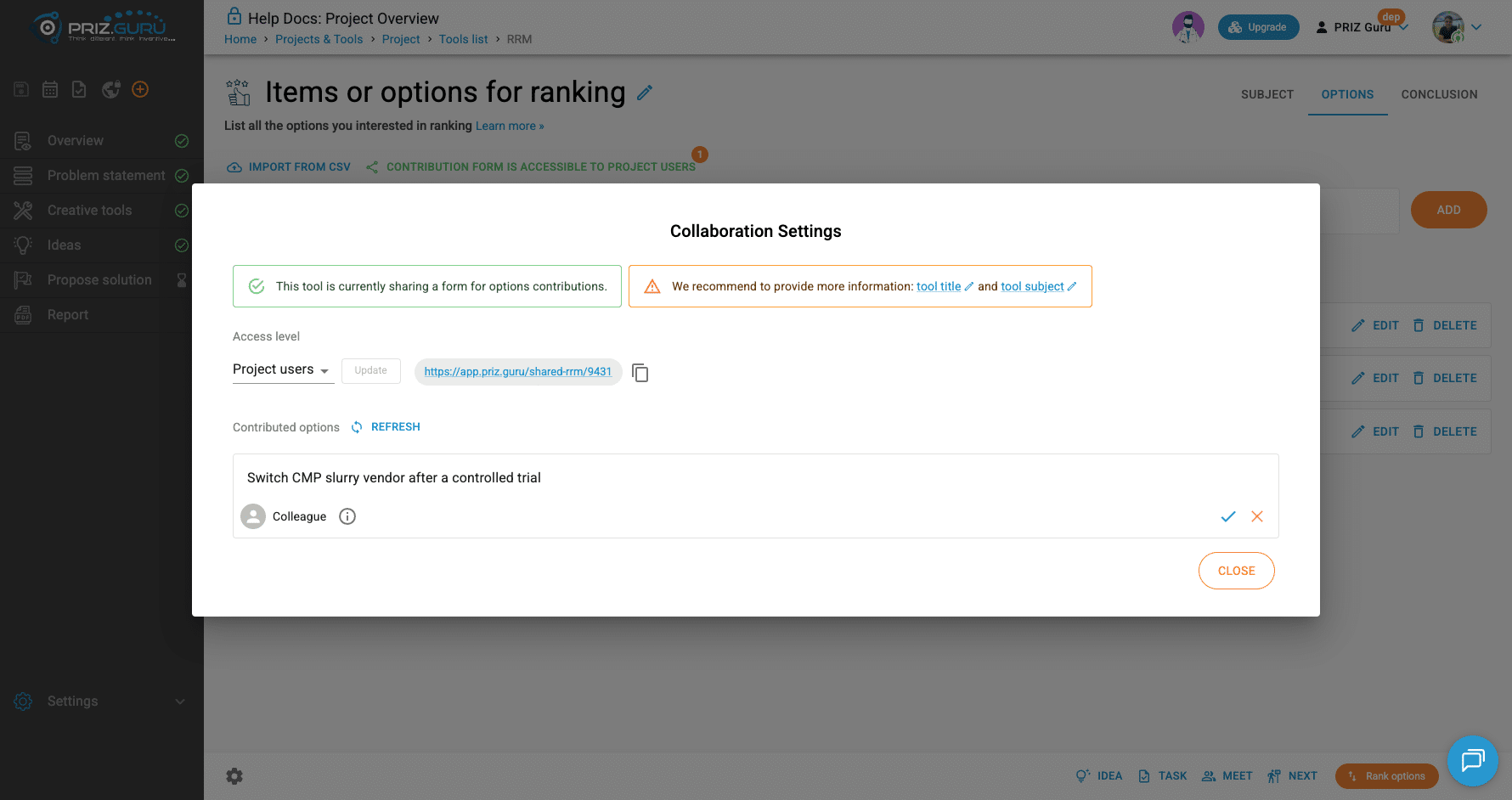
After Accept, the option appears under Options in this session. Rank it with the rest when you have at least three. To stop collecting, set Access level back to Not accessible and click Update.
Full ranking or Smart ranking
Click Rank options. Dialog title: Choose Ranking Method.
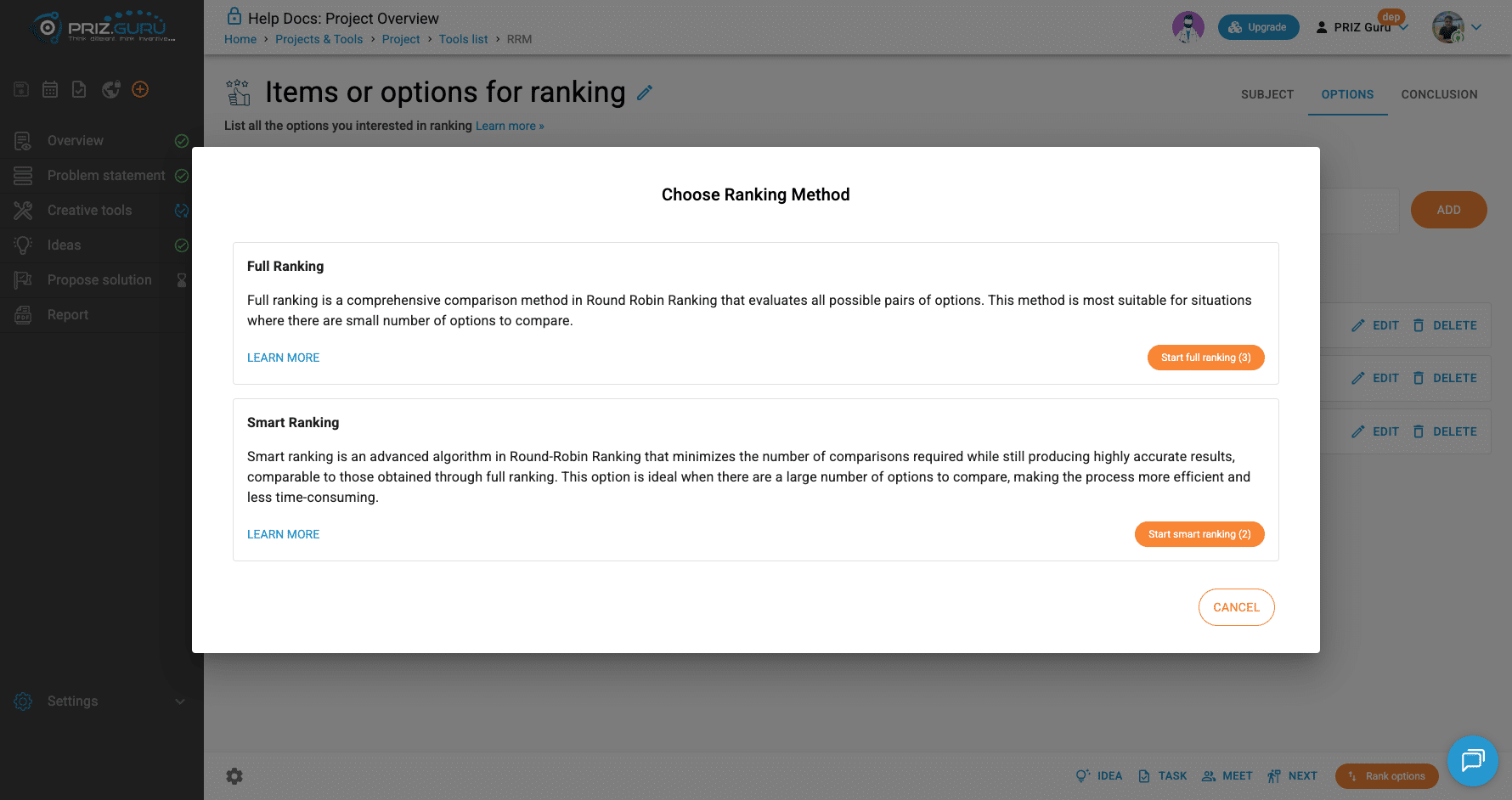
Full Ranking — every possible pair. Best when the list is short. Button: Start full ranking (N), where N = n×(n−1)/2. Three options → (3).
Smart Ranking — fewer pairs, still a usable order. Better for a long list. Button: Start smart ranking (N), where N = n−1. Three options → (2). Tooltip: Comparisons count: N.
Learn more on each card points to a dedicated Full / Smart article. Cancel closes the dialog without starting.
Compare pairs
Heading: Ranking the options. Progress: Completed X of Y pairs. Two cards. Click select on the one you prefer — the button becomes selected. Then Save & Next. On the last pair, that button is Save & See Results.
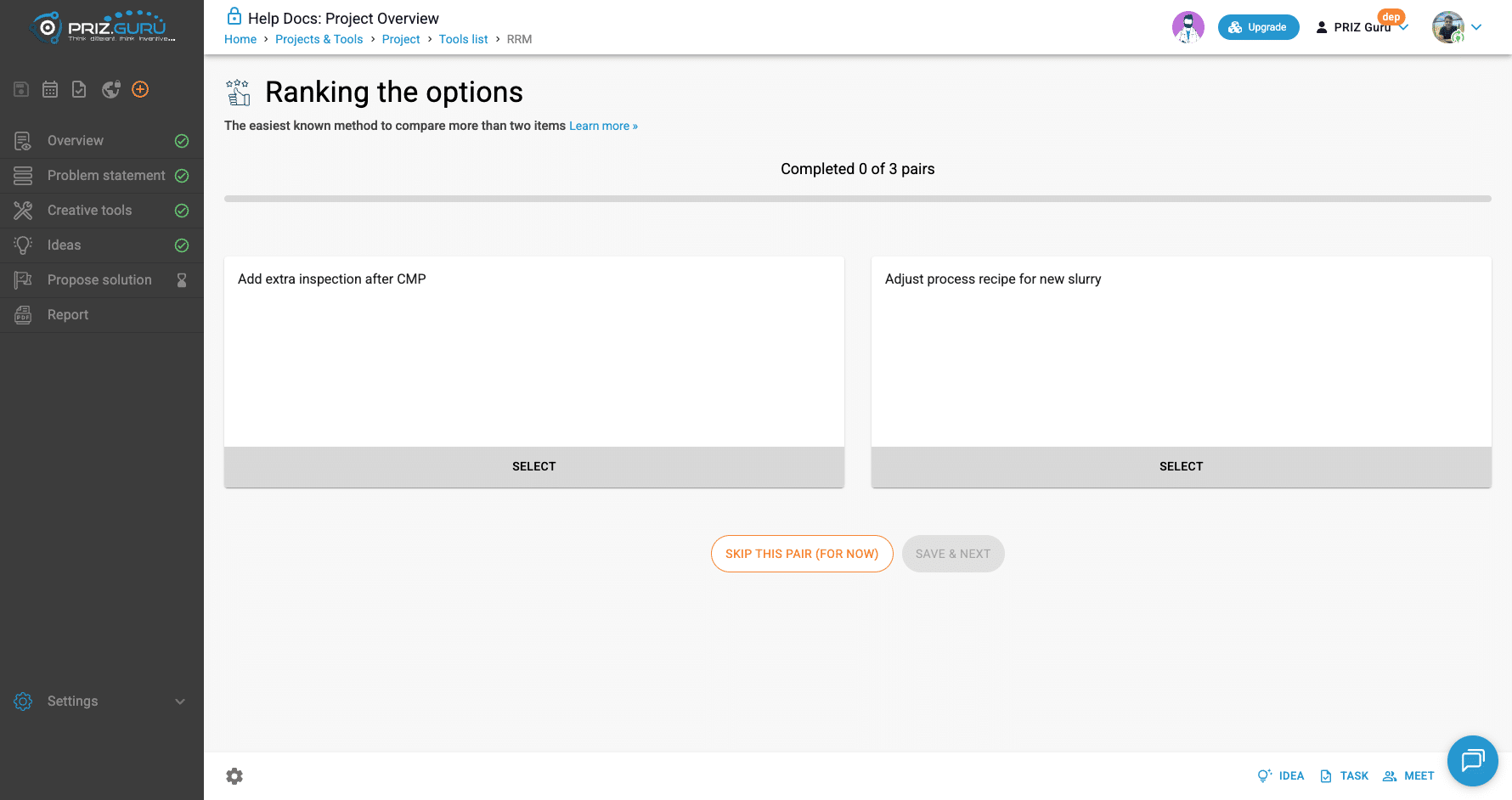
Skip this pair (for now) leaves that pair for later (in Smart ranking, skip is recorded by the algorithm). You cannot skip the last remaining pair.
Results
In a standalone RRM session, you return to Options. Each option shows a rank number (higher is better). The list is sorted by that score. You can still edit, delete, add, or click Rank options again.
If you ranked Ideas, Tasks, or items inside another tool, you land on Ranking summary instead — a table of Option and Rank. From Ideas, you get Back to ideas manager; from Tasks, Back to tasks manager.
Ranking from Ideas, Tasks, and other tools
Same Full / Smart dialog. You do not type options — PRIZ uses the records already on that page.
- Ideas Management — Rank all ideas when you have more than two ideas. Session title: Ranking your ideas.
- Task Manager — ranking for project tasks when there are enough tasks.
- Also: 5 Whys (root causes), Urgency–Importance Matrix tasks, Effective Brainstorming, Perception mapping.
Those ranking sessions show on Creative tools as their own RRM uses. The Ideas / Tasks pages keep showing the latest score on each card.
Tips
- Write options as decisions you could actually take, not vague themes.
- Use Full ranking for a handful of options; use Smart ranking when the pair count would drag on.
- Do not skip every hard pair — the rank is only as honest as the comparisons you complete.
- After the scores appear, capture why the top option won in Conclusion.
- Fill tool title and Subject before you share the form, so contributors are not guessing the question.
- Prefer Project users or Workspace users over Open for everyone unless you truly want a public link.
That’s it. I hope it’s clear and easy.
P.S. Please let us know if you require any assistance.