

The PRIZ Innovation Platform organizes all work into projects, whether a project takes five minutes or five months. Keeping related content in one project keeps the investigation together: context, problem, tools, ideas, tasks, meetings, and the report.
In PRIZ, projects follow a standard structure. We recommend working in the order of the left menu, but you can open any area at any time. The sidebar is not locked. Hourglass and check icons show progress, not permission.
This article is the map of a project, not a walkthrough of every field. We’ll show where each area sits, what it is for, and how the pieces connect. How to fill in Overview, write a problem statement, pick tools, or manage ideas belongs on those dedicated pages. Empty screenshots are enough here, because the layout is the same before you add content.
Sign Up & Login
This document assumes you have already registered and logged in, and that you have created a project. If you need help with those steps, see Sign Up & Login Instructions and Creating Projects.
After you click Launch, PRIZ opens the new project on Overview.
The project workspace at a glance
A typical project has four bands:
- The left sidebar — shortcut icons, the workflow stages, and Settings.
- The header — project title, private/public lock, breadcrumbs, Guides, AI Assistant, workspace, and Upgrade.
- The main page — the stage you are on, sometimes with a guidance panel on the right.
- The footer — Idea, Task, Meet, and Next (and Back on later stages).
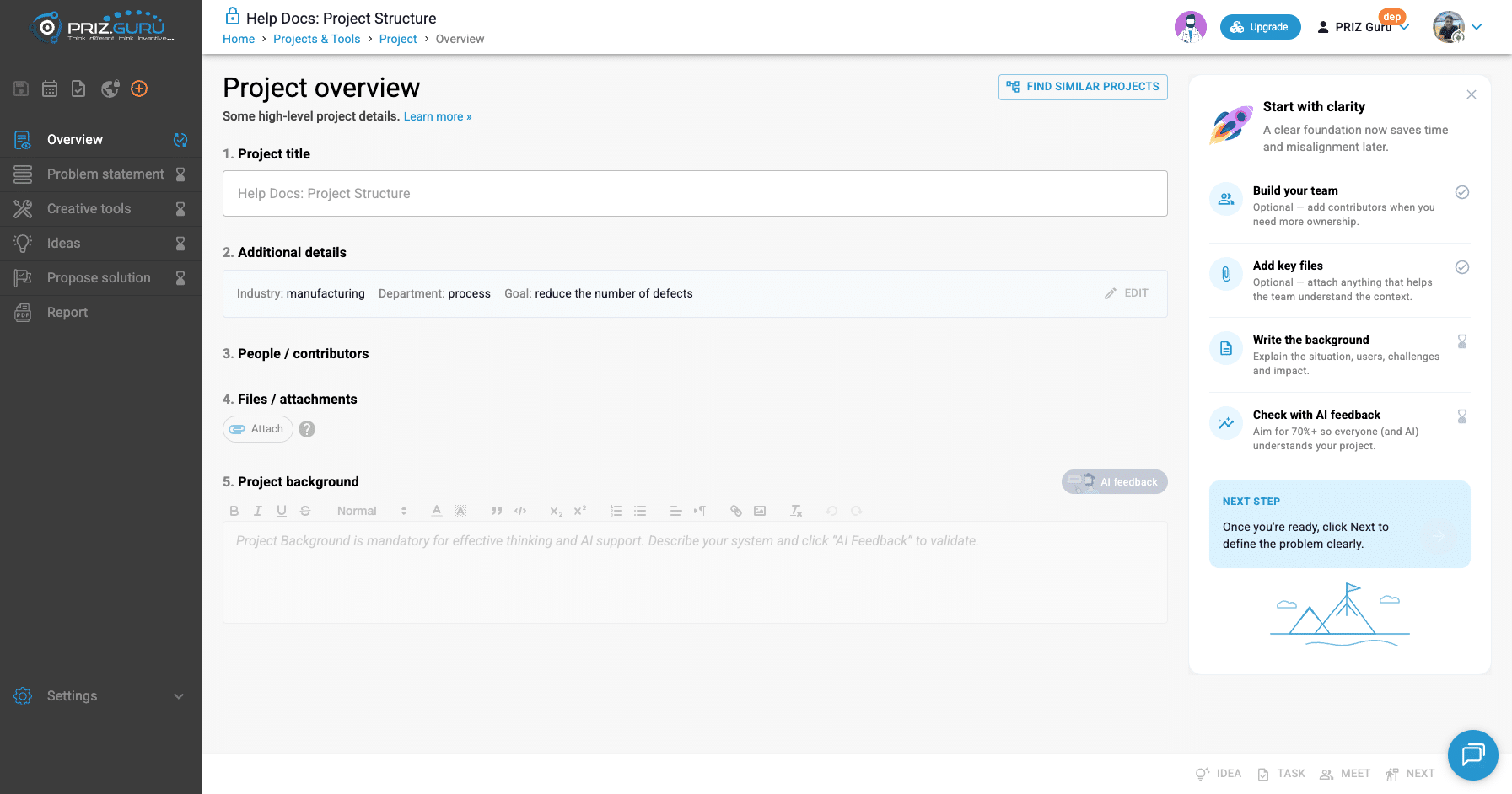
Left sidebar
The suggested flow of any project is the order of the left menu:
- Overview — gather preliminary information about the challenge and the problem space. Details: Project Overview.
- Problem statement — identify the correct problem to solve, so you do not spend time on a symptom. Details: Problem Statement.
- Creative tools — the core of PRIZ. These thinking tools push you past previous experience. Details: Creative tools.
- Ideas — collect the ideas you and your team generate while you work. Details: Ideas Management.
- Propose solution — document the solution. It is rarely one idea; it is often a blend.
- Report — generate a project report instead of writing it from scratch.
Each stage except Report can show a progress icon: an hourglass while that stage is still waiting, and a check when it is complete. You can still click a stage with an hourglass. Nothing in this menu is disabled.
Shortcut icons
Above the stage list is a row of icons. Left to right:
- Saving indicator — whether the project is saving or fully saved.
- Meetings — the meeting manager for this project.
- Tasks — the task manager for this project. Details: Task Manager.
- Publish — share the project on PRIZ Hub when you have permission. The lock tooltip reads Project is private until you publish.
- Quick create (+) — create a new task, record a new idea, or start a new tool without leaving the page.
Meetings, tasks, and publish are part of the project, but they sit beside the main investigation flow rather than in the numbered sequence.
Settings
At the bottom of the sidebar, Settings opens:
- Define project type or Change project type, when templates are enabled for the workspace.
- Archive Project (or Unarchive Project), on paid plans when you have permission.
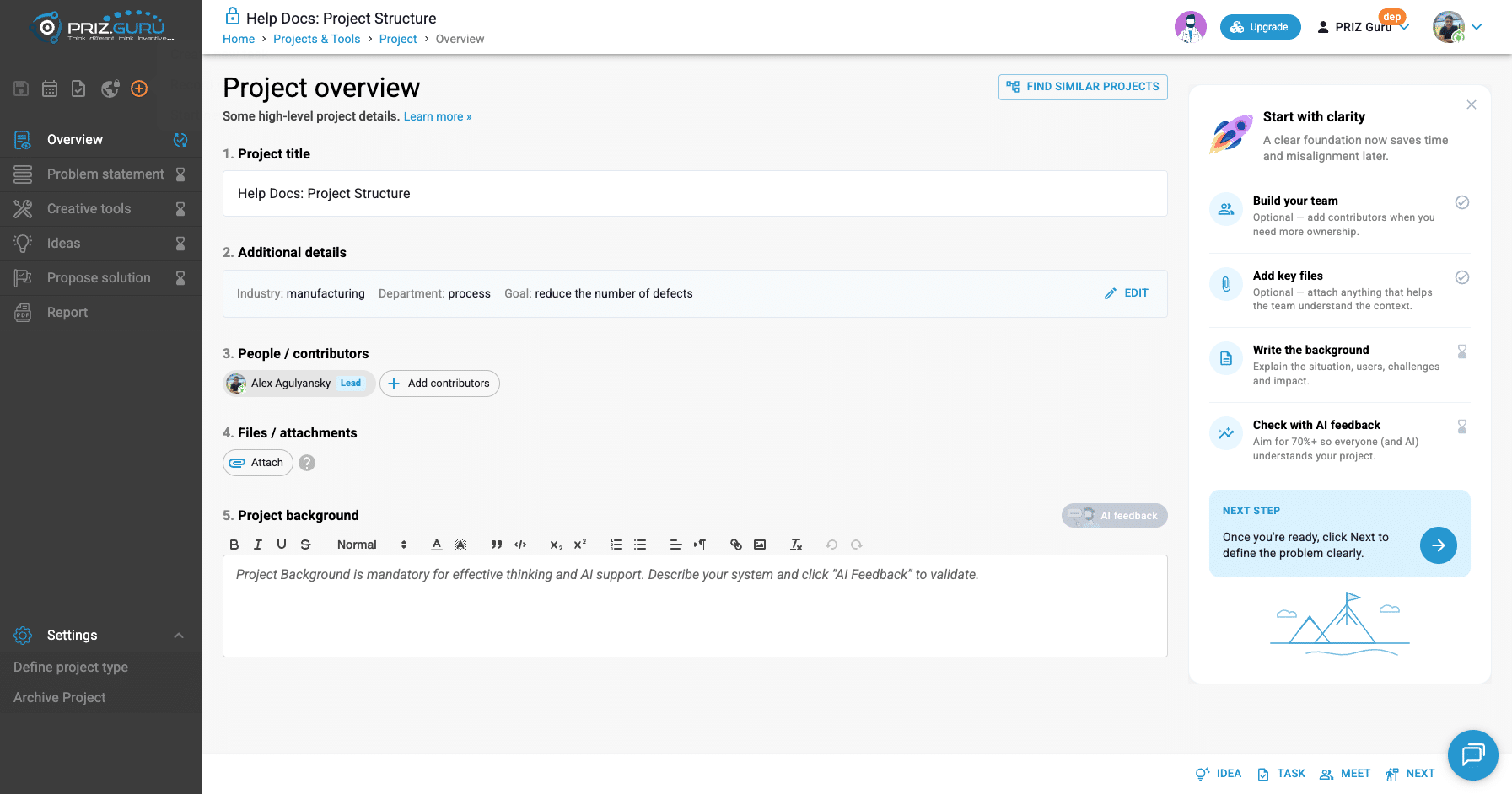
There is no Complete Project item in the current menu. When work is finished, you archive the project, or follow a certification flow if your workspace uses that. Archived, finalized, or certified projects show a read-only banner instead of remaining editable.
Overview
Overview is where you collect high-level context. The page title is Project overview. The subtitle is Some high-level project details.
The page is numbered:
- Project title
- Additional details — industry, department, and goal from project creation. Click Edit to change them.
- People / contributors — optional. Click Add contributors.
- Files / attachments — optional. Click Attach.
- Project background — required for effective thinking and AI support. Write the situation, then use AI feedback.
On the right, Start with clarity is a checklist, not a blocker. Team and files are optional. Background and AI feedback are the items that move Overview forward. When you are ready, click Next to define the problem.
If similar-project search is enabled, Find similar projects is also on this page.
How to fill in this page is in Project Overview. Creating the project itself is in Creating Projects.
Problem statement
The sidebar label is Problem statement. The page heading is Goal, Gaps and Problem to solve. Identifying the correct problem is one of the most important steps. Without it, you risk spending time and money on the wrong thing.
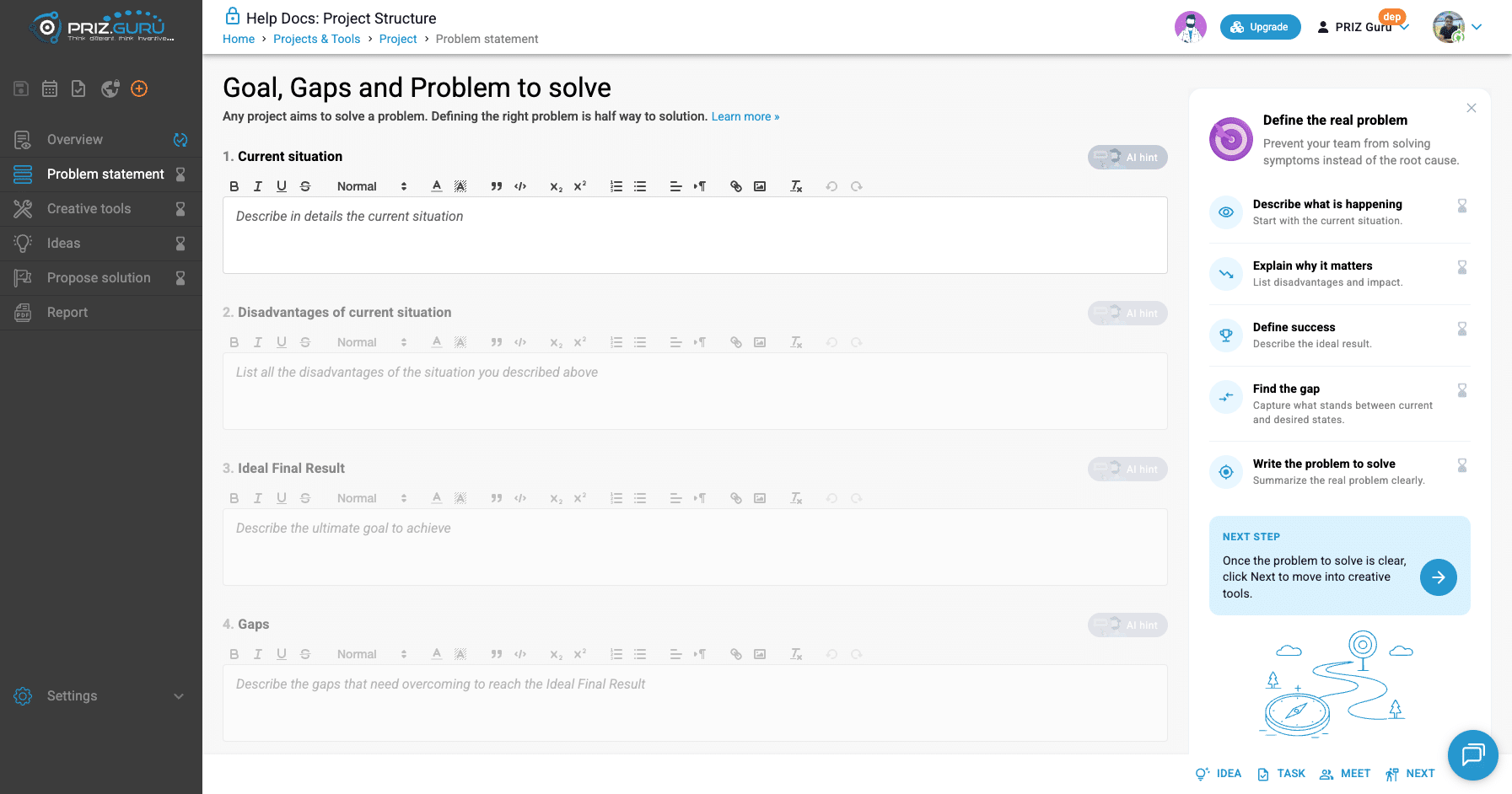
Later sections stay inactive until the previous one has content. AI hints also need a project background in Overview first. Click Next when the problem to solve is clear, and PRIZ takes you to Creative tools.
How to write each section is in Problem Statement. This article only shows where it sits in the project.
Creative tools
Creative tools are the core of the platform and the second crucial phase of the work. The page reminds you that we all think under psychological inertia, and that these tools help you analyze, question, and generate ideas beyond previous experience.
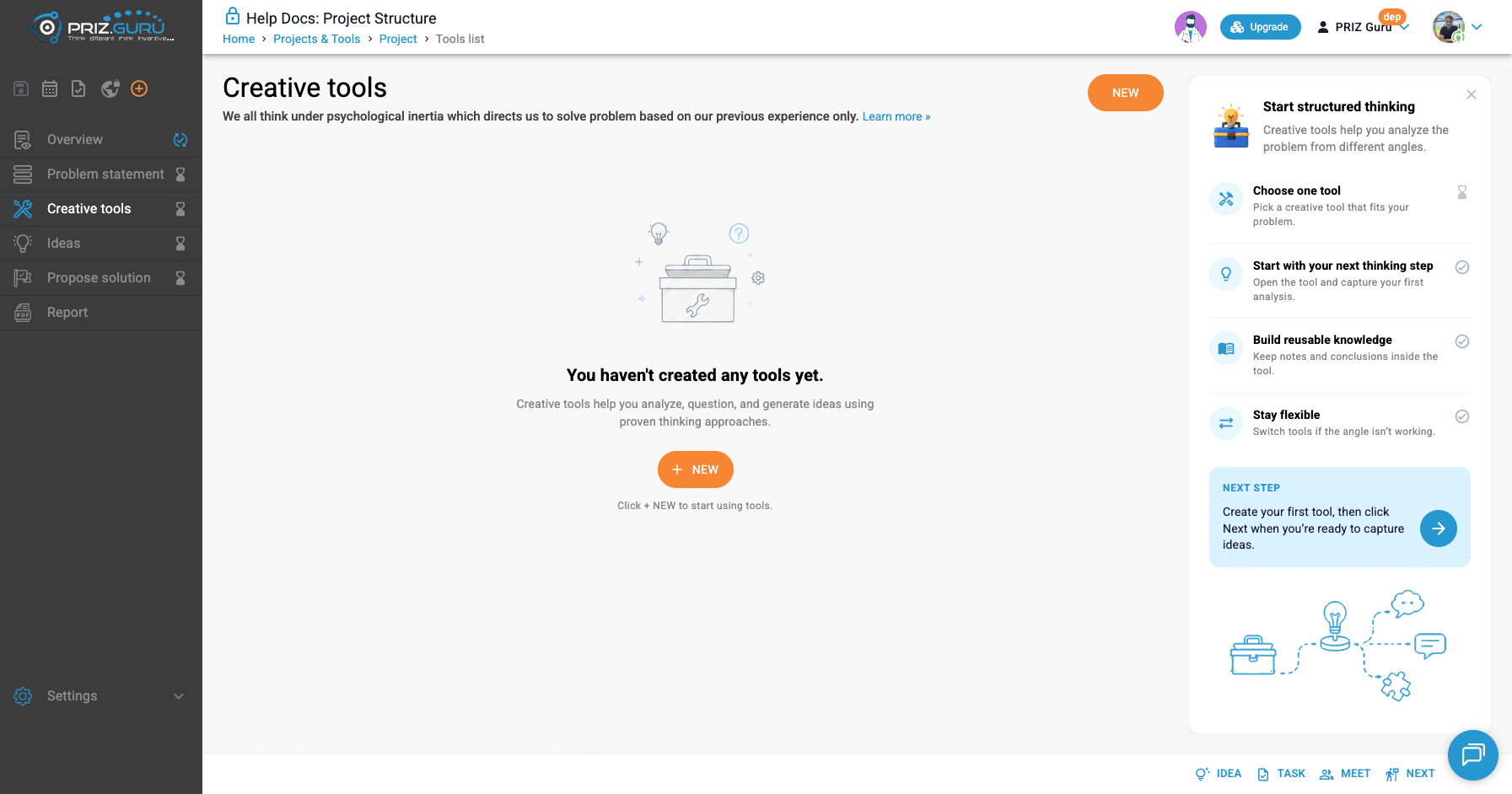
Click New and choose a tool. After you have tools, the guidance panel switches to helping you build on the analysis and move insights into Ideas. Click Next when you are ready to capture ideas.
How to choose and use tools is in Creative tools. Each individual tool also has its own article.
Ideas
As you use tools, you and your team generate ideas. They are collected here. The page heading is Collection of your generated ideas.
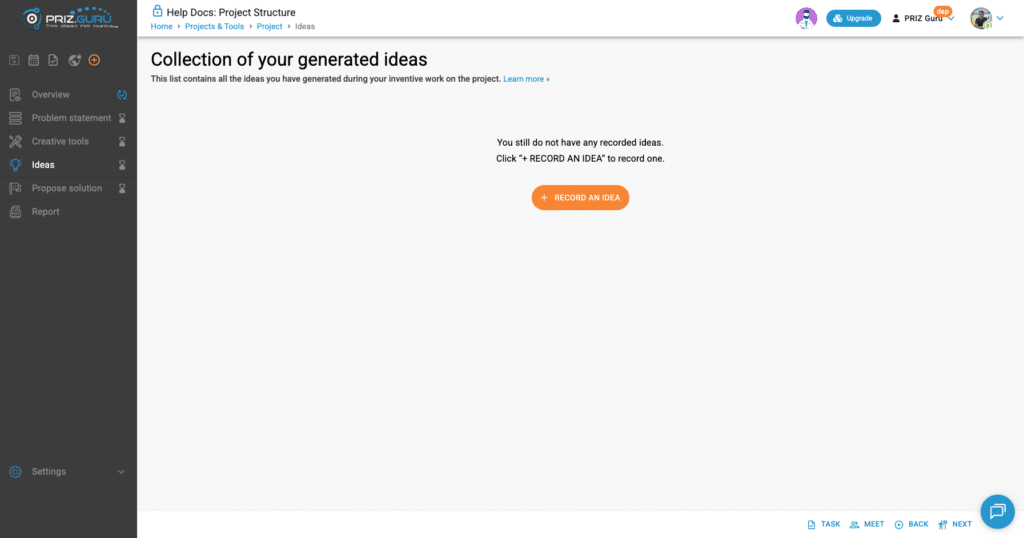
You can also record an idea from the footer Idea button or from the + menu, from most stages. When you have several ideas, you can rank them and select a winning idea. That is what turns the Ideas progress icon to complete.
On this page the footer shows Task, Meet, Back, and Next. Next goes to Propose solution.
How to add, rank, and mark winning ideas is in Ideas Management.
Propose solution
The final solution is rarely a single idea. More often it is a blend. This page is where you write that solution down.
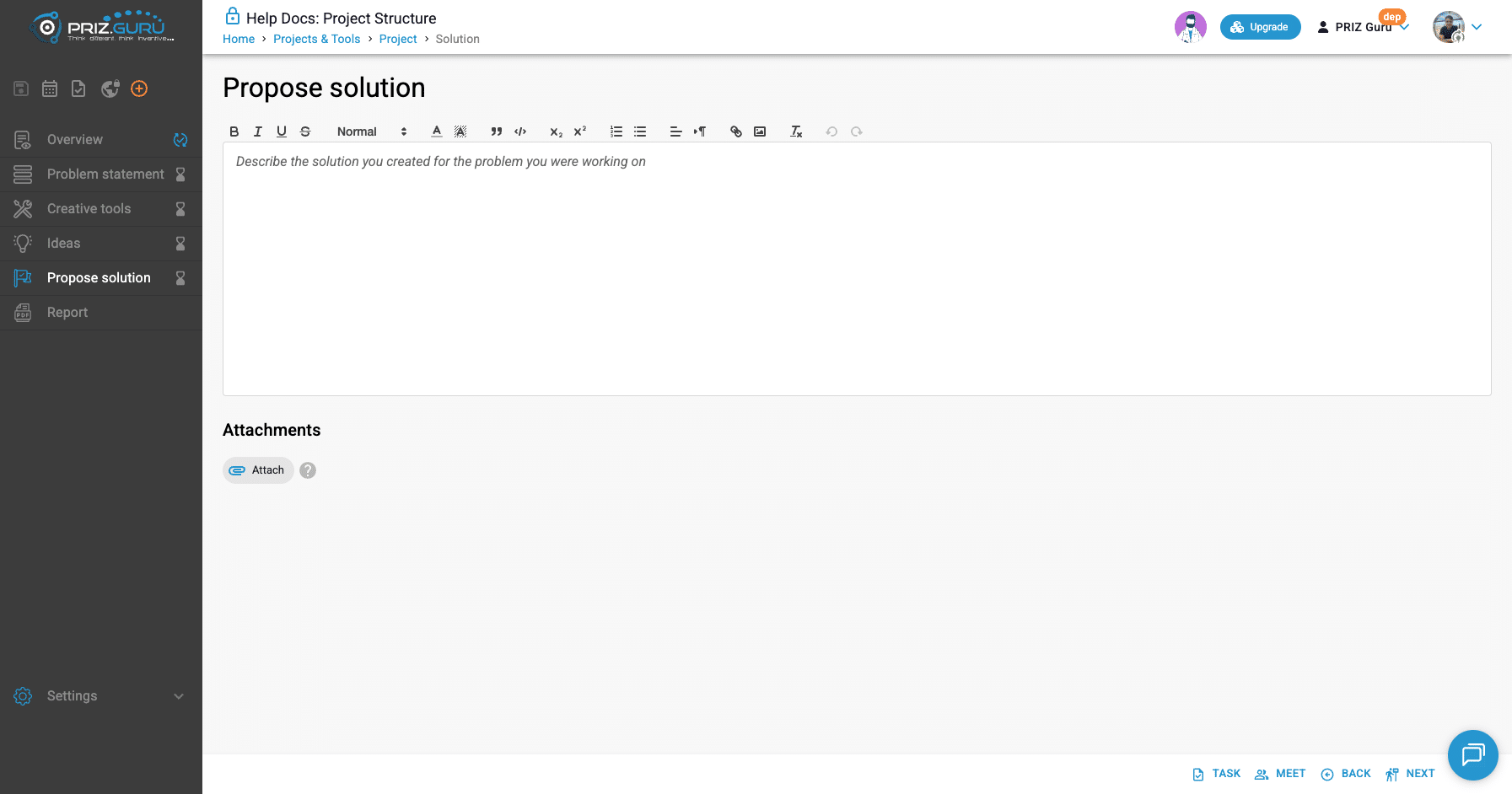
The breadcrumb for this page says Solution. The sidebar still says Propose solution. Click Next to go to Report.
How to write and attach the solution will live in a dedicated Propose solution article. This page only shows where it sits.
Report
Creating the final report is often the least exciting part of the work. PRIZ automates it. Open Report, and the Document configurator lets you choose what to include: title page, description, problem statement, tools, ideas, tasks, meetings, and the proposed solution.
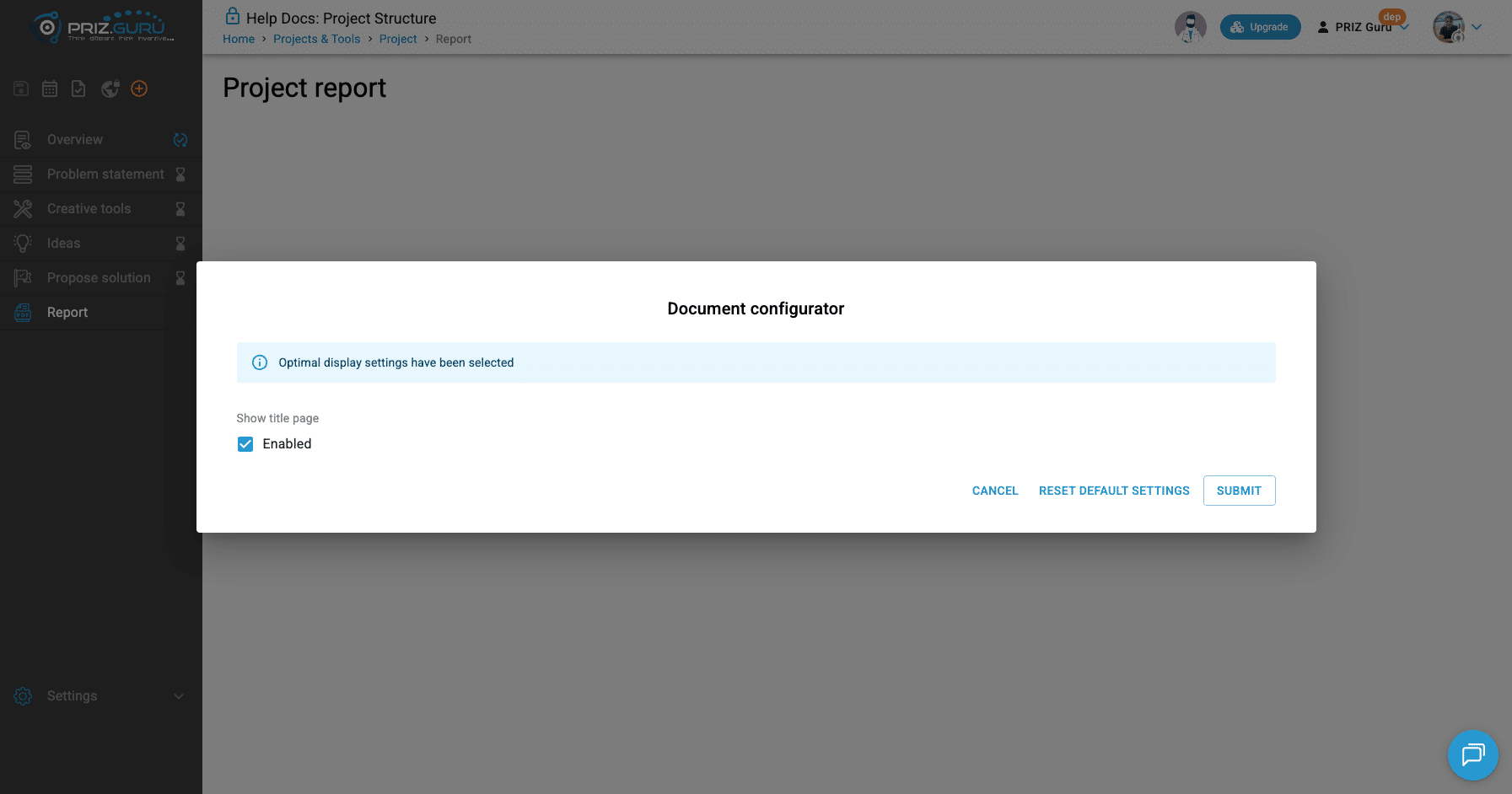
Report has no Idea / Task / Meet / Next footer. Treat it as an export destination, not another investigation step. How to configure and print the document will live in a dedicated Report article.
Tasks and meetings
Tasks and meetings live in the shortcut row, not in the stage list. They still belong to the same project.
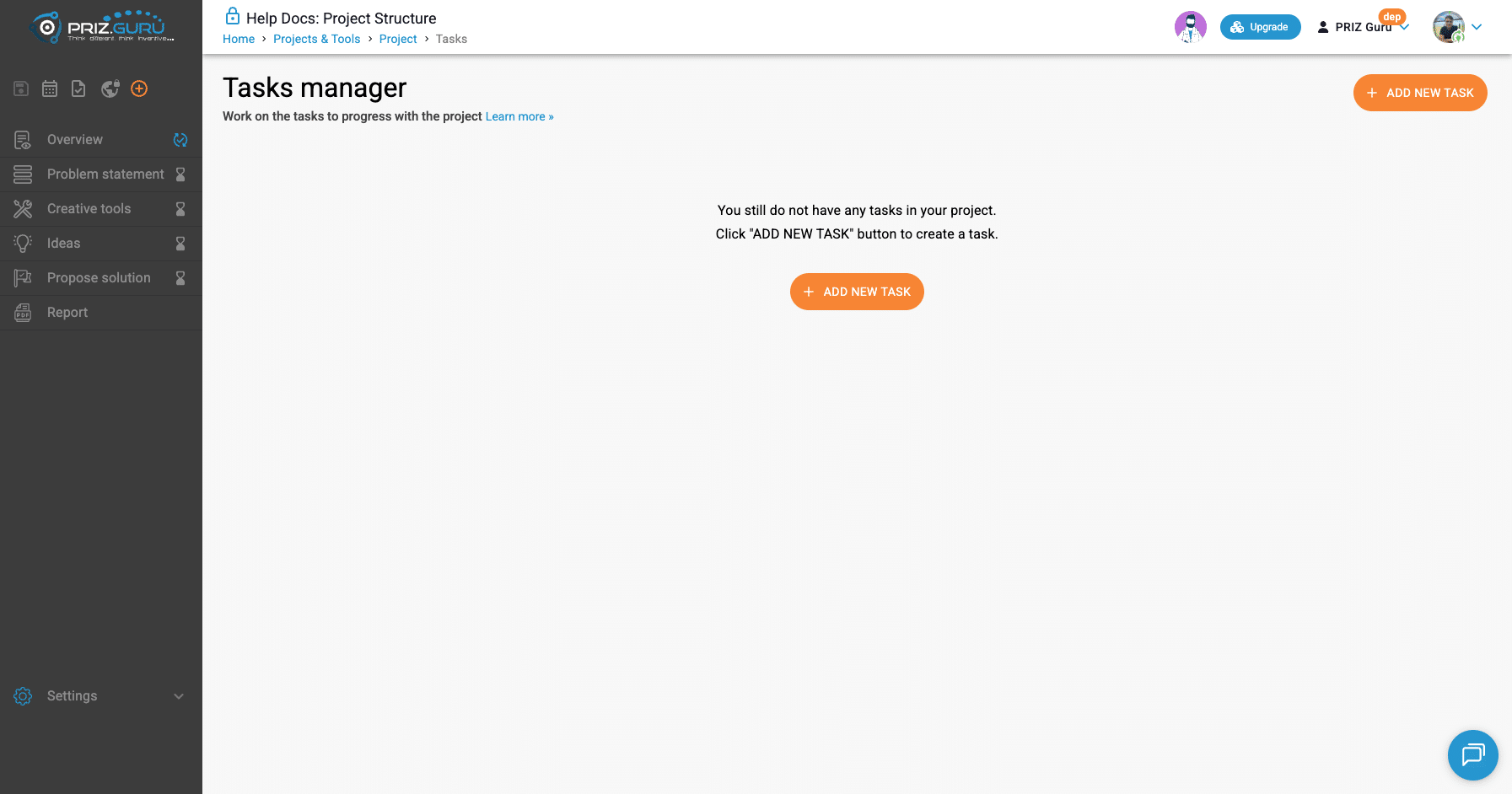
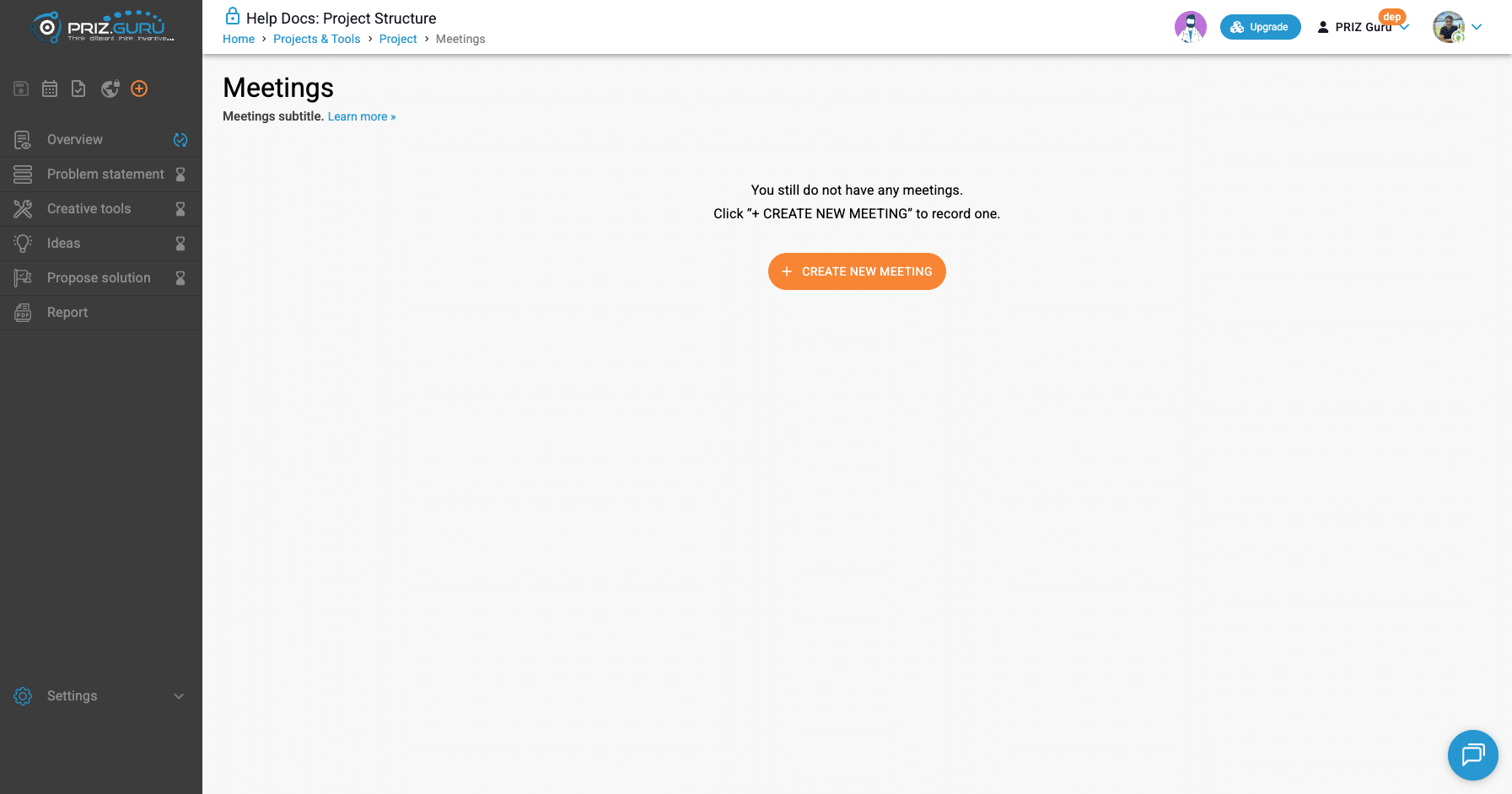
You can also create a task or schedule a meeting from the footer on Overview, Problem statement, Creative tools, Ideas, and Propose solution. How to run the task list is in Task Manager.
Footer actions
On the investigation stages, the footer follows the suggested sequence:
- Overview — Idea, Task, Meet, Next (to Problem statement).
- Problem statement — Idea, Task, Meet, Next (to Creative tools).
- Creative tools — Idea, Task, Meet, Next (to Ideas).
- Ideas — Task, Meet, Back, Next (to Propose solution).
- Propose solution — Task, Meet, Back, Next (to Report).
Use Next when you want the suggested order. Use the left menu when you need to jump. Both are valid.
Tips
- Write the project background on Overview before you lean on Problem statement AI hints.
- Hourglasses mean “not complete yet,” not “you cannot go there.”
- If you already have messy notes, start with Shape Investigation and convert a candidate into a project. The structure after that is the same.
- Archive when the work is done. That is the current replacement for Complete Project.
That’s it. I hope it’s clear and easy.
P.S. Please let us know if you require any assistance.